User Management
Administrators can manage users and user groups through the platform's administration interface at 4cme.4cgroup.net/users.
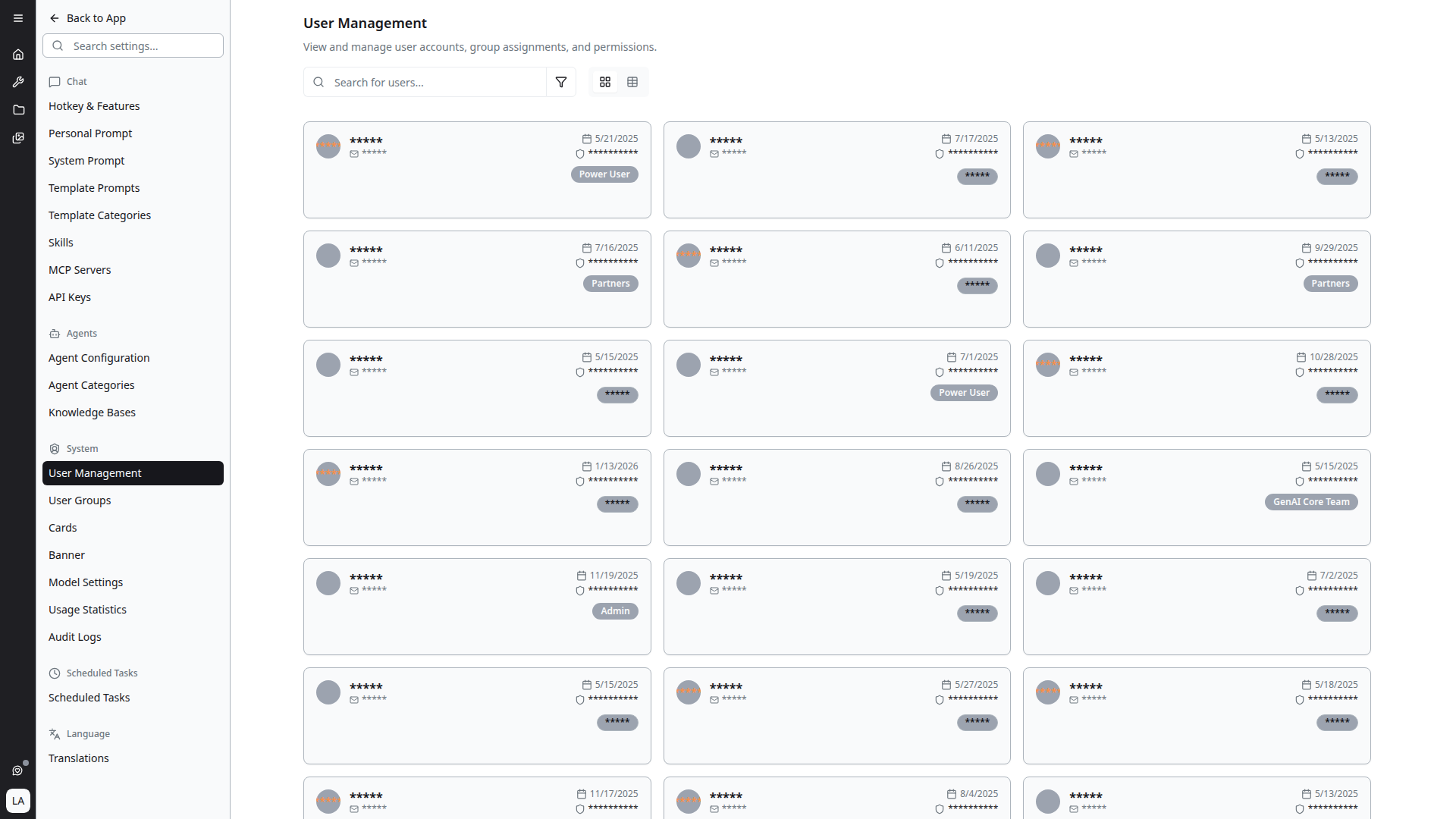
User Directory
The user management page displays users in a card grid layout. Each user card shows:
- Avatar — User's profile picture or initials
- Name — Full name of the user
- Email — Organization email address
- Permissions count — Number of permissions assigned (e.g., "7 permissions")
- Group assignments — Groups the user belongs to (e.g., Admin, Power User, Partners)
- Status badge — Active or Inactive indicator
User Groups
User groups are managed from their own settings page: Settings → System → User Groups. Groups control access to tools, agents, models and features.
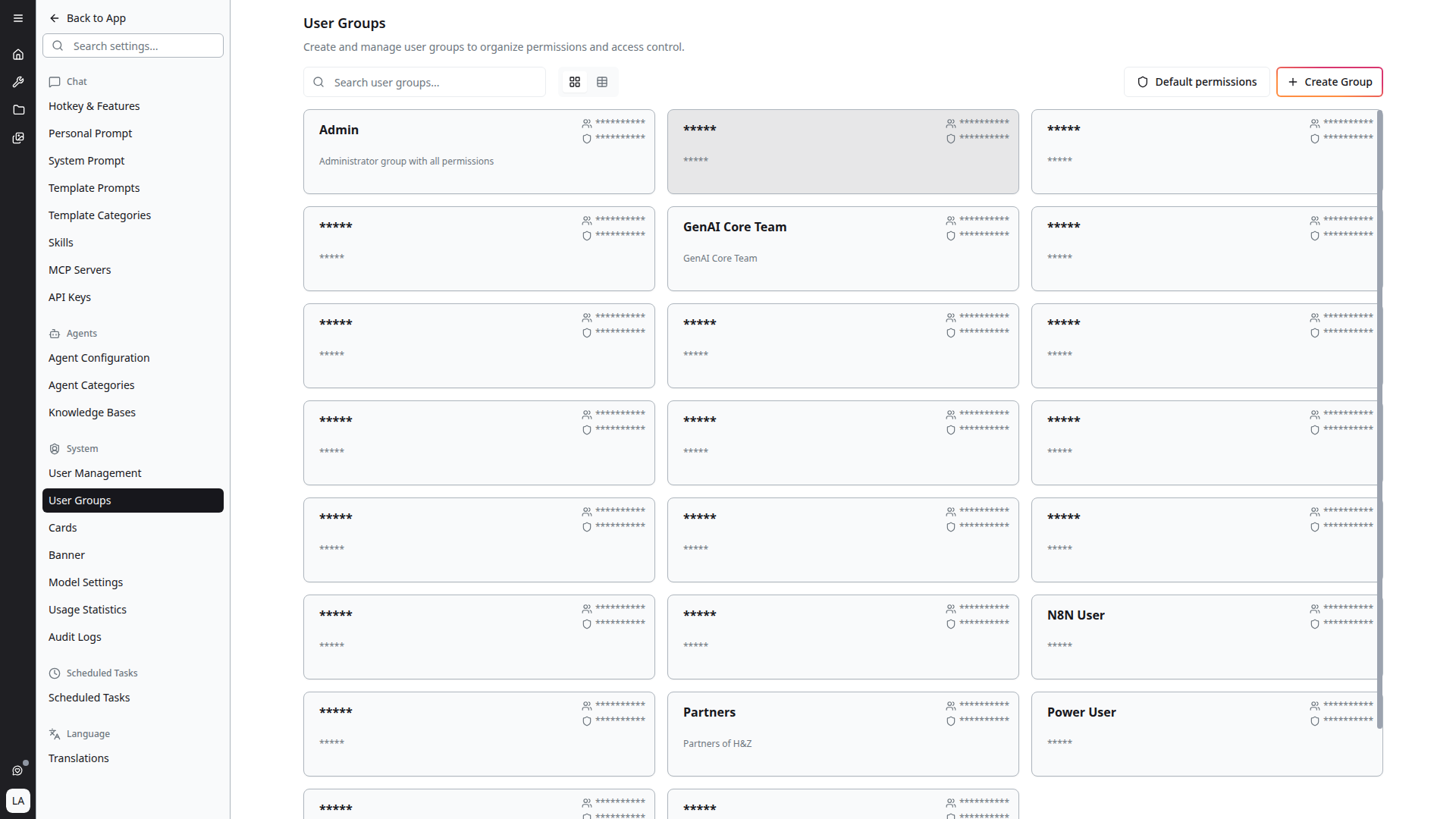
Group management used to be a dialog opened from a Groups button on this page. It is now a separate settings entry directly below User Management.
Available Groups
Groups are defined per deployment. A typical set includes:
- Admin — Full administrative access
- Power User — Extended access to tools and features
- Partners — Access for external partners
- Additional project- and customer-specific groups
Creating Groups
Administrators can create user groups and assign users to them.
Managing Group Members
- Add members — Assign users to groups
- Multi-remove support — Remove multiple users from a group at once
- The currently selected user group is highlighted in the management dialog for clarity
Permissions
User group management actions are conditionally rendered based on permissions:
- Only users with appropriate permissions see management controls
- Different permission levels control who can create, edit, or delete groups
- Group membership determines access to private agents and tools
What Groups Now Control
Groups have grown beyond tool access. A group also determines:
- Which AI models members can see and use — model visibility is set per group in Model Settings. A model hidden from a group does not appear in its members' model selector.
- Which knowledge bases members can use — see Access Control
- Whether members may add manual email recipients to scheduled tasks — see Task Scheduler
See Permissions for the full list.