LLM Management
The Model Settings tab lets administrators register, configure, and order the AI models available across the platform. Each entry maps a user-visible name to a provider-side deployment with credentials and limits.
Accessing Model Settings
Open Settings, scroll to the System section in the sidebar, and click Model Settings. Requires the system_settings.manage permission.
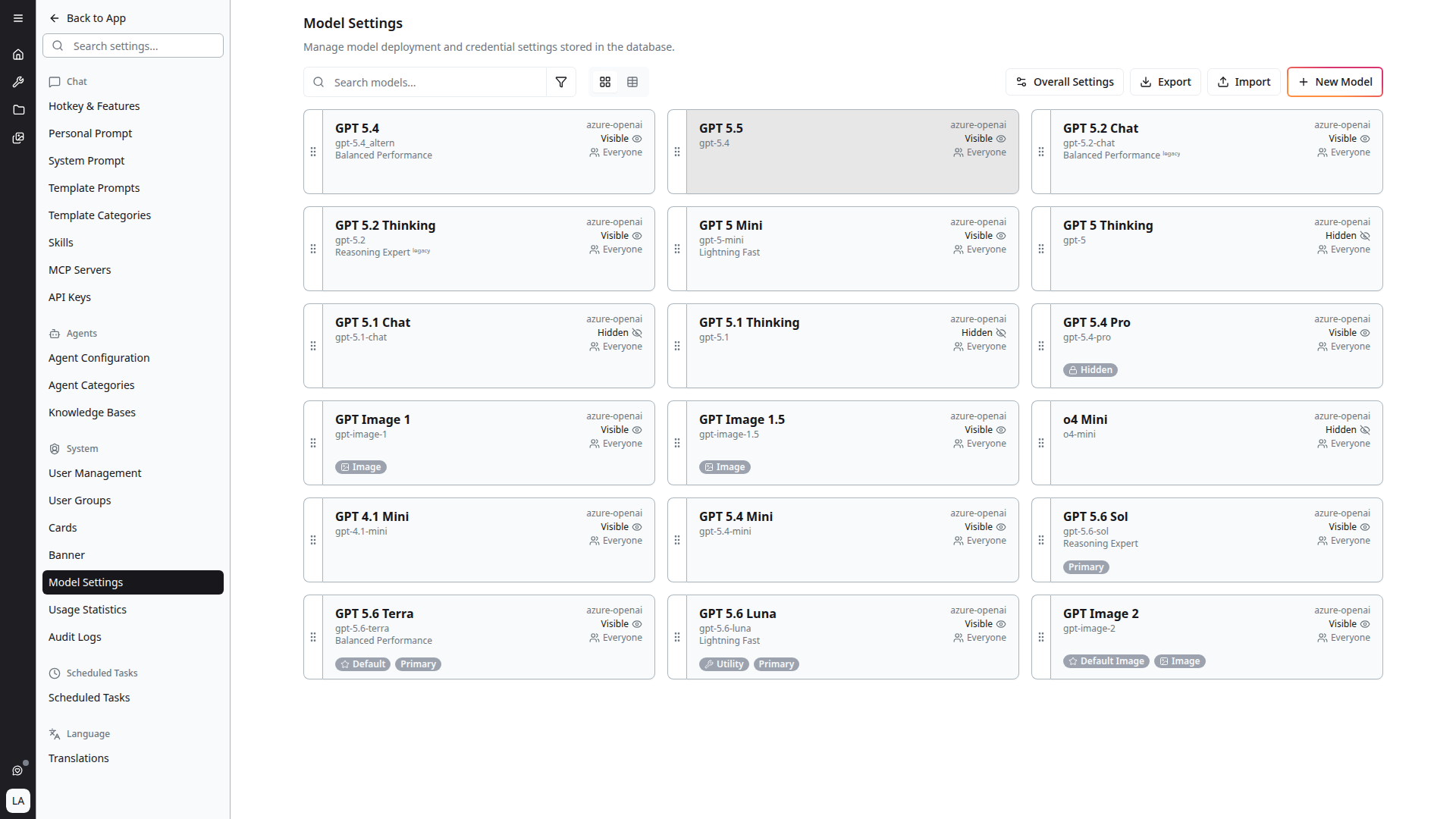
The page header reads "Manage model deployment and credential settings stored in the database."
Page Controls
Across the top of the page:
- Search models — filter by name or model ID
- Filter (funnel icon) — additional filters
- View toggle — switch between grid and table layouts
- Export — download the current model config as JSON
- Import — upload a config to restore settings or share between environments
- Overall Settings — global settings that apply to every model (see below)
- + New Model — open the create-model dialog
Overall Settings
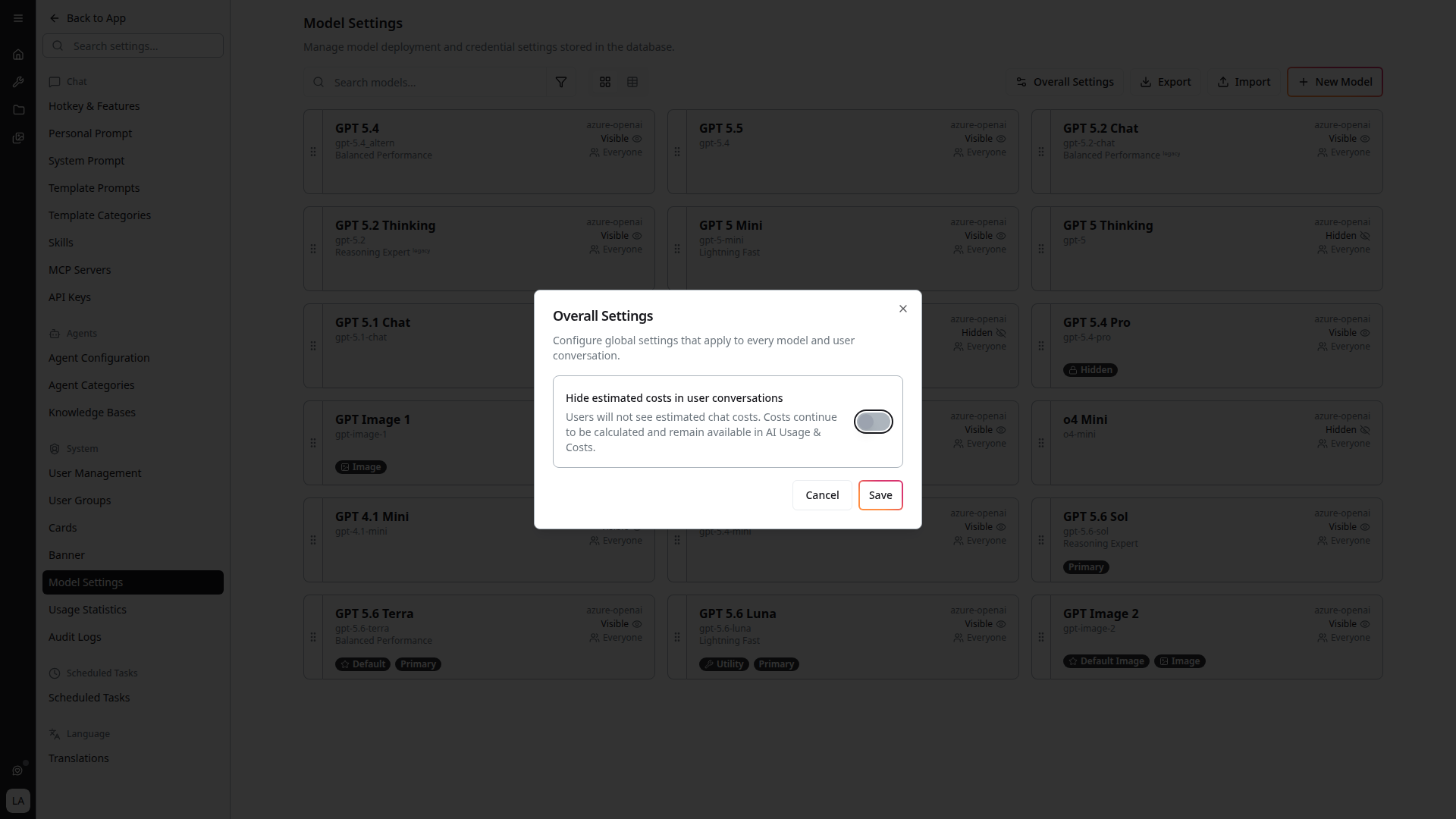
Overall Settings configures "global settings that apply to every model and user conversation" — the things that are not per-model.
Hide estimated costs in user conversations
Turn this on and "users will not see estimated chat costs. Costs continue to be calculated and remain available in AI Usage & Costs."
This is the control to use when you want cost visibility for administrators without putting a running total in front of every user. It changes only what is displayed in conversations — nothing about measurement, attribution or reporting changes.
See Cost Monitoring.
Model Cards
Each model appears as a card with:
- A drag handle on the left for reordering
- Display name (e.g. "GPT 5.5", "DeepSeek R1", "GPT Image 1.5", "Grok-3")
- Model ID below the name — the provider-side deployment identifier (e.g.
gpt-5.4,deepseek-r1,gpt-image-1,grok-3) - Provider tag in the top-right (e.g.
azure-openai,azure-deepseek,azure-xai) - Visibility indicator next to the provider tag —
Visible(eye icon) orHidden(eye-strike icon) - Audience summary — either everyone or the number of user groups that can use the model
- Optional category label under the model ID — short descriptors like "Balanced Performance", "Reasoning Expert" (with a
legacytag where applicable), or "Lightning Fast" that surface to users in the model selector - Optional status badges at the bottom of the card:
- Default / Default Image — the default selection for new chats / new image generation
- Primary — the recommended choice within its tier
- Variants (N) — number of attached variants (e.g. different reasoning-effort builds of the same base model)
- Utility — used for internal jobs like title generation, not exposed in the chat selector
- Image — image-generation model
- Hidden (with a lock icon) — explicitly hidden from non-admin users
Cards are reordered by dragging — the order shown here is the order users see in the chat model selector.
Adding or Editing a Model
Click + New Model (or click an existing card to edit) to open the model dialog. The same form is used for create and edit — the header reads "Create New Model" with the subtitle "Configure a new model with full connection settings and capabilities."
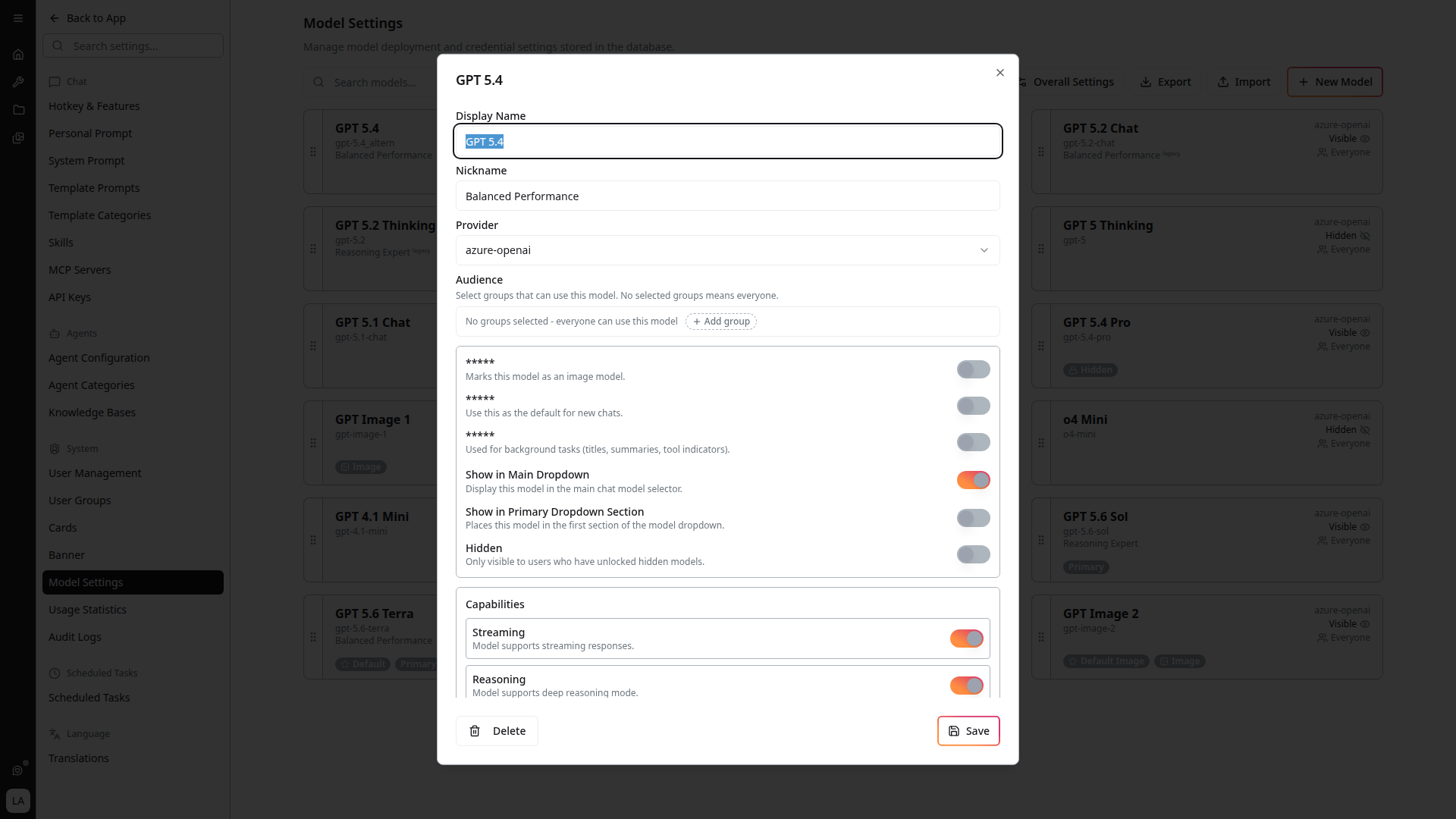
Identity
- Model ID — the unique identifier within the platform (placeholder:
e.g. gpt-5.4-team-a) - Display Name — the user-visible label shown in the chat model selector (placeholder:
e.g. GPT 5.4 Team A) - Nickname — short alias used in compact UI elements (placeholder:
e.g. Team A)
Provider Connection
- Provider — dropdown of supported providers (
azure-openai,azure-deepseek,azure-xai, etc.) - Deployment Name — the provider-side deployment identifier
- API Version — the provider API version to call
- Max Tokens — output token limit applied to responses
- API Key — credential stored encrypted with the model
- Resource Name — the provider resource (e.g. an Azure OpenAI resource)
- Endpoint — the base URL for API calls
Behavior Flags
- Image Model — marks this model as an image-generation model (shown with an Image badge on the card)
- Default Chat Model — uses this as the default for new chats (shown with a Default badge)
- Show in Main Dropdown — display this model in the main chat model selector
- Show in Primary Dropdown Section — places this model in the first section of the model dropdown (shown with a Primary badge)
User Group Access
Use User Groups to restrict who can use the model:
- Leave the selection empty to make the model available to everyone
- Select one or more groups to allow members of any selected group
- Users outside those groups do not see the model in chat or image selectors and cannot use it through direct requests or scheduled tasks
Changing a user's group membership also changes model access for future scheduled-task runs.
Pricing
Set the model's metered unit rates so its usage can be costed. Without them the platform can count tokens but cannot price them, and calls against the model are reported as Unpriced calls on the AI Usage & Cost dashboard — which makes the estimated total a lower bound rather than a full picture.
Invalid rates are rejected rather than stored, so a model either has usable rates or is explicitly unpriced. There is no silently-wrong middle state.
After adding a model, check the Unpriced calls tile on the AI Usage & Cost dashboard. If it starts climbing, the new model is missing rates.
Capabilities
- Streaming — model supports streaming responses (toggle on by default for chat-capable models)
- Reasoning — model supports deep reasoning mode. Models with this on expose the reasoning-effort selector to users — see 4C:me Overview
Save to create the model (or apply the edit). New models appear in the grid; new chats can pick them up immediately based on their visibility flags.
How Models Appear to Users
Users pick a model from the model selector in the 4C:me top bar. Only Visible models available to everyone or assigned to one of the user's groups appear in that list, in the order configured on this page. Image-model selection uses the same access rules. Conversations remember the last used model per chat — see 4C:me Overview.
Tips
- Default controls which model new chats start with; Primary is a recommendation flag for the model selector but doesn't change the default
- Use Hidden instead of deleting when you want to retire a model without breaking history — disabled models stop appearing in selectors but stay around for past conversations
- Utility models (e.g. for title generation) should usually be small and cheap — they're not exposed to users
- Use Export before making breaking changes so you can roll back via Import
- Mark legacy models with a
legacycategory label so users know they're being phased out
Related
- User Management — control who can see which models
- Cost Monitoring — track spend per model
- Usage Statistics — per-model request counts and latency