Knowledge Bases
A knowledge base is a reusable collection of indexed documents that agents can search and cite. You build and index it once, then attach it to as many agents as you like.
Why Knowledge Bases Are Separate
Previously, documents belonged to a single agent: each agent carried its own file list and its own index. If two agents needed the same handbook, the handbook was uploaded and indexed twice.
Knowledge bases decouple content from persona:
- Index once, reuse anywhere — one knowledge base can serve any number of agents
- One place to maintain — re-index in a single location and every attached agent picks up the change
- Independent access control — a knowledge base has its own visibility and user groups, separate from the agents using it
As a result, the agent editor no longer has Files or Graph tabs. That content now lives here, and agents point at knowledge bases from their Knowledge tab.
Opening Knowledge Bases
Knowledge bases are managed from Settings → Knowledge Bases.
- Open Settings (avatar menu, top-right)
- In the Settings sidebar, under the Agents group, click Knowledge Bases
It sits below Agent Configuration and Agent Categories.
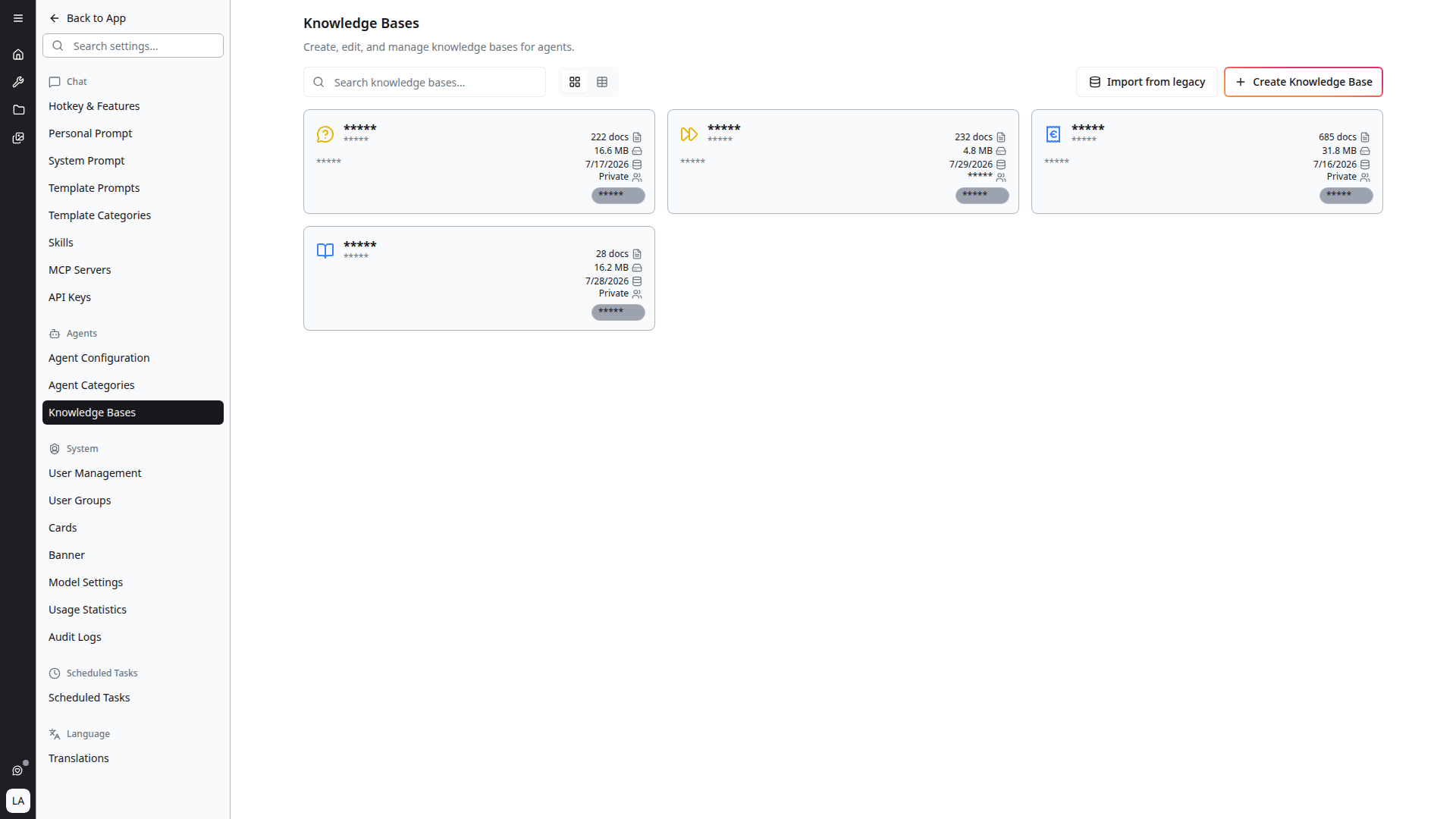
The Knowledge Bases Page
The toolbar exposes:
- Search knowledge bases… — filter the list by name
- View mode — toggle between grid (cards) and table layout
- Import from legacy — adopt an existing agent index as a knowledge base (see Assigning to Agents)
- + Create Knowledge Base — create one from scratch
Each card shows the knowledge base's icon, name, slug and description, alongside:
- Docs — how many documents it contains
- Size — total size of the indexed content
- Last updated — when the content last changed
- Visibility — Private, or the user groups that can use it
- Owner — who created it
When you have no knowledge bases yet, the page reads "No knowledge bases yet — Get started by creating your first knowledge base."
Creating a Knowledge Base
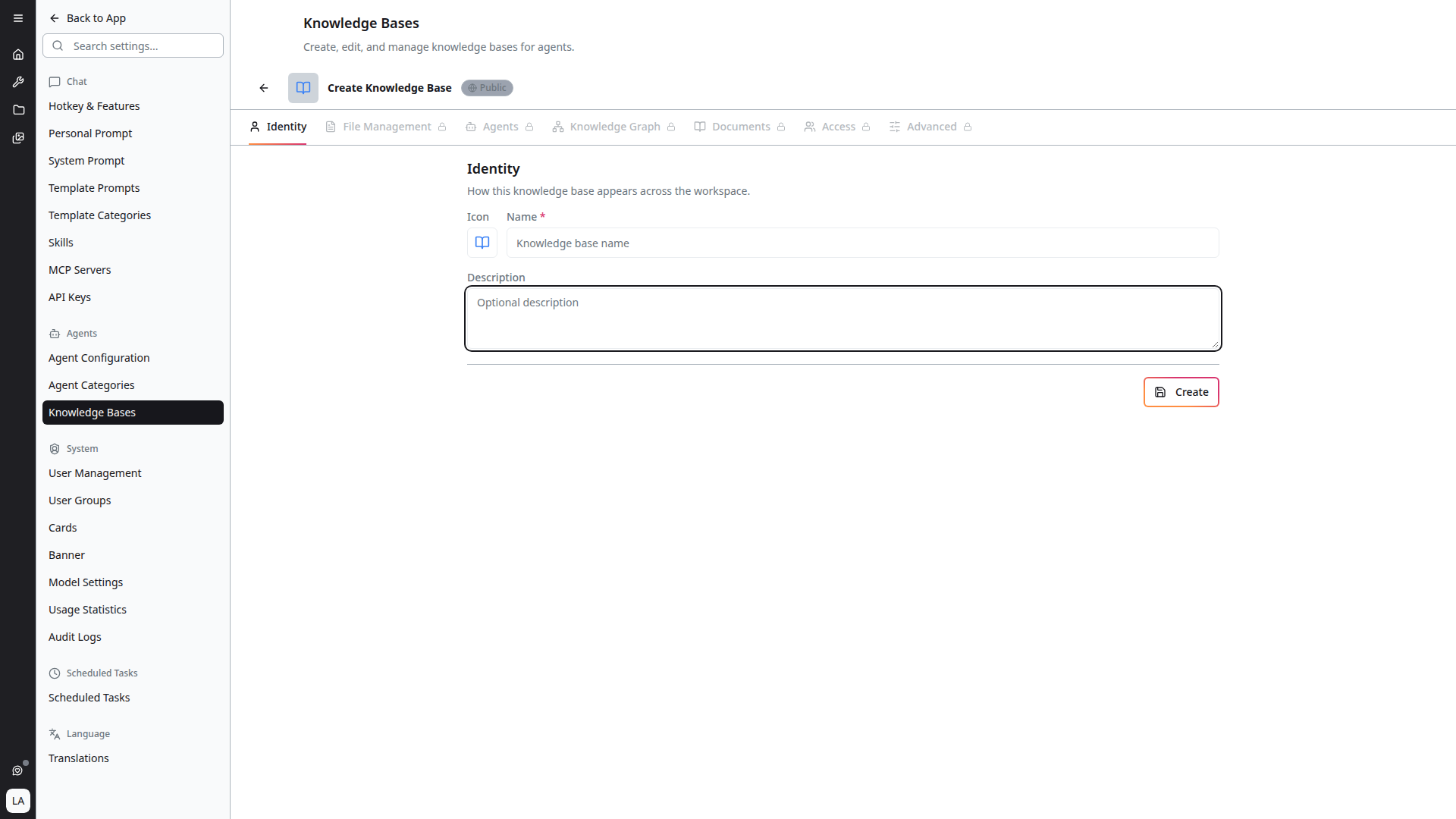
Click + Create Knowledge Base. The detail view opens on the Identity tab:
- Icon and Icon colour — how the knowledge base appears across the workspace
- Name (required) — a descriptive name
- Description — a short summary of what it contains
Save to create it. Until you do, every other tab is locked and hovering one reads "Create the knowledge base to unlock this tab."
An Auto-save toggle sits at the top-right of the detail view. Leave it on and edits are persisted as you make them; the badge next to the name reads Synced once saved.
The Detail Tabs
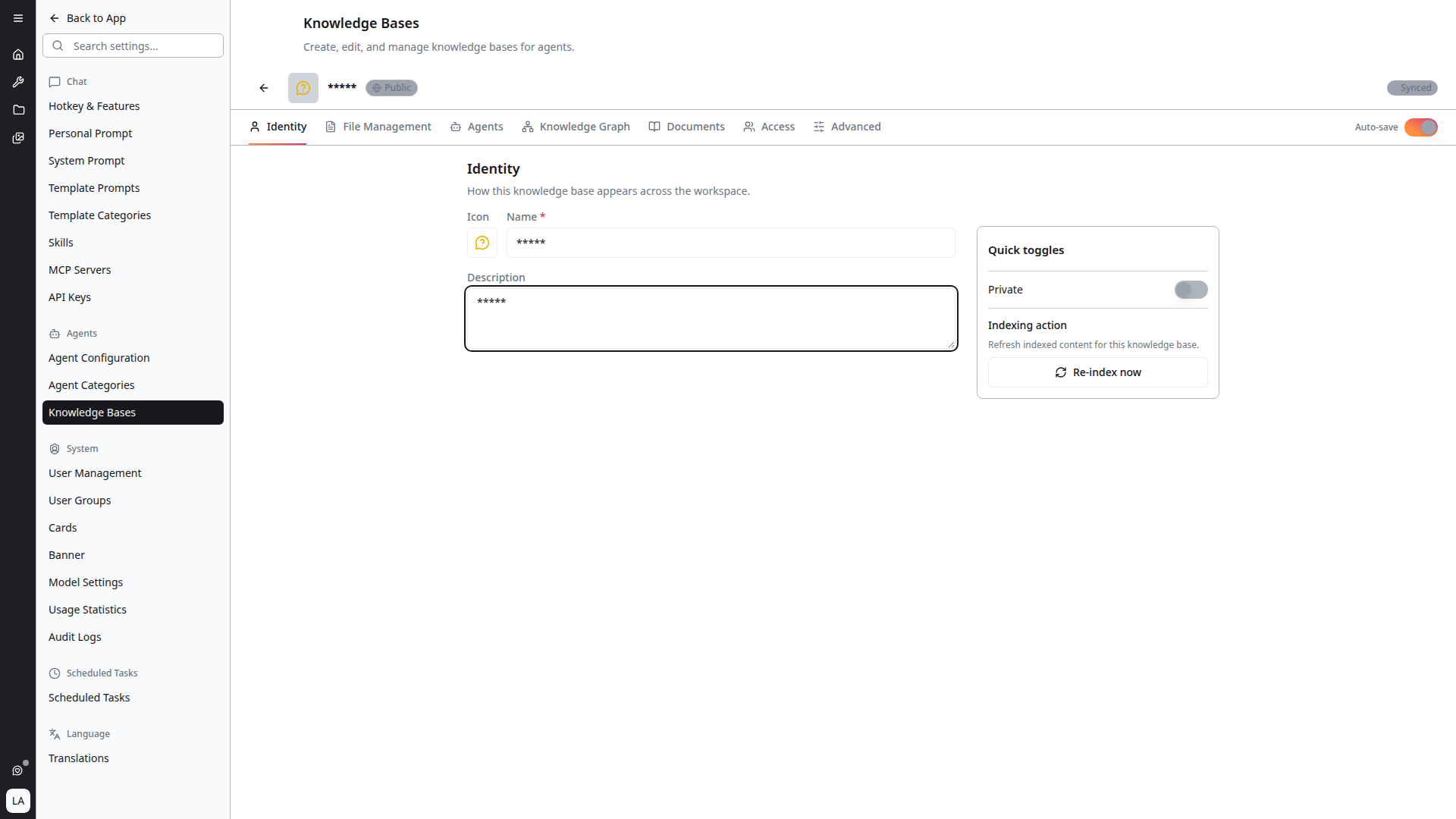
Once created, the knowledge base opens with seven tabs:
| Tab | Purpose |
|---|---|
| Identity | Name, description, icon — how it appears across the workspace |
| File Management | Choose which files the knowledge base contains — see Managing Documents |
| Agents | Attach it to agents — see Assigning to Agents |
| Knowledge Graph | Explore extracted entities and relationships — see Knowledge Graph |
| Documents | Browse the indexed documents themselves — see Managing Documents |
| Access | Control who can discover and use it |
| Advanced | Re-index and delete |
Access Control
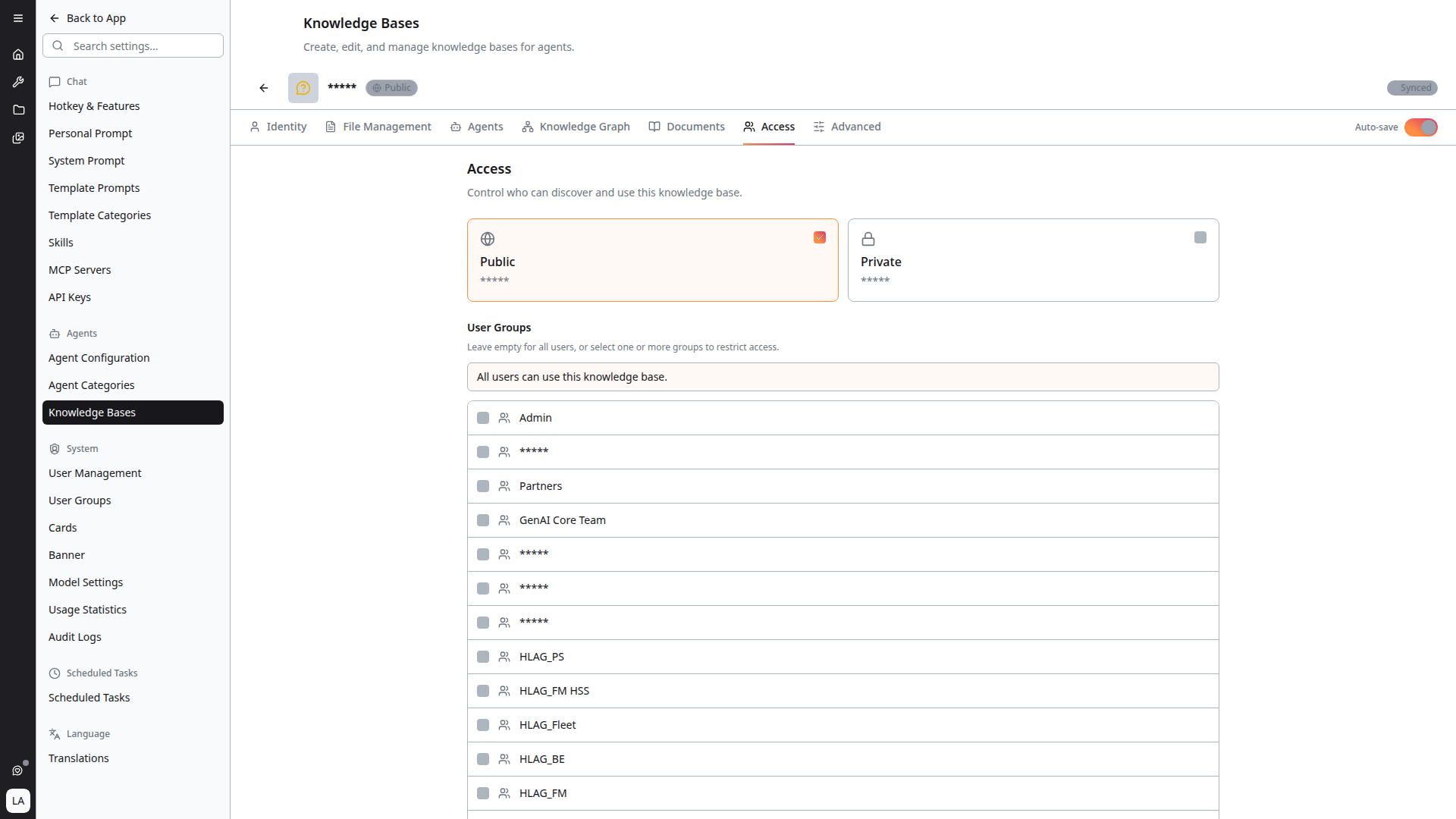
The Access tab controls who can discover and use the knowledge base.
- Private — only you can use it. Any selected user groups are ignored while private.
- Public — available to all users unless one or more user groups are selected. Leave the group list empty for all users, or select groups to restrict access.
The tab summarises the effective result, so you can confirm at a glance whether it reads "All users can use this knowledge base" or "Only the selected user groups can use this knowledge base."
Indexing
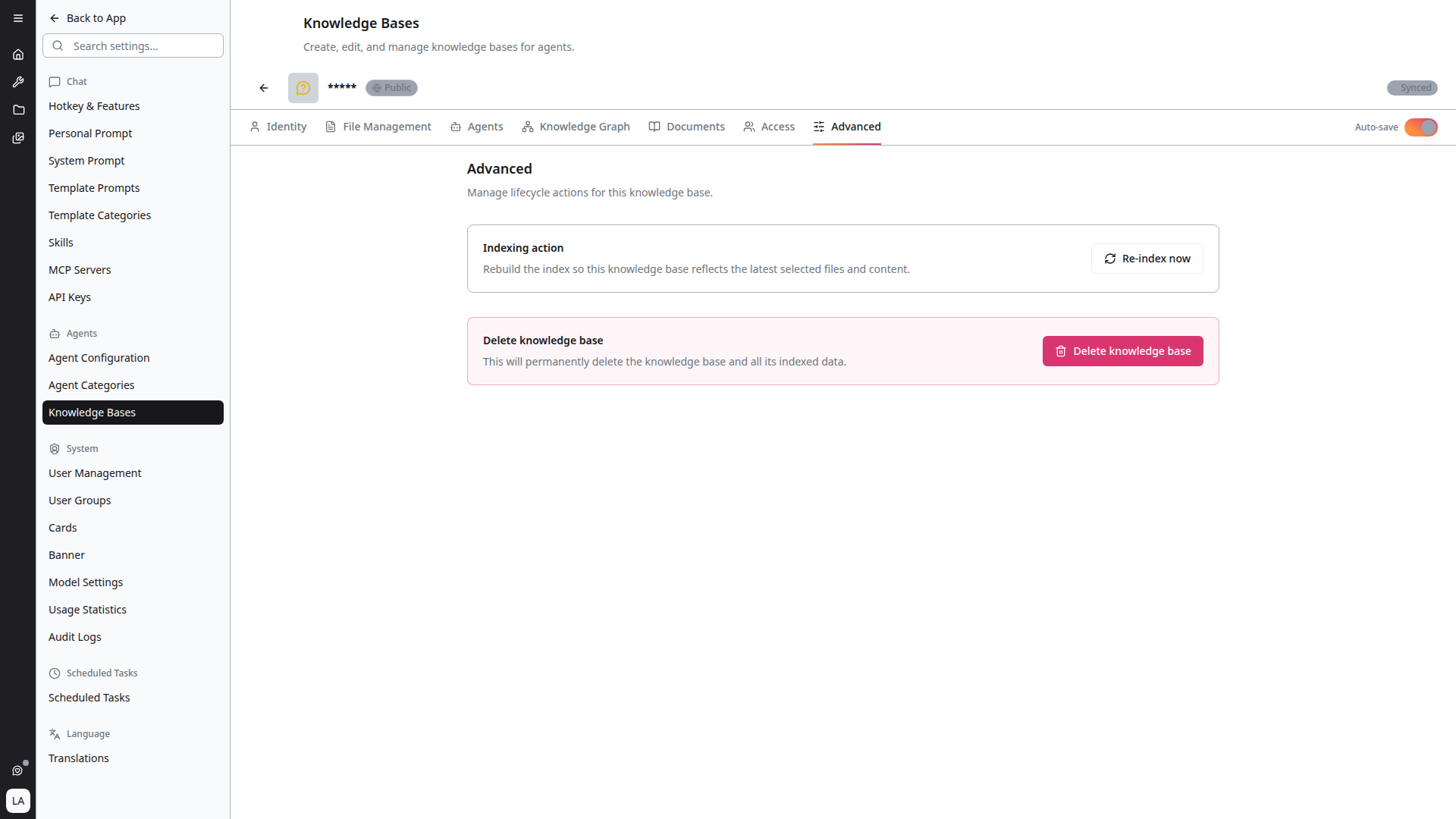
A knowledge base must be indexed before agents can search it. The Advanced tab holds the lifecycle actions:
- Index — build the first index, so agents can search and cite the content
- Re-index — rebuild the index so it reflects the latest selected files and content
- Delete knowledge base — remove it entirely
When content has changed since the last index, the detail view shows a banner: "A re-index is recommended for this knowledge base to reflect recent changes," with a Re-index now action.
Indexing Progress
Indexing opens a progress dialog reporting Processed, Skipped and Failed file counts, the number of searchable Sections produced, elapsed time, and the file currently being handled. Per-file results are searchable once the run finishes.
Indexing status is shared live across users. If a colleague starts an index, you see the same progress rather than a stale state — and re-indexing now reports real progress instead of completing instantly.
Not Yet Indexed
Agents whose knowledge base has never been indexed are disabled in the chat and scheduled-task pickers, labelled Not yet indexed. This is deliberate: selecting them would produce answers with no source material. Index the knowledge base and they become selectable.