Managing Documents
A knowledge base holds two related things: the files you select as its source content, and the indexed documents produced from them. The File Management tab covers the first; the Documents tab covers the second.
The File Management Tab
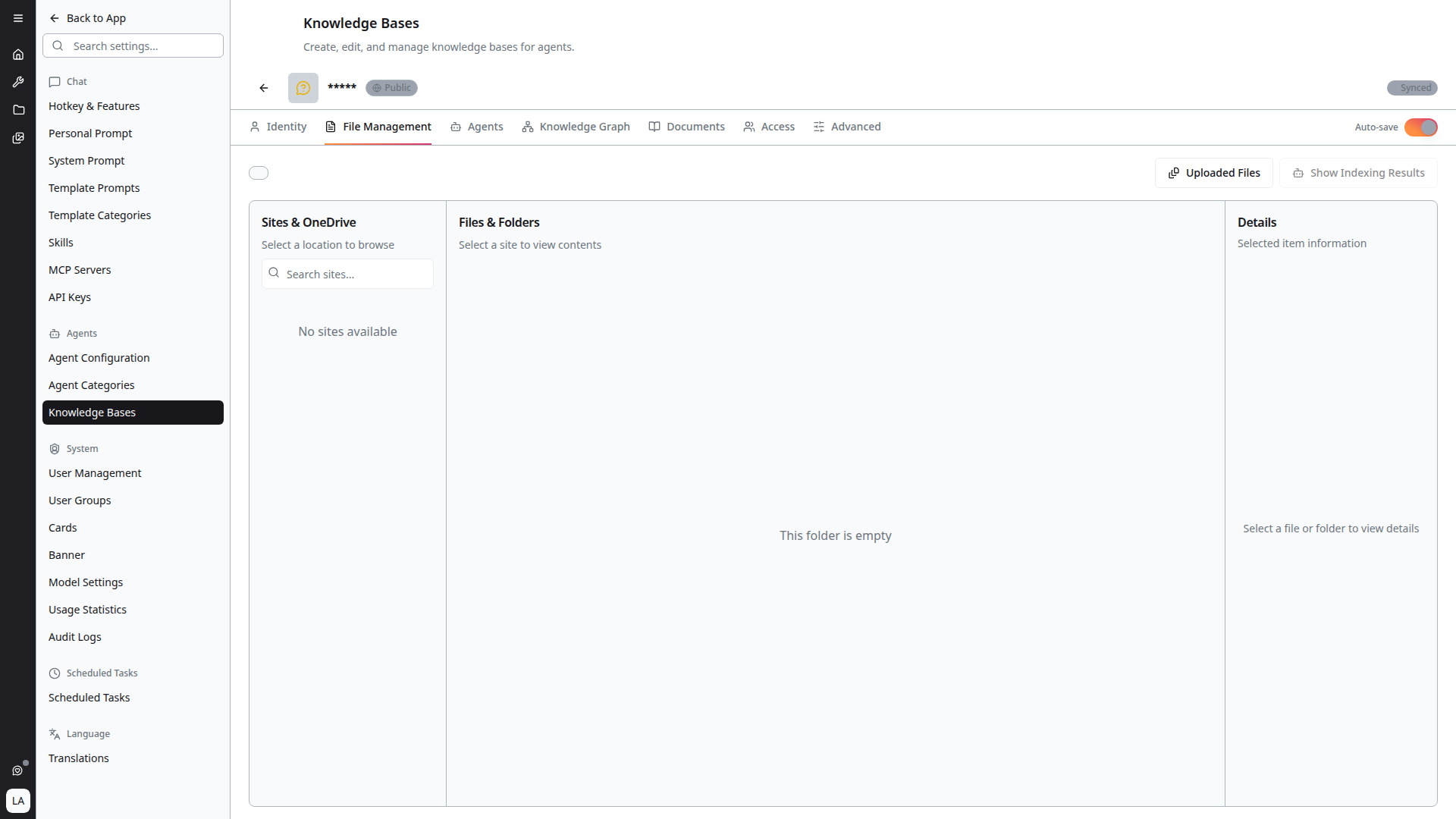
This tab is where you choose which files the knowledge base contains. You can browse and select from:
- Sites — SharePoint sites available to you
- My OneDrive — your personal storage
- Viva Connections
Pick a location on the left to browse its Files & Folders, then select the files to include. The file browser supports searching sites by name.
After changing the selection, re-index so the knowledge base reflects it — the detail view prompts you with "A re-index is recommended for this knowledge base to reflect recent changes."
Supported File Types
Alongside the usual documents and spreadsheets, the platform now ingests:
- Jupyter notebooks (
.ipynb) — condensed to source and text outputs, so the index carries the code and its results without the embedded binary payloads - R Markdown (
.Rmd) - Analyst scripts
- XML
Excel workbooks are converted through the asynchronous ingestion path, which preserves table structure in the extracted content.
OCR Quality
Scanned and image-heavy documents go through OCR before indexing. Recent improvements mean:
- AI-generated image captions — pictures and charts contribute a described summary rather than being dropped
- Table integrity — table structure survives extraction instead of collapsing into loose text
- Cleaner HTML — markup artefacts are stripped from the extracted text
The Documents Tab
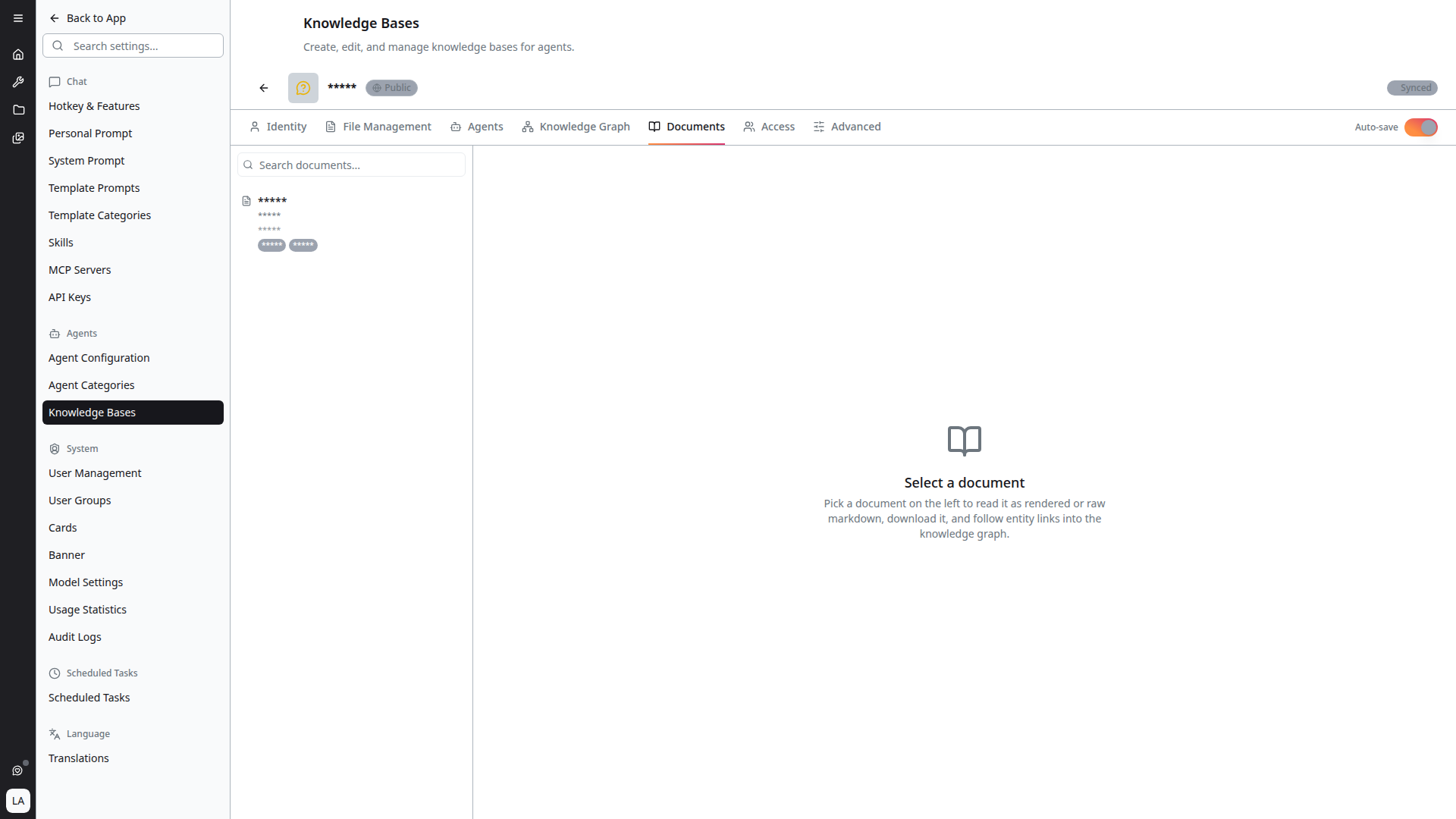
The Documents tab is a reader for what actually made it into the index. It answers the question "is this document in there, and what does the platform think it says?"
Select a document on the left to read it, and the panel offers:
- Rendered / Raw — read the extracted content as formatted Markdown, or as raw Markdown source
- Download — save it as Markdown (.md), as PDF (via the print dialog), or fetch the Original file
- Open in SharePoint — jump to the source document in place
- Entity links — follow references into the knowledge graph
Each document lists its section and page counts. Sections are the searchable units an agent retrieves and cites, so the count is a useful sanity check: a long document reduced to one or two sections usually indicates an extraction problem.
Use the search box to filter by document name.
If the tab reads "This knowledge base has no indexed documents yet," the knowledge base has files selected but has not been indexed. Run Index from the Advanced tab.
Batch Upload in Chat
Documents attached directly to a conversation follow a separate path from knowledge bases. 4C:me now accepts up to 20 documents at once, with reliable upload and OCR:
- Each upload is tracked as a job, so a slow or large file no longer stalls the batch
- OCR runs per document, with the same caption, table and cleanup improvements described above
See Attachments for how to use them in a conversation.