Agents
Agents are configurable AI personas that customize 4C:me's behavior for specific use cases and workflows.
What Are Agents?
An agent is a preconfigured AI setup that includes:
- A custom system prompt that defines the agent's behavior and expertise
- One or more knowledge bases the agent can search and cite
- MCP servers and tools the agent is allowed to use
- Model and tuning settings
- Access permissions defining who can use the agent
Using an Agent
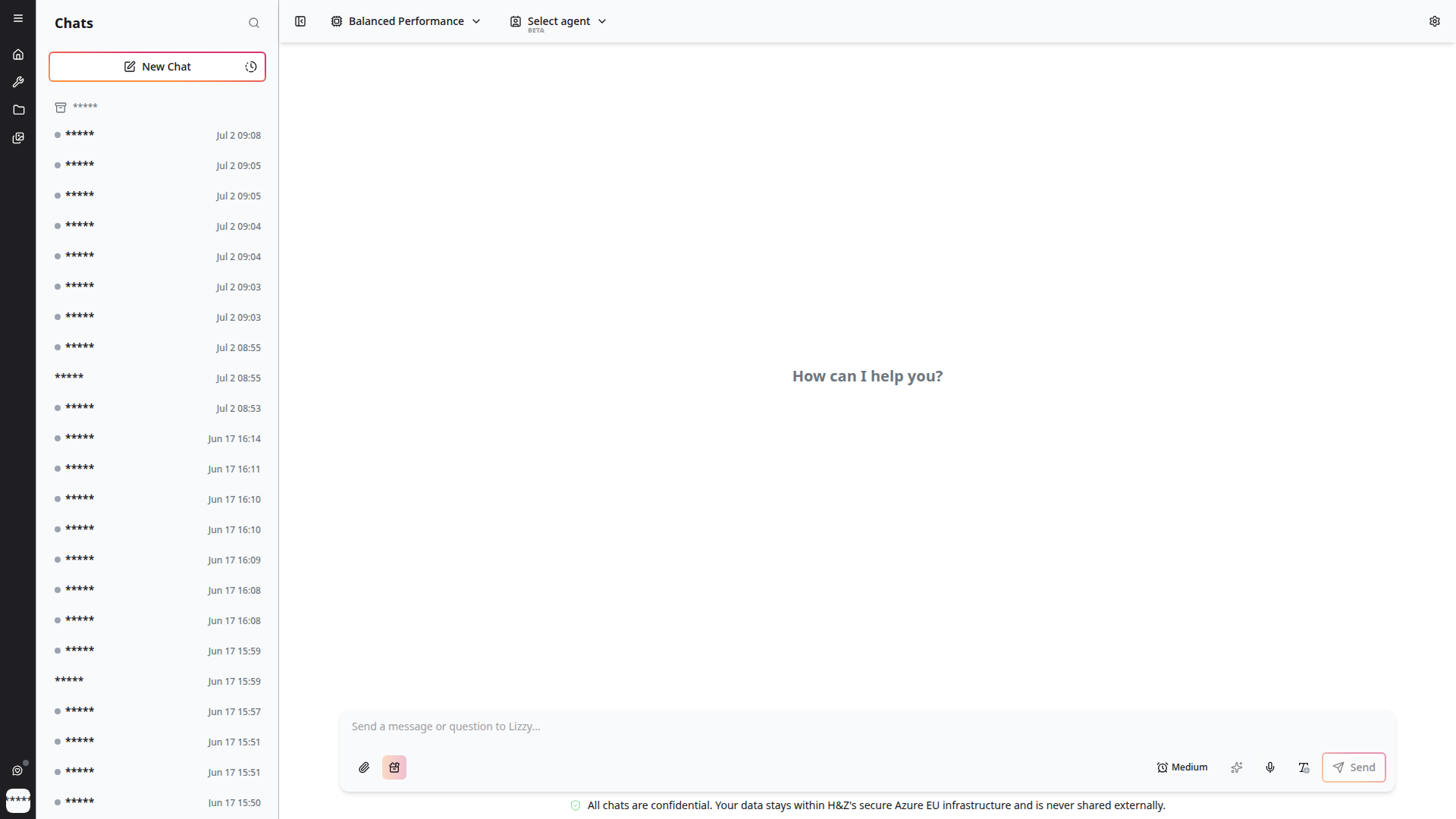
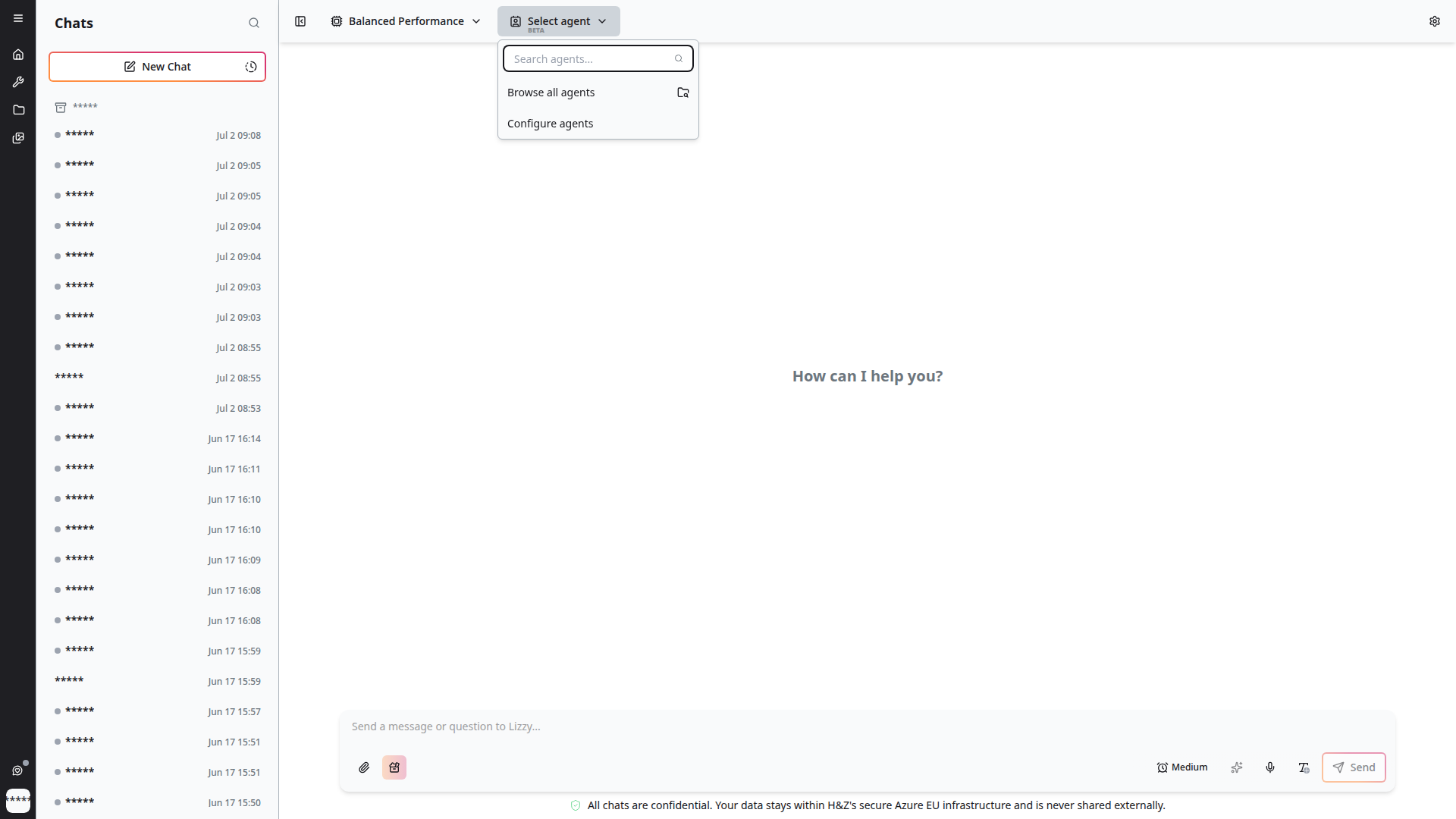
- In 4C:me, click Select Agent (BETA) in the top bar
- Browse or search for the agent you need
- Select the agent — it becomes active for your current conversation
- The agent's system prompt and context shape all responses
- The platform remembers your last-used agent per conversation
Agents whose knowledge bases have never been indexed appear disabled and labelled Not yet indexed. Index the knowledge base to make them selectable — see Knowledge Bases.
Managing Agents
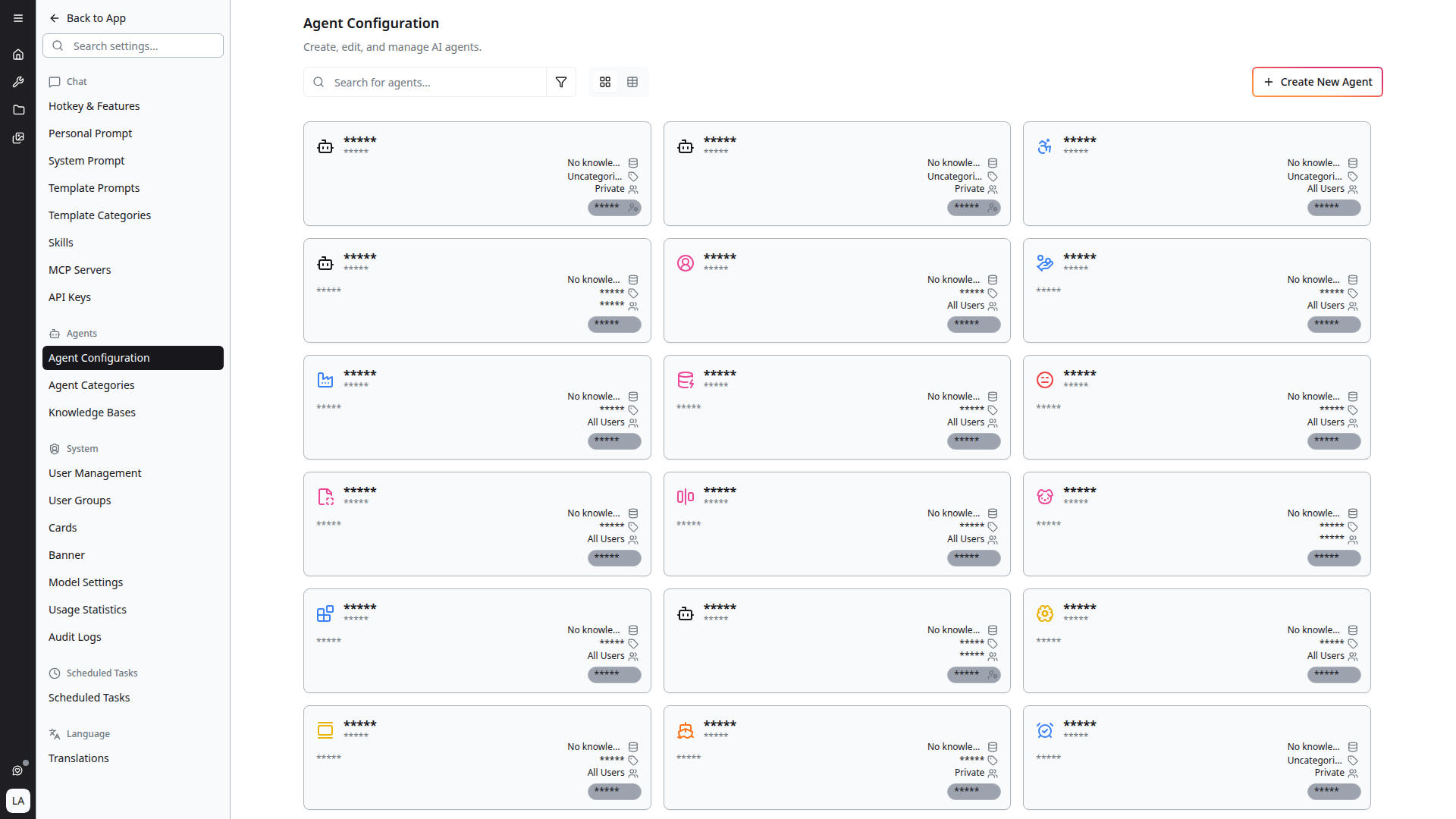
Agents are managed from Settings → Agent Configuration.
The toolbar exposes a Search for agents… box, a filter, a grid/table view toggle, and + Create New Agent. Each card shows the agent's icon, name, ID, description, attached knowledge bases, category, visibility and owner.
The list stays in sync as agents are created, updated and deleted, and refreshes when you return to the tab.
The Agent Editor
Clicking an agent — or + Create New Agent — opens the editor.
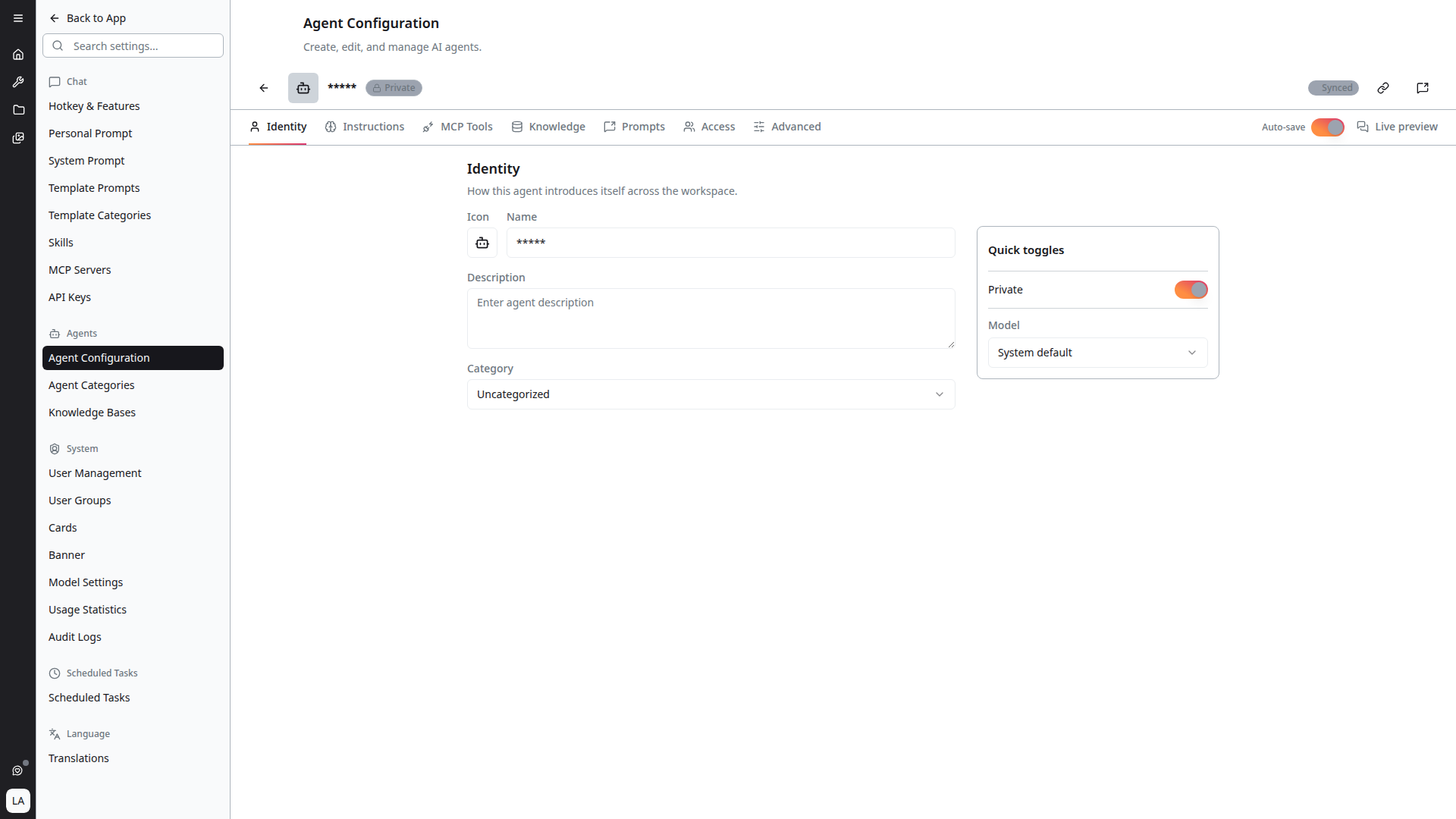
Configuration is organised as seven tabs rather than a linear wizard, so you can jump straight to what you need:
| Tab | What it covers |
|---|---|
| Identity | Icon, name, description, category |
| Instructions | The system prompt and welcome message |
| MCP Tools | Which MCP servers and tools the agent may use |
| Knowledge | Which knowledge bases the agent searches |
| Prompts | Example prompts shown to users |
| Access | Visibility and user groups |
| Advanced | Model tuning and deletion |
Two controls sit above the tabs, on the right:
- Auto-save — persist edits as you make them. The badge beside the agent name reads Synced once saved.
- Live preview — open a preview panel beside the form so you can see the effect of your changes without leaving the editor
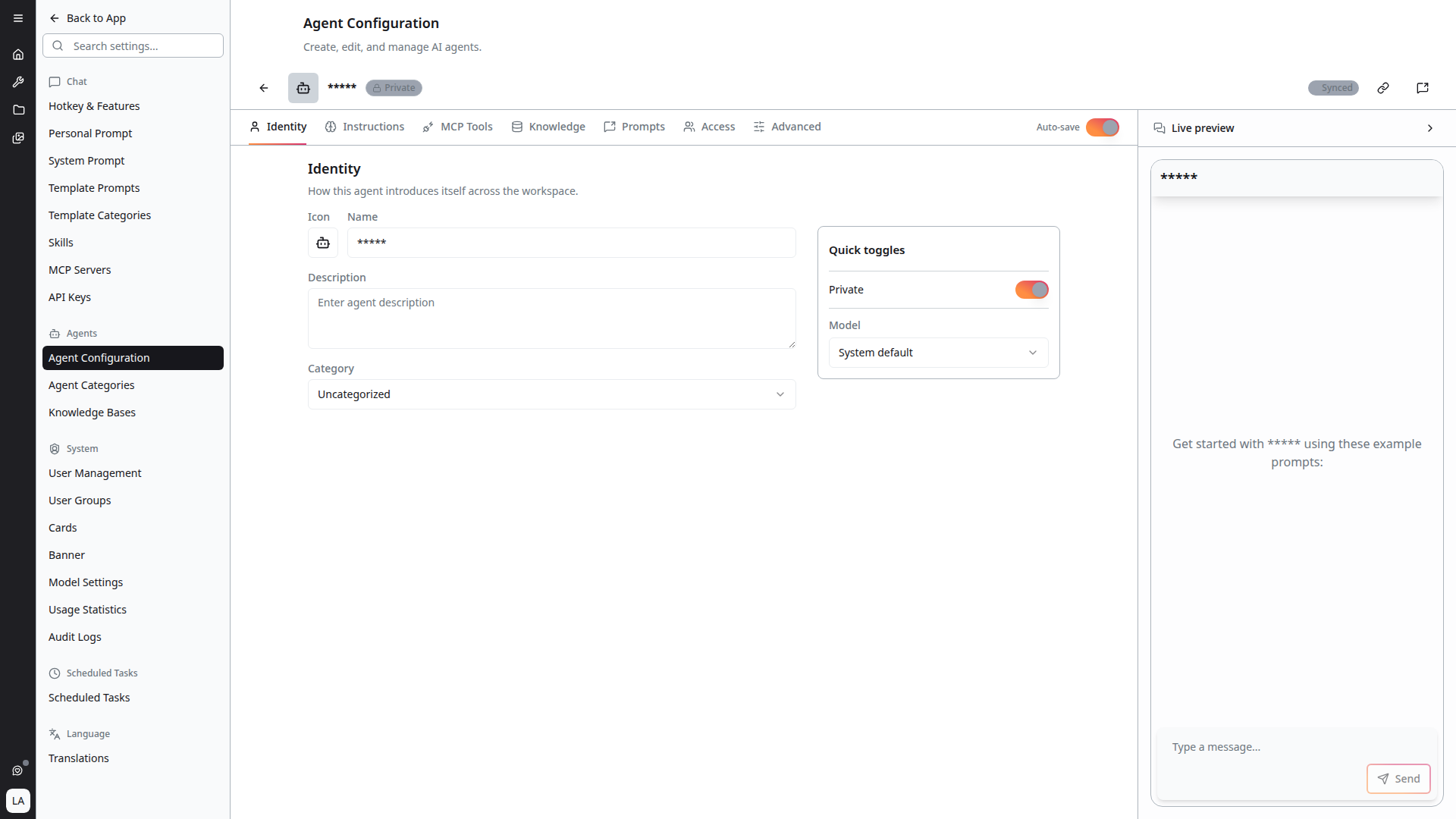
When creating a new agent, only Identity is available at first; hovering another tab reads "Create the agent to unlock this tab." Save the agent to unlock the rest.
With auto-save off, navigating away with pending edits prompts Unsaved Changes — "You have unsaved changes. Are you sure you want to leave?"
Identity
How this agent introduces itself across the workspace.
- Icon — an emoji or glyph representing the agent
- Name — a descriptive name
- Description — a brief summary of what the agent does
- Category — organise agents into categories, or Create New Category inline
A Quick toggles panel on the right offers the two settings you change most often — Private and the agent's Model (defaulting to System default).
The editor header also carries Copy link to agent chat, Open agent chat and Delete agent.
Instructions
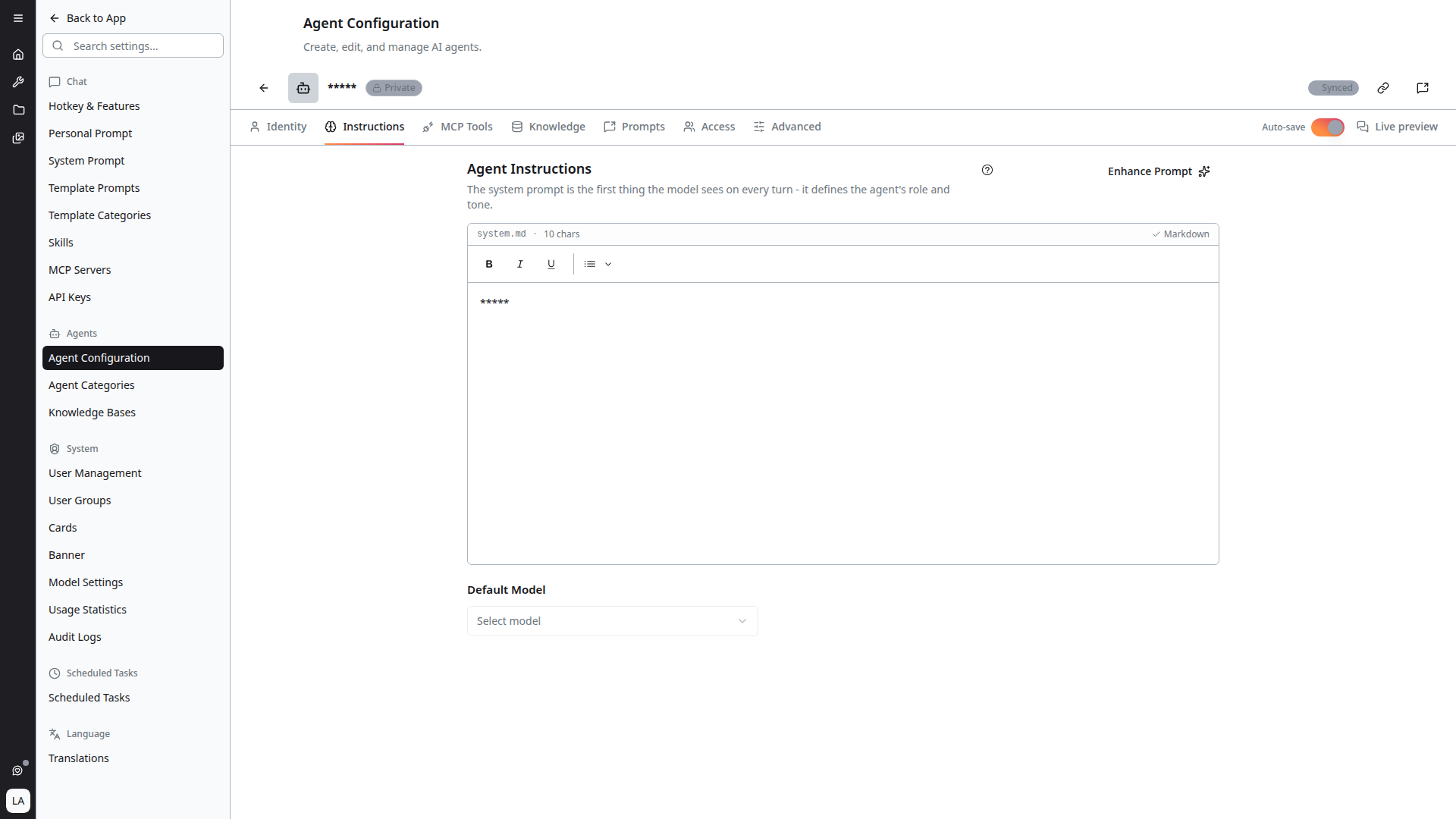
- System Prompt — the instructions that define the agent's behavior and expertise. This is the heart of the agent.
- Welcome Message — the greeting users see when they start a conversation with the agent
MCP Tools
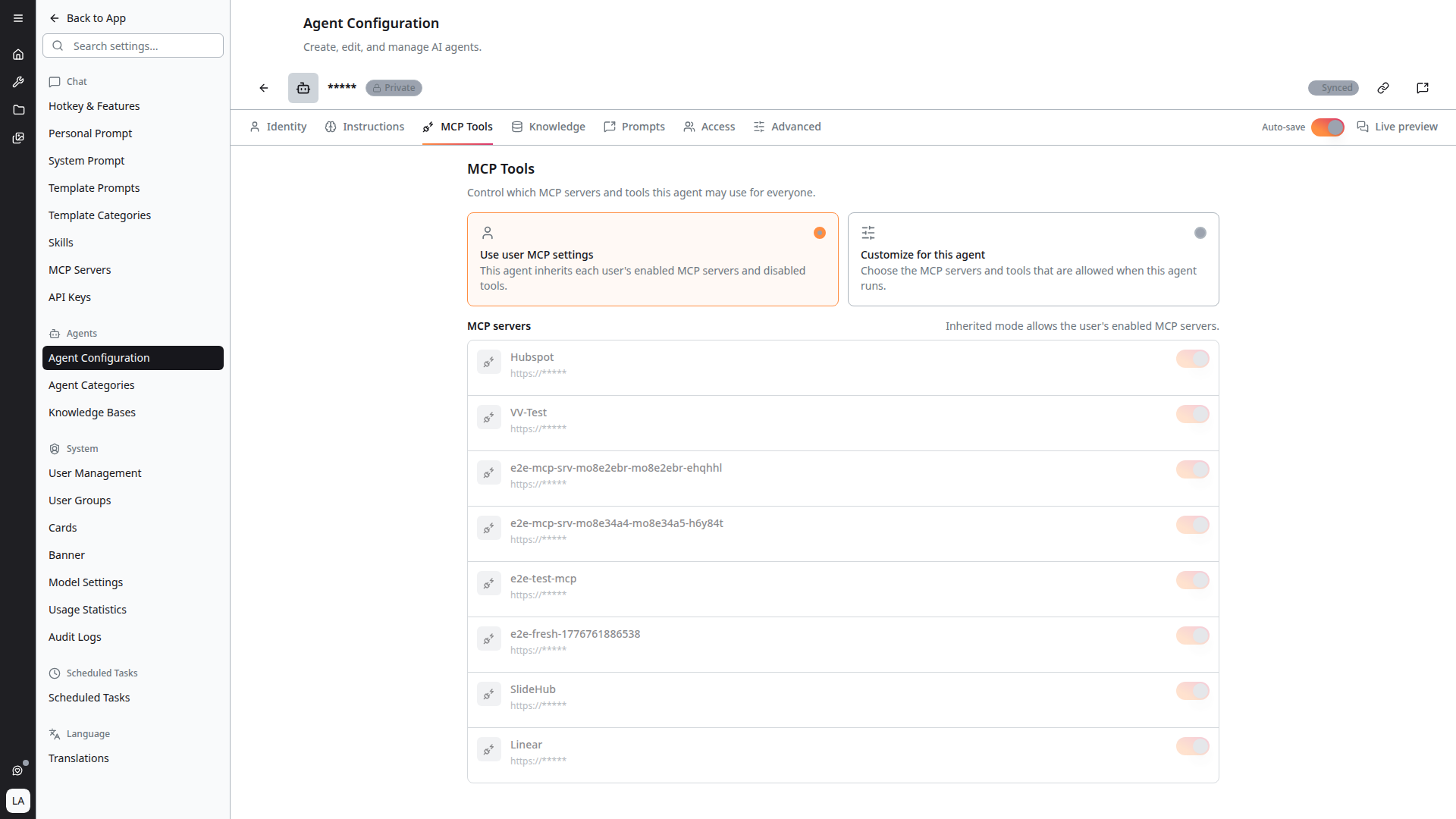
Control which MCP servers and tools this agent may use for everyone.
Choose between two modes:
- Use user MCP settings — the agent inherits each user's own enabled MCP servers and disabled tools. Inherited mode allows whatever the individual user has enabled.
- Customize for this agent — you choose the MCP servers and tools allowed when this agent runs, regardless of individual user settings
In custom mode, the MCP servers list controls server-level access, and selecting a server reveals its Server tools so you can disable individual tools for this agent only. Tools already switched off elsewhere are marked Disabled globally or Disabled in your MCP settings; servers whose authentication has lapsed show Auth expired.
If custom mode is saved with no servers enabled, the agent has no MCP access at all — the tab warns "No MCP servers are enabled for this agent. MCP tools will be unavailable while this is saved."
See MCP Integration for setting up the servers themselves.
Knowledge
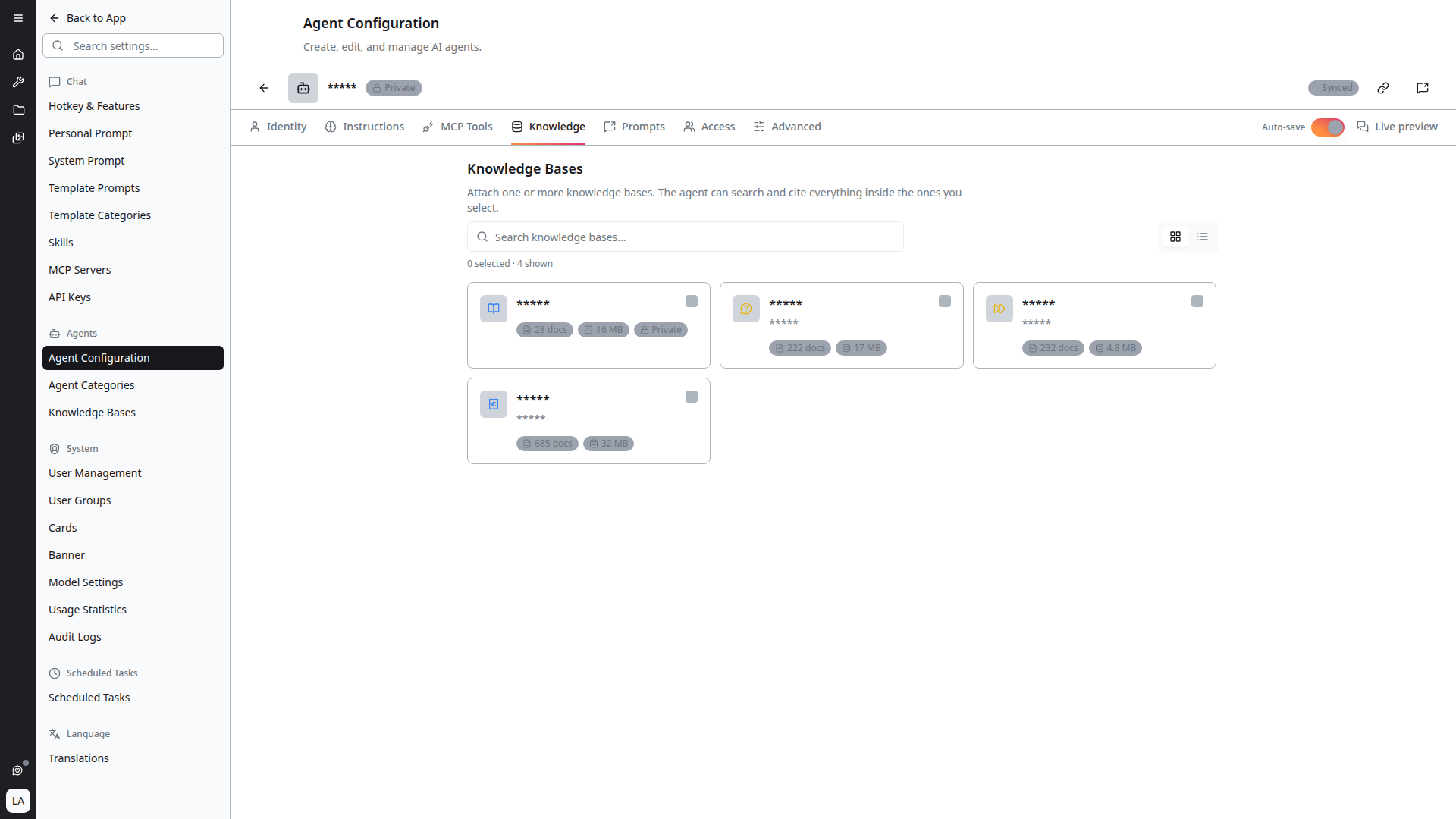
Attach one or more knowledge bases. The agent can search and cite everything inside the ones you select.
Search the knowledge bases available to you and tick the ones this agent should use, as cards or as a list. The header tracks your selection — for example "0 selected · 4 shown". Each entry shows its document count, size and visibility.
One knowledge base can be attached to any number of agents, so shared reference material is indexed once and reused.
How much of a knowledge base reaches the model on each request is governed by Top K on the Advanced tab, not here. This tab decides which content is searchable; Top K decides how much of it is retrieved.
Agent-specific Files and Graph tabs no longer exist. Document selection, the document reader and the knowledge graph all moved into the knowledge base itself — see Managing Documents.
Prompts
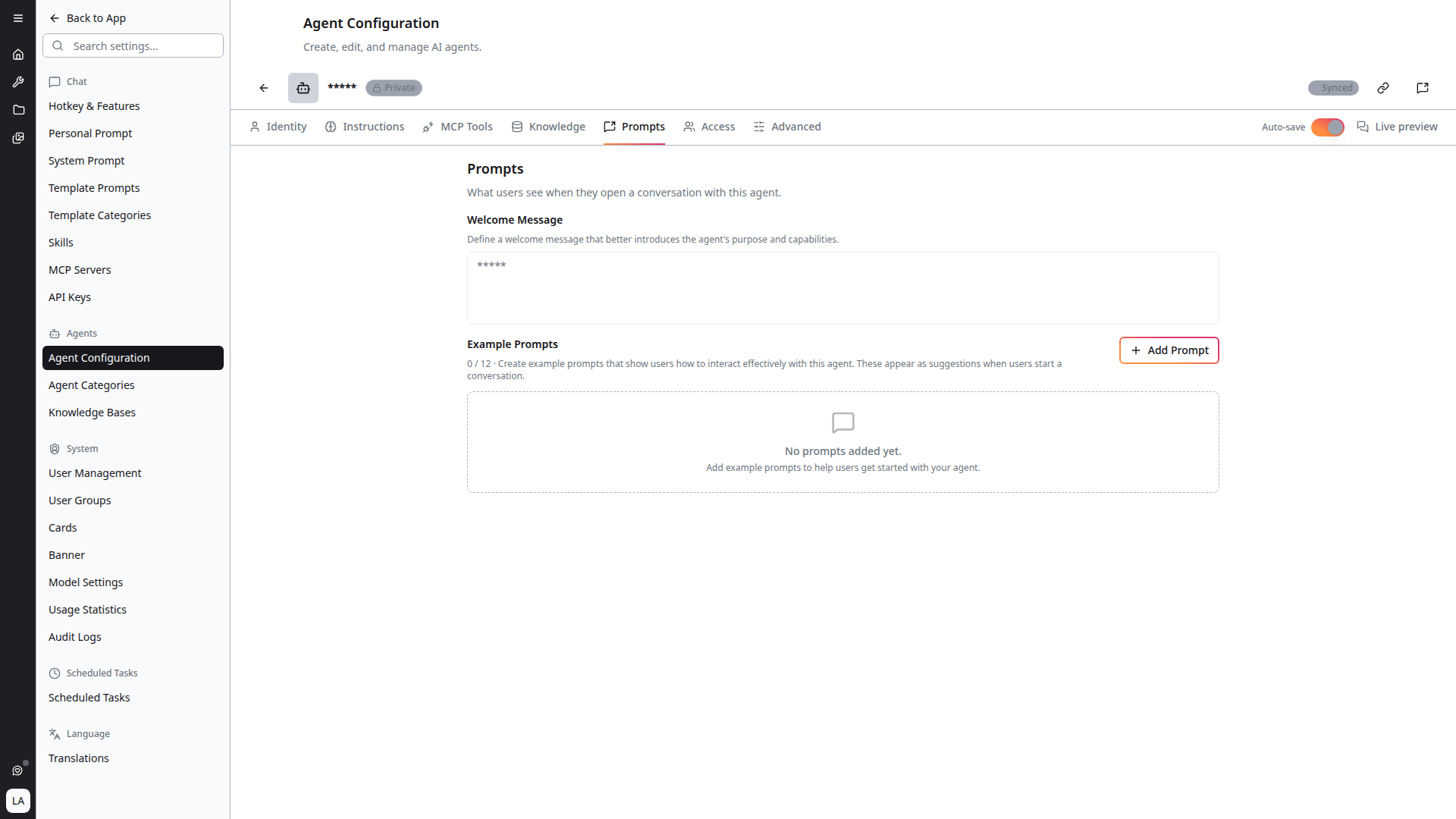
Example Prompts are suggested starting messages shown to users when they select the agent. Good examples make an agent discoverable — they show its intended use at a glance.
Access
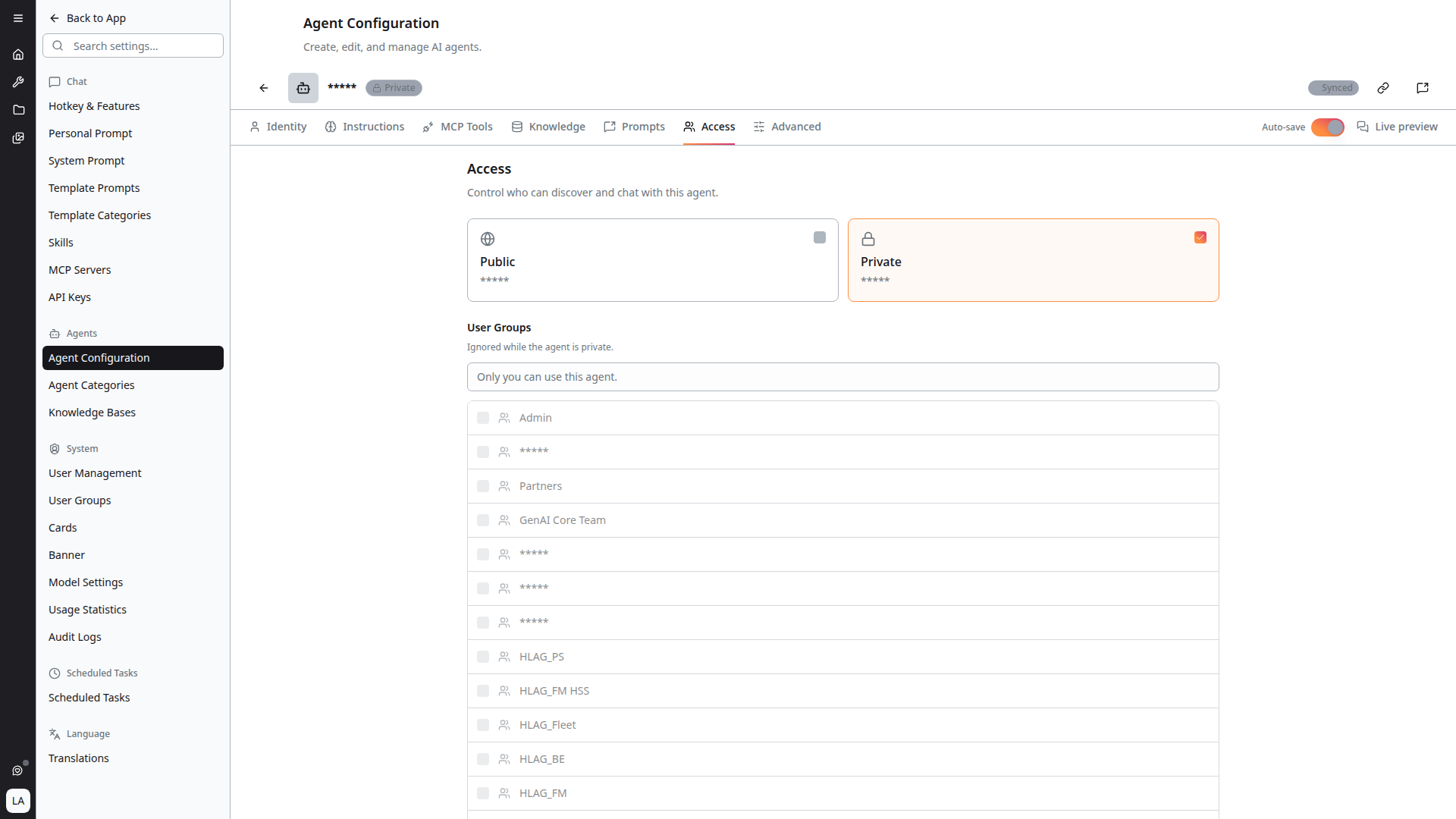
Control who can discover and use this agent.
- Private — only you can use it. Selected user groups are ignored while private.
- Public — available to all users unless user groups are selected. Leave the list empty for all users, or select groups to restrict access.
The tab states the effective outcome, so you can confirm whether it reads "All users can use this agent" or "Only the selected user groups can use this agent."
Advanced
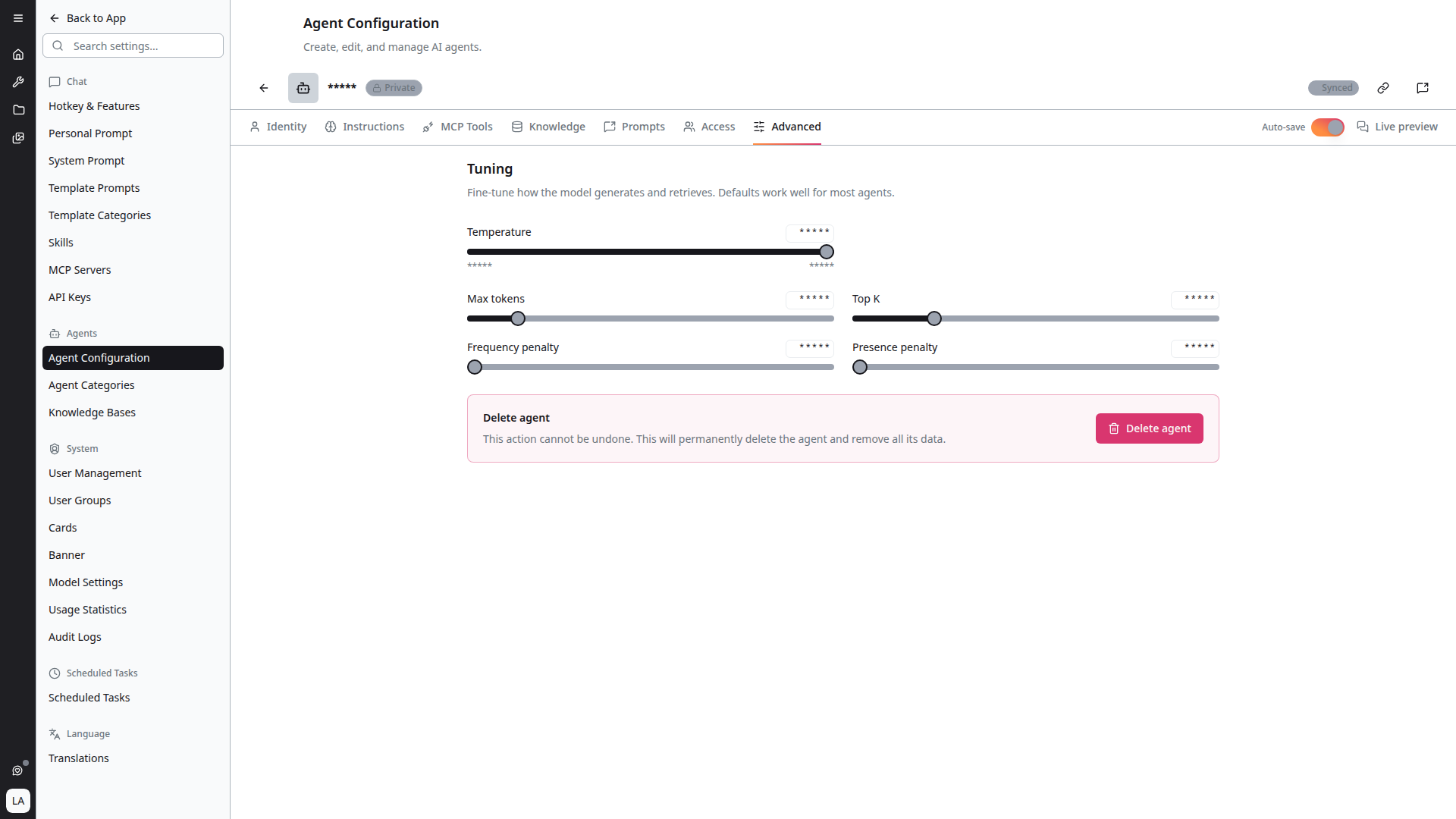
Model tuning parameters:
- Temperature — controls randomness: lower values are more deterministic, higher values are more creative
- Max tokens — the maximum number of tokens for prompt and response combined. The exact limit varies by model; a token is roughly 4 characters of standard English text.
- Frequency penalty — discourages repeating the same tokens
- Presence penalty — encourages introducing new topics
- Top K — number of most relevant document sections to retrieve for context
Set Top K high enough to cover the material an answer needs. The tab reports the largest attached file's chunk count and recommends a minimum Top K that would retrieve all of that file's chunks; the maximum is 100. Too low and answers cite only a fragment of a long document; too high and every request carries more context than it needs.
Delete agent also lives here. Deletion is permanent — "This action cannot be undone. This will permanently delete the agent and remove all its data."
Creating an Agent
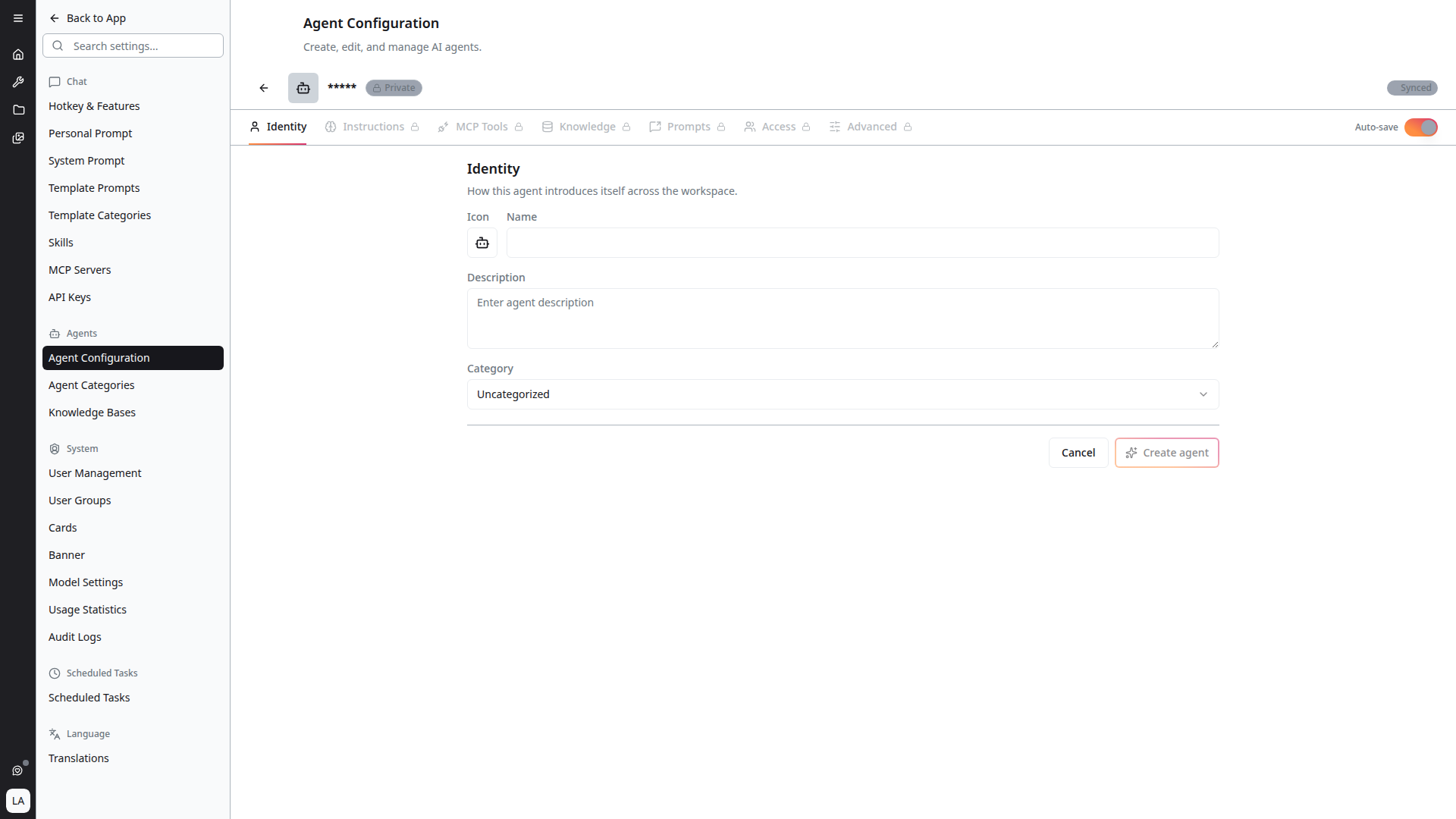
- Click + Create New Agent on the Agent Configuration page
- Fill in Identity — at minimum an icon, name and description
- Save to create the agent and unlock the remaining tabs
- Write the system prompt under Instructions
- Attach Knowledge bases, and index them if they are new
- Set Access so the right people can find it
- Optionally add Example Prompts, restrict MCP Tools, and adjust Advanced tuning
There is a limit on how many indexed agents a deployment can have. If you hit it, the editor reads "You've reached the limit of N indexed agents" — delete an existing indexed agent before adding files to another.