Templates & Prompts
The 4C:me Safe AI Platform includes a prompt template system that helps you save time with reusable prompts.
What Are Templates?
Templates are pre-written prompts that you can quickly insert into a conversation. They are organized by categories and can be created by you or provided by administrators.
Using Templates
To open the template selector, click the colored toolbar button in the chat input area to expand the toolbar, then click the Templates button (book icon):
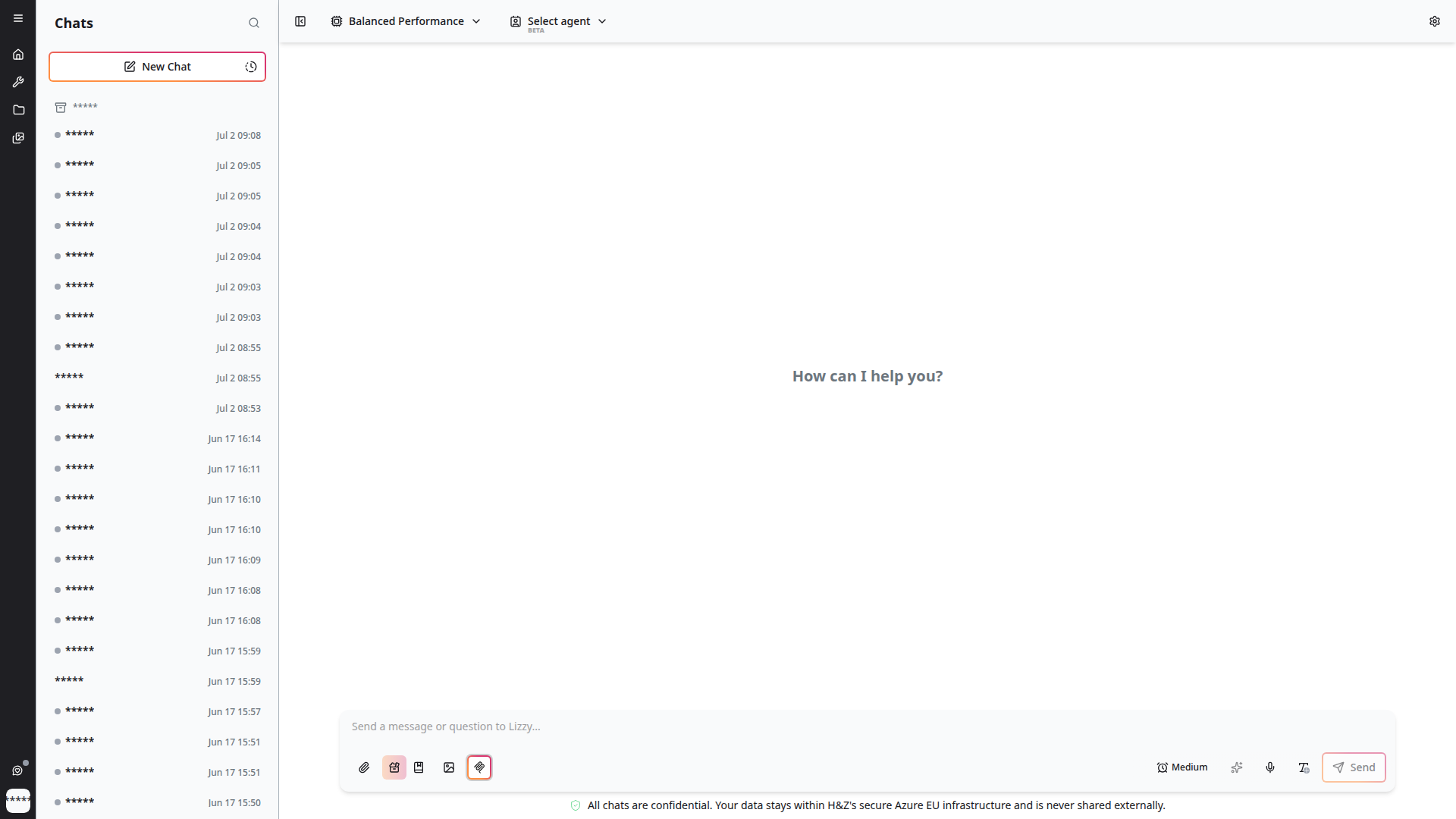
This opens the template dialog where you can browse, search, and select templates:
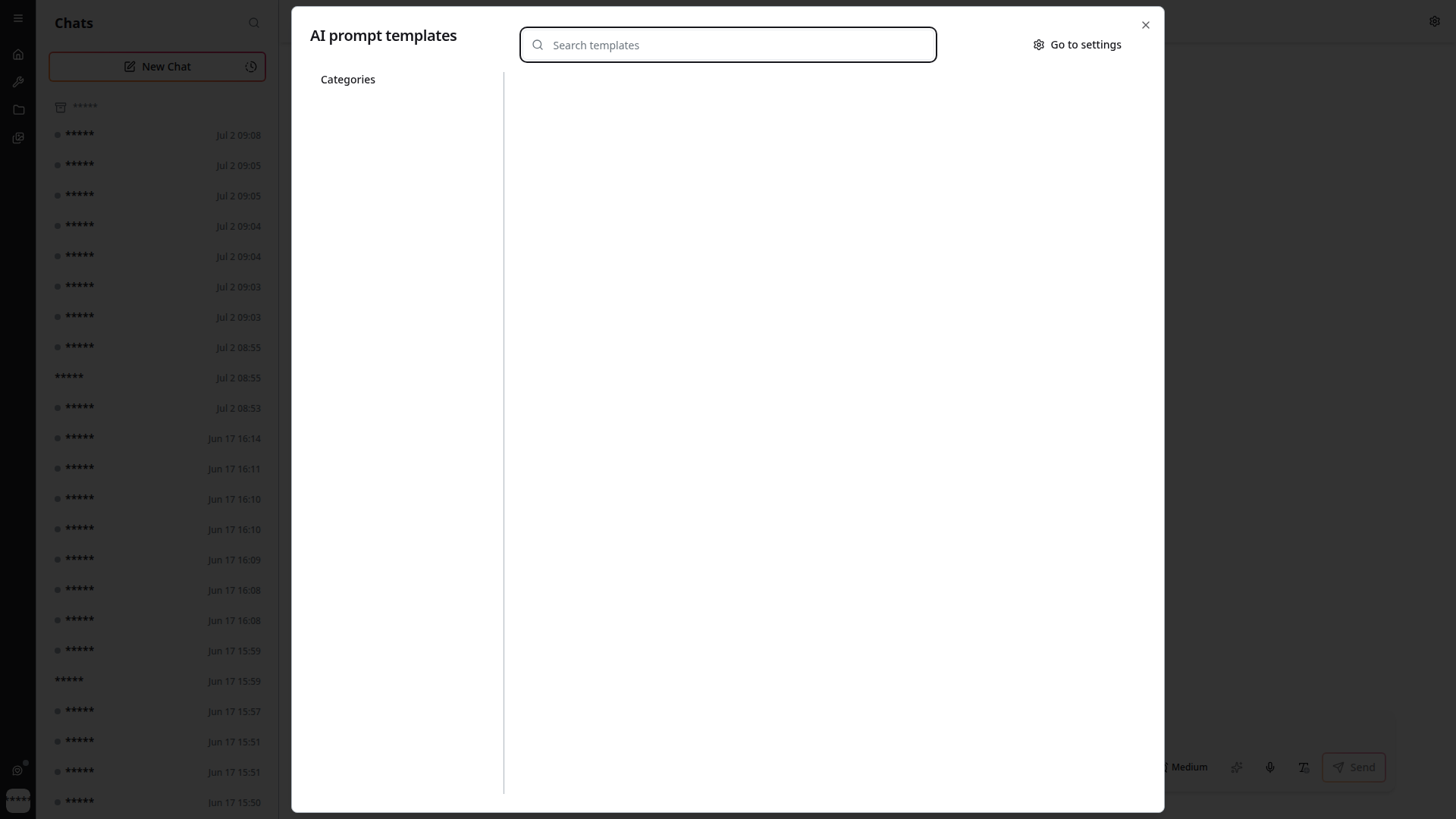
- Browse available templates (personal and system)
- Click a template to insert it into your chat input and attach any files stored with it
- Modify the prompt or attachments as needed before sending
Keyboard shortcuts are available for quick access to frequently used templates.
Personal Templates
Create your own personal prompt templates:
- Create new templates from scratch
- Edit existing templates to refine them
- Delete templates you no longer need
- Set visibility to Private, Public, or selected User Groups
Attaching Files to a Template
A template can carry file attachments as well as text. You can attach up to 10 files, with a maximum size of 25 MiB per file. When you use the template, its files come with it — so a recurring task that always runs against the same reference document no longer needs that document re-uploaded each time.
This suits templates like "review this against our standard terms" or "extract the usual fields from this invoice," where the standard or the schema is a fixed file and only the subject changes.
System Templates
The platform includes ready-to-use templates provided by administrators for common tasks and workflows.
Category Management
Organize your templates with categories:
- Create, Read, Update, Delete (CRUD) operations for categories
- Drag and drop to reorder categories
- Categories help organize large template collections
Creating and editing categories validates required fields before saving, and deleting one asks for confirmation first — "Are you sure you want to delete this category? This action cannot be undone."
Tips
- Create templates for tasks you perform frequently (weekly reports, code reviews, analysis requests)
- Use descriptive names and categories so templates are easy to find
- Include placeholder text (like
[PROJECT NAME]or[DATE]) that you fill in when using the template - Share useful templates with your team by asking an administrator to create system templates