MCP Integration
The 4C:me Safe AI Platform integrates with the Model Context Protocol (MCP), enabling AI models to access external tools and data sources.
Accessing MCP Settings
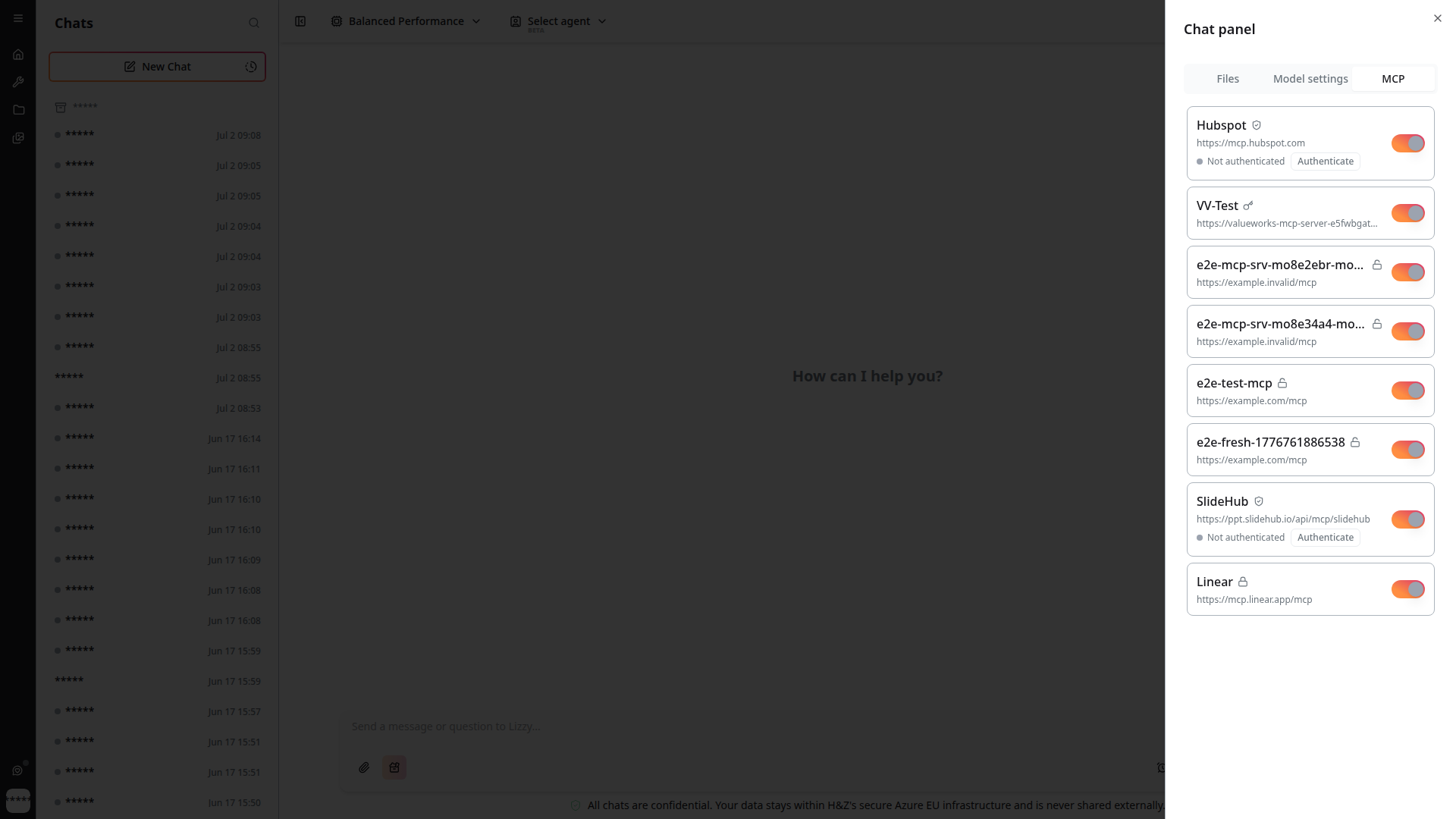
You can access MCP configuration from the chat settings sidebar. Click the settings gear (⚙️) icon in the top-right of 4C:me, then scroll down to find the MCP configuration button.
Alternatively, MCP can also be toggled from the platform Settings page:
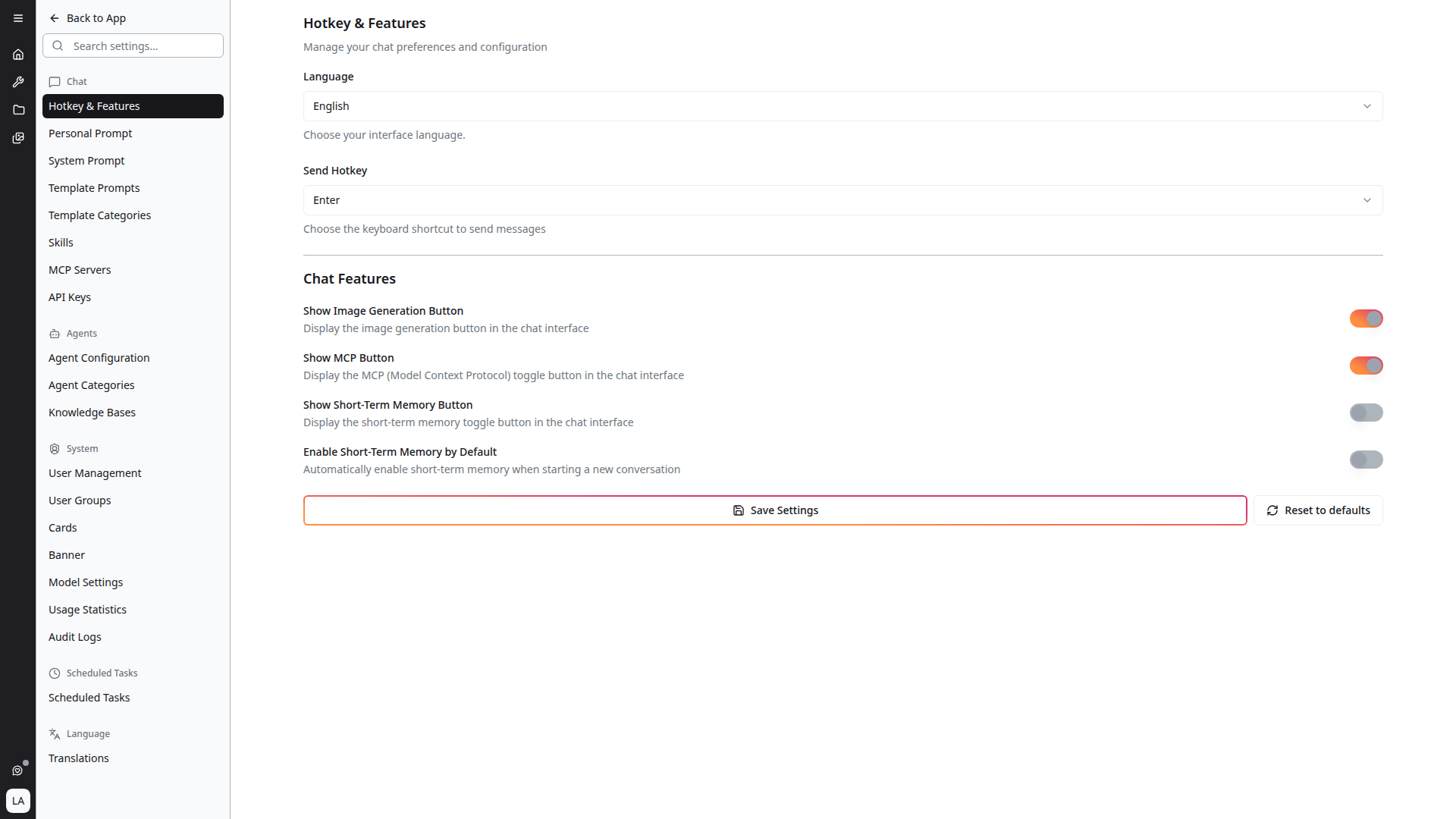
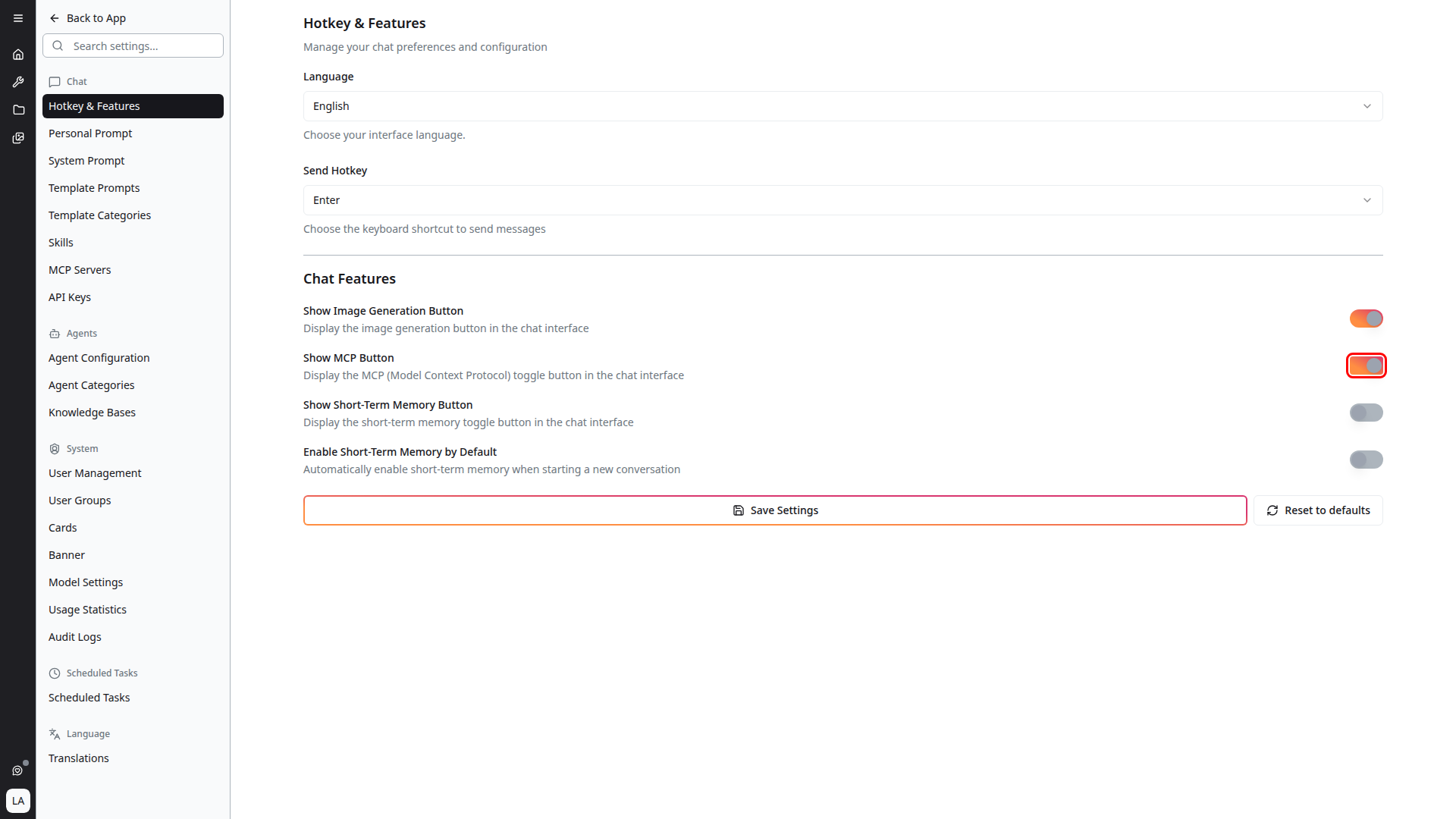
MCP in the Chat Settings Sidebar
The chat settings sidebar has a dedicated MCP tab, so servers can be enabled and disabled for the current conversation without navigating away. Full server management still lives on the MCP Servers settings page below.
MCP Servers Page
The MCP Servers settings page lists every server you have access to. Each row shows the server name, URL, authentication type, enabled status, authentication status, and visibility (private / public / user groups).
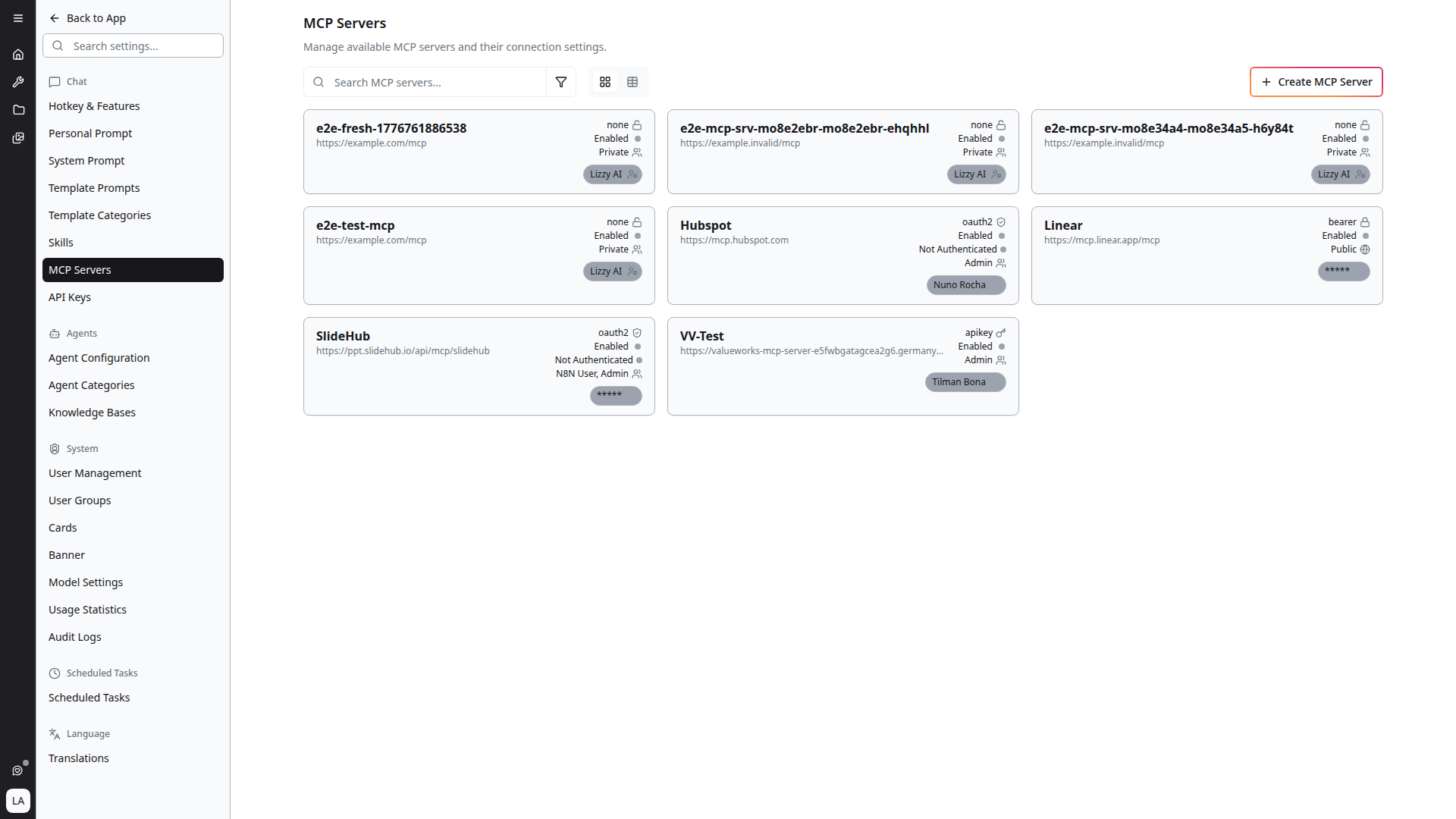
You can switch between grid and table views, filter the list, and search by name. Click + Create MCP Server in the top-right to add a new one.
Creating an MCP Server
The Create MCP Server dialog captures everything needed for a new connection.
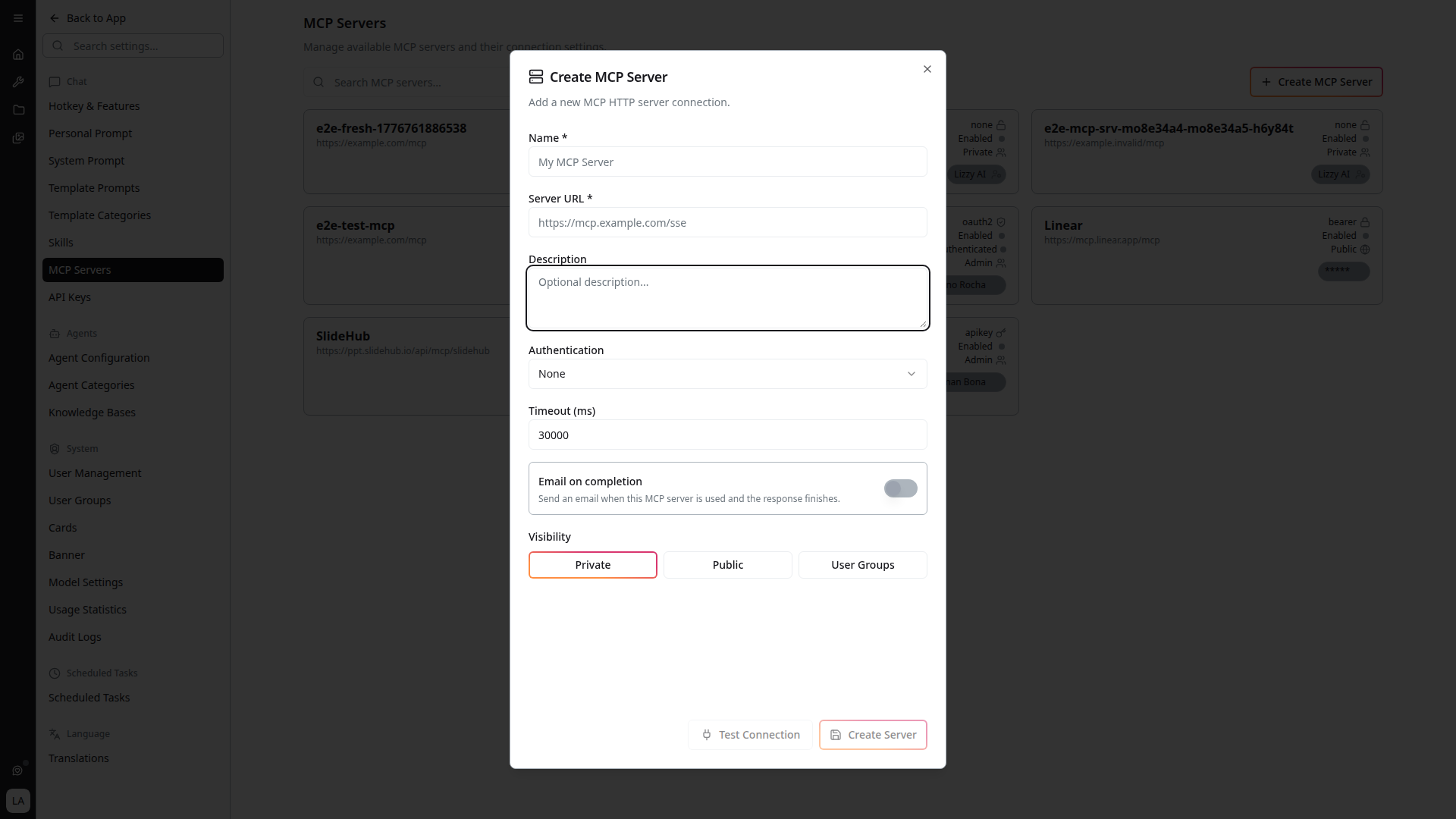
Fields:
- Name (required) — Display name for the server
- Server URL (required) — The HTTP MCP endpoint (e.g.
https://mcp.example.com/sse) - Description (optional) — Free-text notes
- Authentication — See below
- Timeout (ms) — Request timeout, default
30000(30 seconds) - Email on completion — When on, sends an email when this MCP server is used and the response finishes. Useful for tools that kick off long-running server-side work
- Visibility —
Private,Public, orUser Groups(see below)
The dialog has two actions at the bottom:
- Test Connection — Probes the server with the provided URL and credentials. The check runs through the platform backend (not the browser) to avoid CORS, and reports auth or connectivity failures inline
- Create Server — Saves the server
Authentication Types
The Authentication dropdown supports:
- None — For public MCP servers that don't require auth
- Bearer token — Static token sent in the
Authorizationheader - Query parameter — Token sent as a URL query parameter (e.g.
?token=...) for servers that auth via query string - OAuth2 — Full OAuth2 flow with PKCE support. You'll configure the client ID, authorization URL, token URL, scopes, redirect URI, and an optional token lifetime (in seconds) for cached user tokens
For OAuth2 servers, the platform handles the user authorization redirect and stores tokens server-side. When an access token expires, the platform first tries to renew the provider session silently. If the provider requires interaction, you are prompted to authenticate again. Expired servers are renewed in sequence so the settings list remains responsive while renewal is in progress.
Visibility
Each MCP server has a visibility setting:
- Private — Only the creator can see and use the server
- Public — Anyone in the tenant can use it (shown with a globe icon in the list)
- User Groups — Restrict access to selected user groups (see User Management)
Available Tools
After a server is saved and authenticated, the edit dialog shows an Available tools section. The platform loads the tools exposed by the MCP server and lets you control which ones can be called from chat:
- Personal — Disable a tool for your own chats only
- Global — Server owners can disable a tool for everyone who can access that server
- Disabled tools are hidden from chat and cannot be called by the model
- Globally disabled tools lock the personal toggle until the owner enables them again
If no tools appear, use Test Connection or confirm the required credentials and OAuth authorization are configured. Tool descriptions appear on hover when the MCP server provides them.
Example Integrations
The MCP protocol is generic, so any compliant MCP server can be added. Two common integrations used on the platform:
SlideHub
SlideHub provides slide and presentation generation. When connected as an MCP server, 4C:me can generate individual slides or full PowerPoint presentations directly from a chat. Ask 4C:me to "create a slide about X" or "build a presentation on Y" and the SlideHub tool calls take care of the rendering.
Typical configuration:
- Server URL:
https://ppt.slidehub.io/api/mcp/slidehub - Authentication:
OAuth2with the SlideHub credentials supplied by your administrator - Visibility:
Publicfor tenant-wide access, orUser Groupsto restrict to teams with a SlideHub subscription
After saving, each user clicks the server entry to complete the OAuth flow. Until that's done, the server shows as Not Authenticated.
HubSpot
Connecting HubSpot lets 4C:me read and write HubSpot CRM data from chat — for example, looking up contacts, listing recent deals, or summarizing pipeline activity. Use OAuth2 with the HubSpot app credentials your administrator has configured.
What Is MCP?
The Model Context Protocol is a standard for connecting AI models to external tools, data sources, and services. MCP allows the AI to:
- Call external tools during a conversation
- Access data from connected services
- Perform actions beyond pure text generation
MCP in the Platform
Tool Call Indicator
When the AI invokes an MCP tool during a conversation, a tool call indicator appears in the chat. This shows:
- Which tool is being called
- The status of the tool call
- Results returned by the tool
Multiple MCP Servers
The platform supports integration with multiple MCP servers, allowing connection to various external services and data sources simultaneously.
Tool Visibility
Administrators and server owners can now narrow an MCP server to only the tools that are appropriate for users. This is helpful when a server exposes experimental, destructive, or irrelevant tools alongside the tools users should actually use.
Per-Agent Tool Control
Tool access can also be set per agent, so the same MCP server can expose different tools depending on which agent is running.
In the agent editor's MCP Tools tab, choose between:
- Use user MCP settings — the agent inherits each user's own enabled servers and disabled tools
- Customize for this agent — you choose exactly which servers and tools are allowed while this agent runs
In custom mode you can disable individual tools for that agent only, leaving them available everywhere else. Tools switched off elsewhere are labelled Disabled globally or Disabled in your MCP settings so it stays clear where a restriction comes from.
See Agents → MCP Tools.
Improved Streaming
MCP-enabled conversations feature improved response streaming:
- Responses stream in real-time as they are generated
- Fixed issues where responses would not stream when MCP was enabled (resolved in earlier updates)
MCP Handling
The platform has greatly improved MCP handling with recent updates:
- More reliable tool call execution
- Better error handling when MCP tools fail
- Improved integration between MCP tools and the chat interface
Authentication
MCP servers are integrated with the platform's authentication system:
- Secure connections to MCP servers
- Token-based authentication for MCP tool calls
- Proper staging and production monitoring via Sentry
Session Lifetime and Expiry
OAuth sessions for MCP servers last longer than they used to, and connections are held open rather than being dropped early — so a server you authorized at the start of a working session is far less likely to disconnect underneath you mid-conversation.
When authorization does lapse:
- The platform first attempts silent renewal when the provider session is still valid
- A popup tells you the authentication has expired, instead of the tool call failing silently
- The server is marked Auth expired where it is listed, including in an agent's MCP Tools configuration
- Re-authorizing from the server entry restores access
Expiry is per user, not per server. A colleague's expired session does not affect yours.
Tips
- MCP tool calls may add slight latency to responses as external tools are invoked
- Watch for the tool call indicator to understand when the AI is using external data
- MCP is particularly useful for tasks that require real-time or external data