Agents
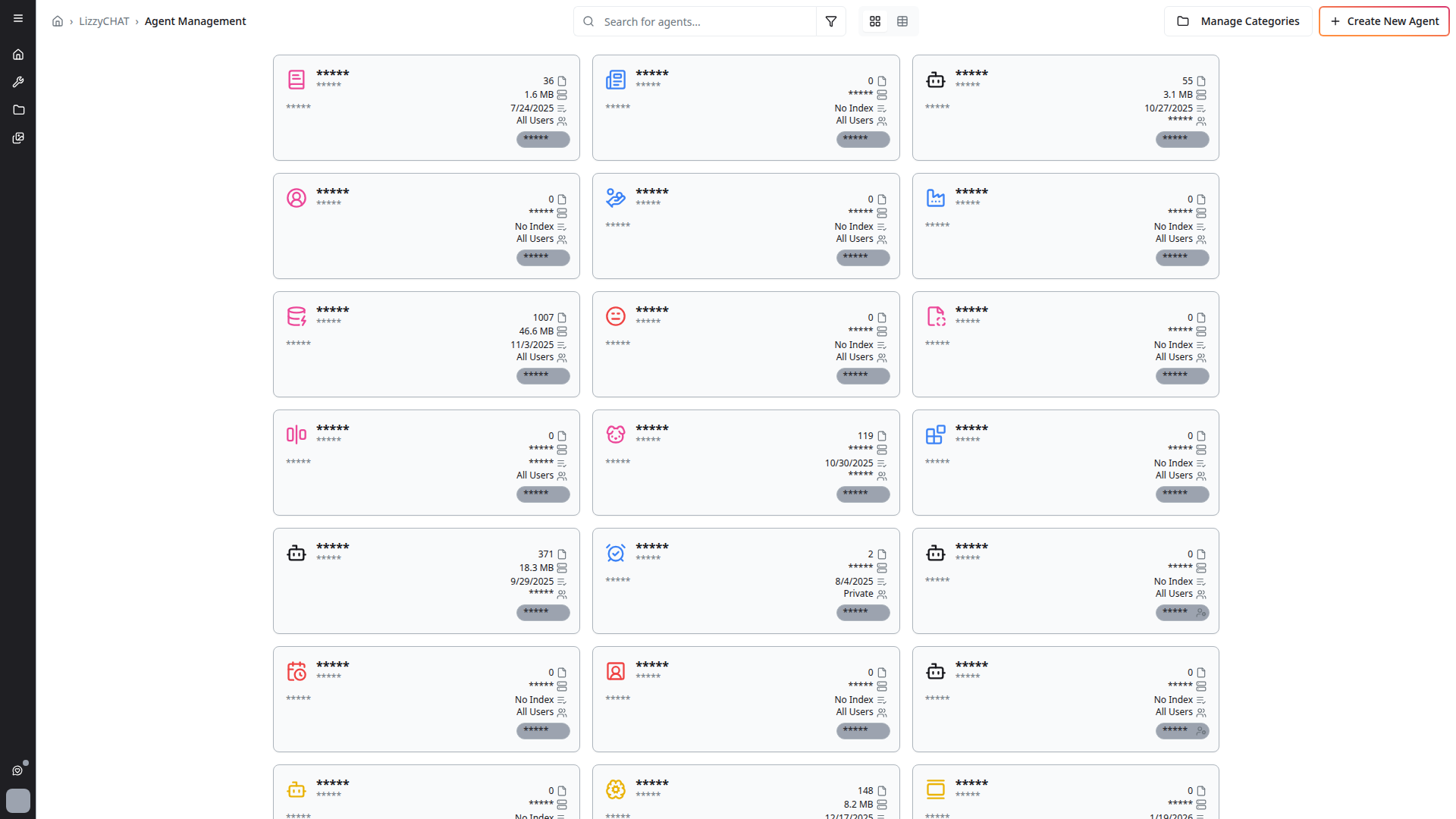
Agents are configurable AI personas that customize 4C:me's behavior for specific use cases and workflows.
What Are Agents?
An agent is a preconfigured AI setup that includes:
- A custom system prompt that defines the agent's behavior and expertise
- Associated files and documents the agent can reference
- Depth controls for how deeply the agent explores topics
- Access permissions defining who can use the agent
Using an Agent
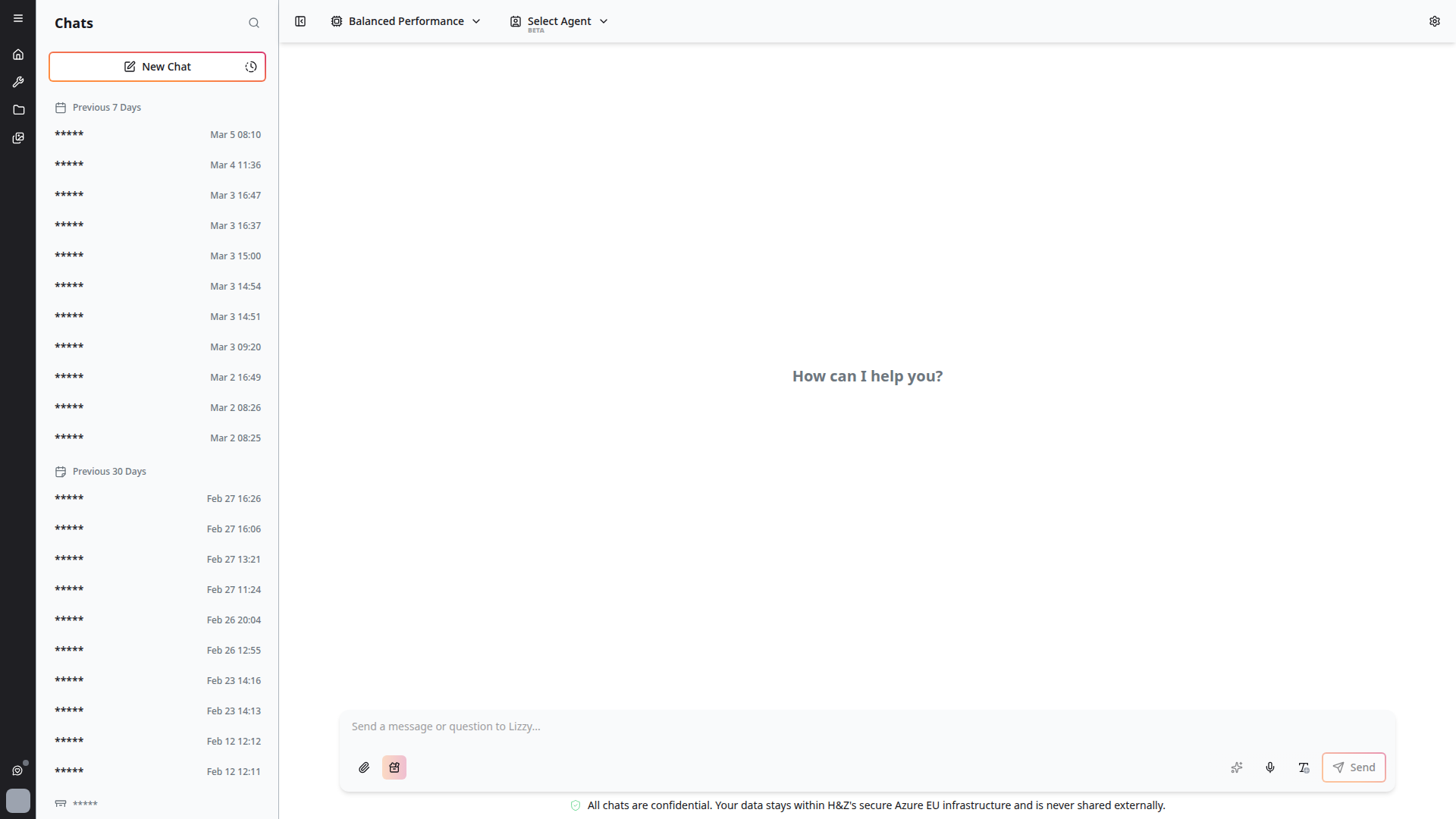
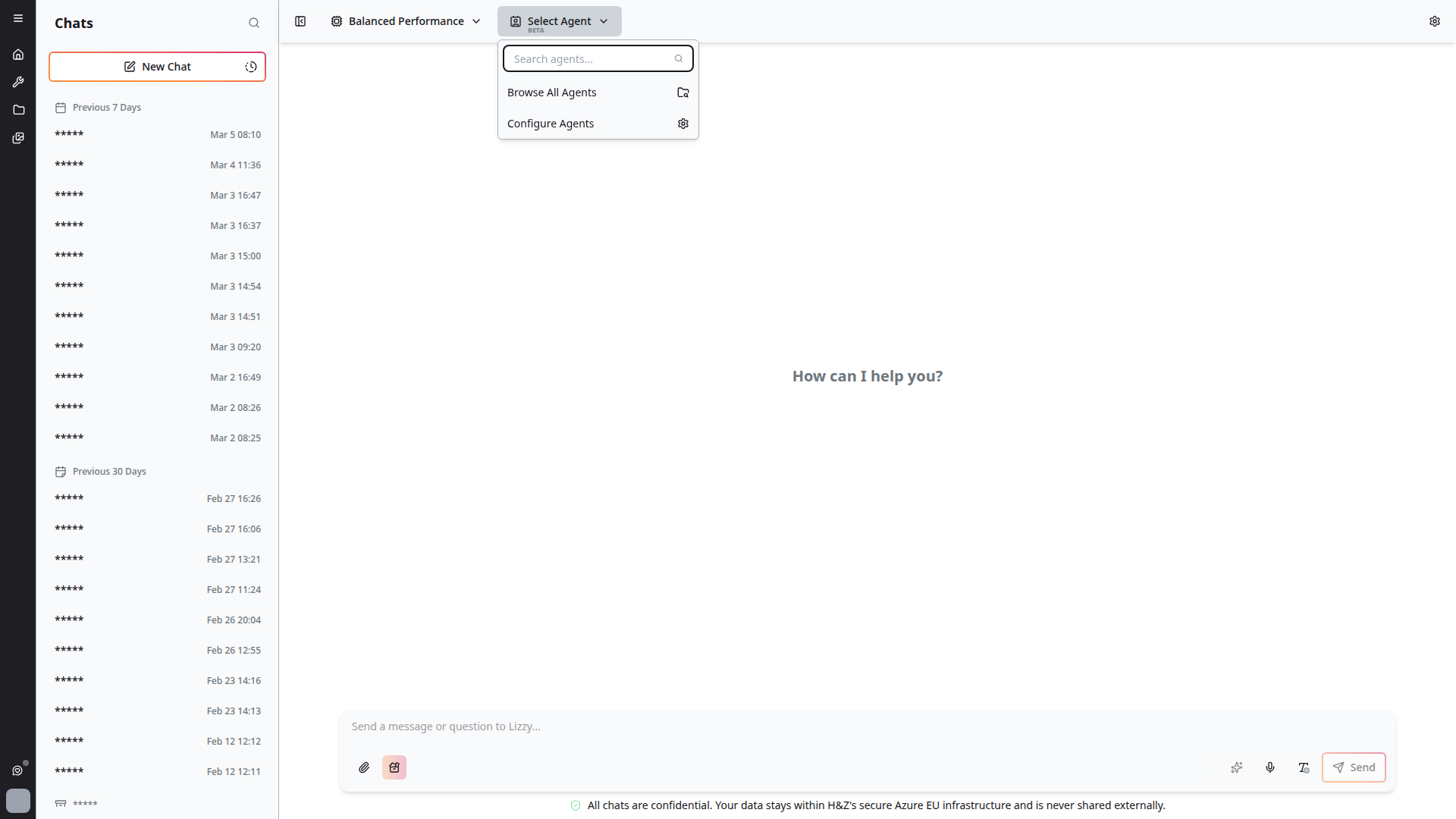
- In 4C:me, click Select Agent (BETA) in the top bar
- Browse or search for the agent you need
- Select the agent — it becomes active for your current conversation
- The agent's system prompt and context shape all responses
- The platform remembers your last-used agent per conversation
Creating an Agent
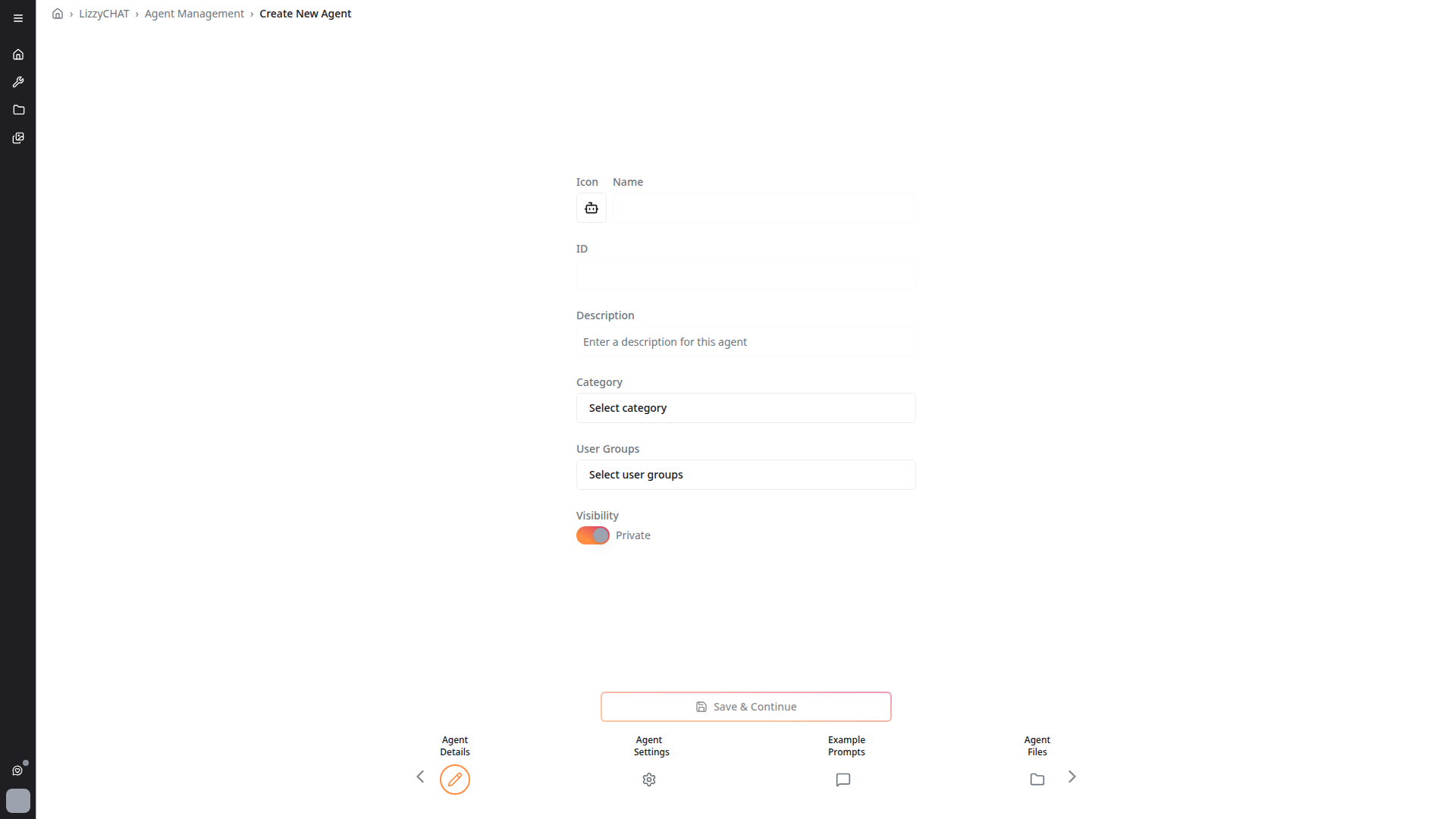
Click Create New Agent in the Agent Management page to start a guided wizard. The wizard walks you through four steps:
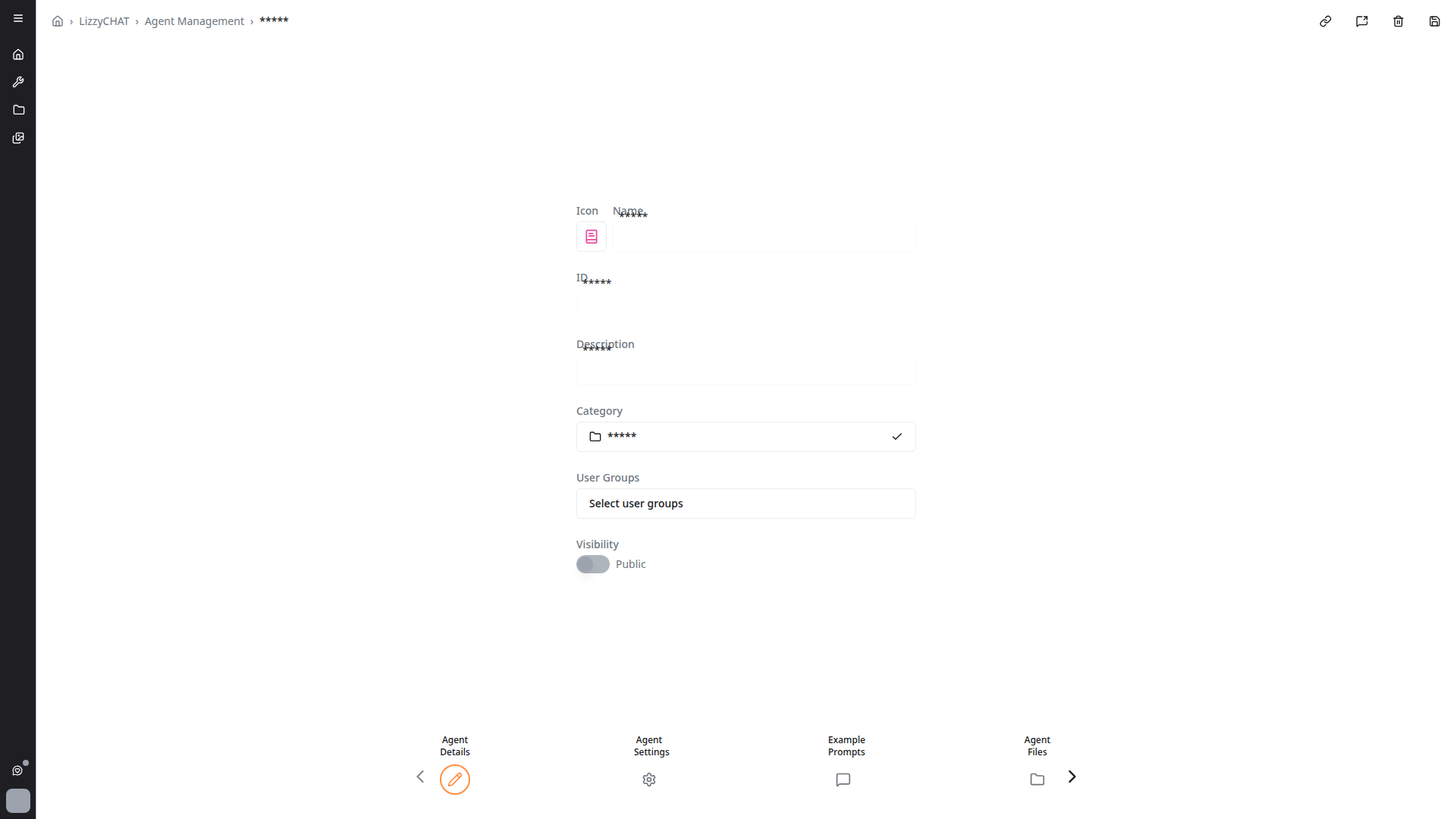
Step 1: Agent Details
Configure the basic identity of your agent:
- Icon — Choose an emoji to represent the agent
- Name — A descriptive name for the agent
- ID — A unique identifier (auto-generated from the name)
- Description — A brief summary of what the agent does
- Category — Organize agents into categories
- User Groups — Control which groups can access the agent
- Visibility — Toggle between Public (all users) and Private (restricted)
Step 2: Agent Settings
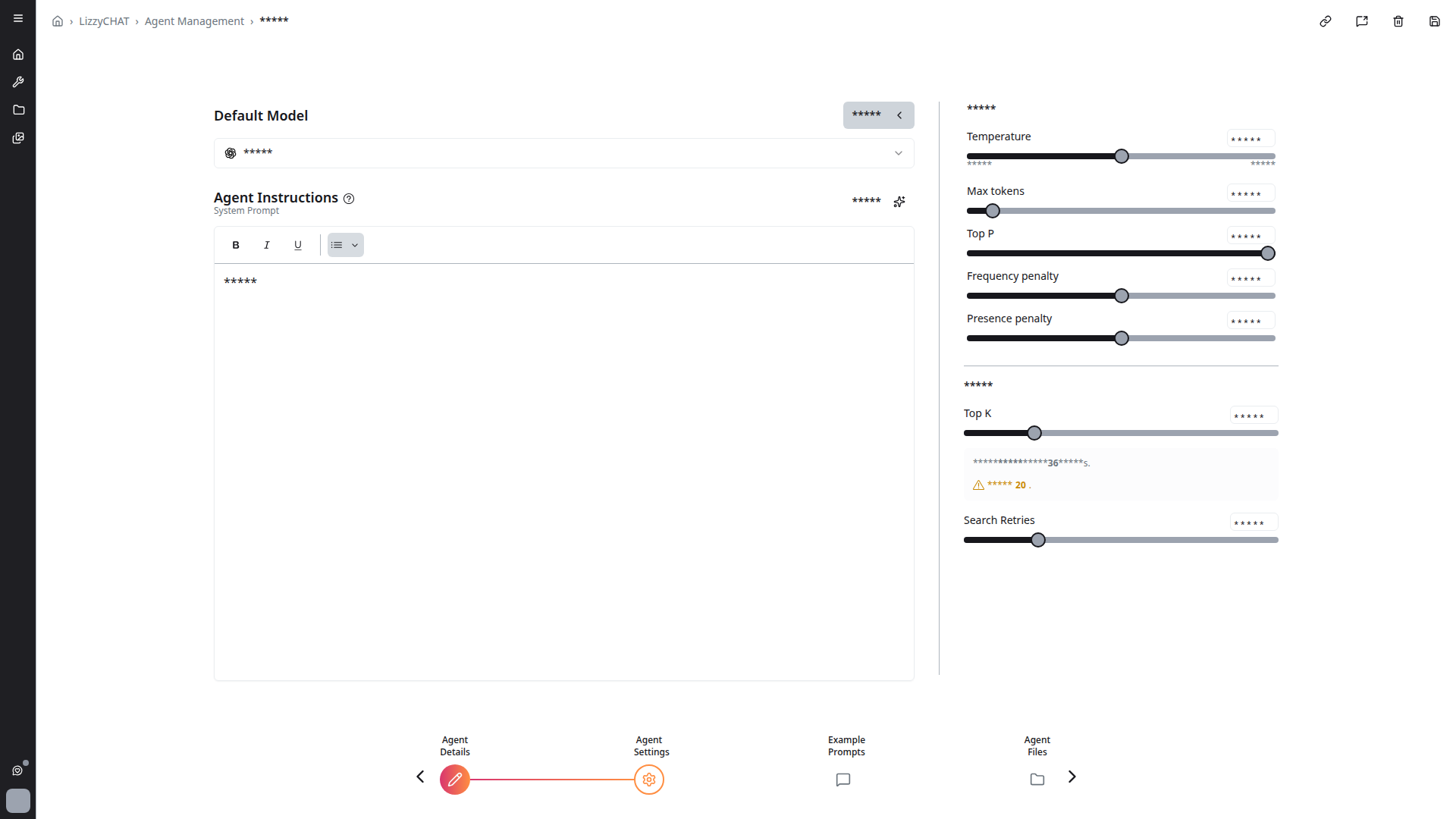
Configure the agent's AI behavior:
- Default Model — Choose which AI model the agent uses by default
- Model Configuration — Click the expand arrow next to the model selector to reveal advanced model parameters:
- Temperature — Controls response randomness (lower = more deterministic, higher = more creative)
- Max tokens — Maximum length of the generated response
- Top P — Nucleus sampling threshold
- Frequency penalty — Reduces repetition of frequently used tokens
- Presence penalty — Encourages the model to explore new topics
- Top K — Limits token selection to the top K most probable tokens
- Search Retries — Number of retry attempts for search operations
- Agent Instructions (System Prompt) — Define the agent's personality, expertise, and instructions using a rich-text editor. This prompt is sent as the system message in every conversation with the agent.
Step 3: Example Prompts
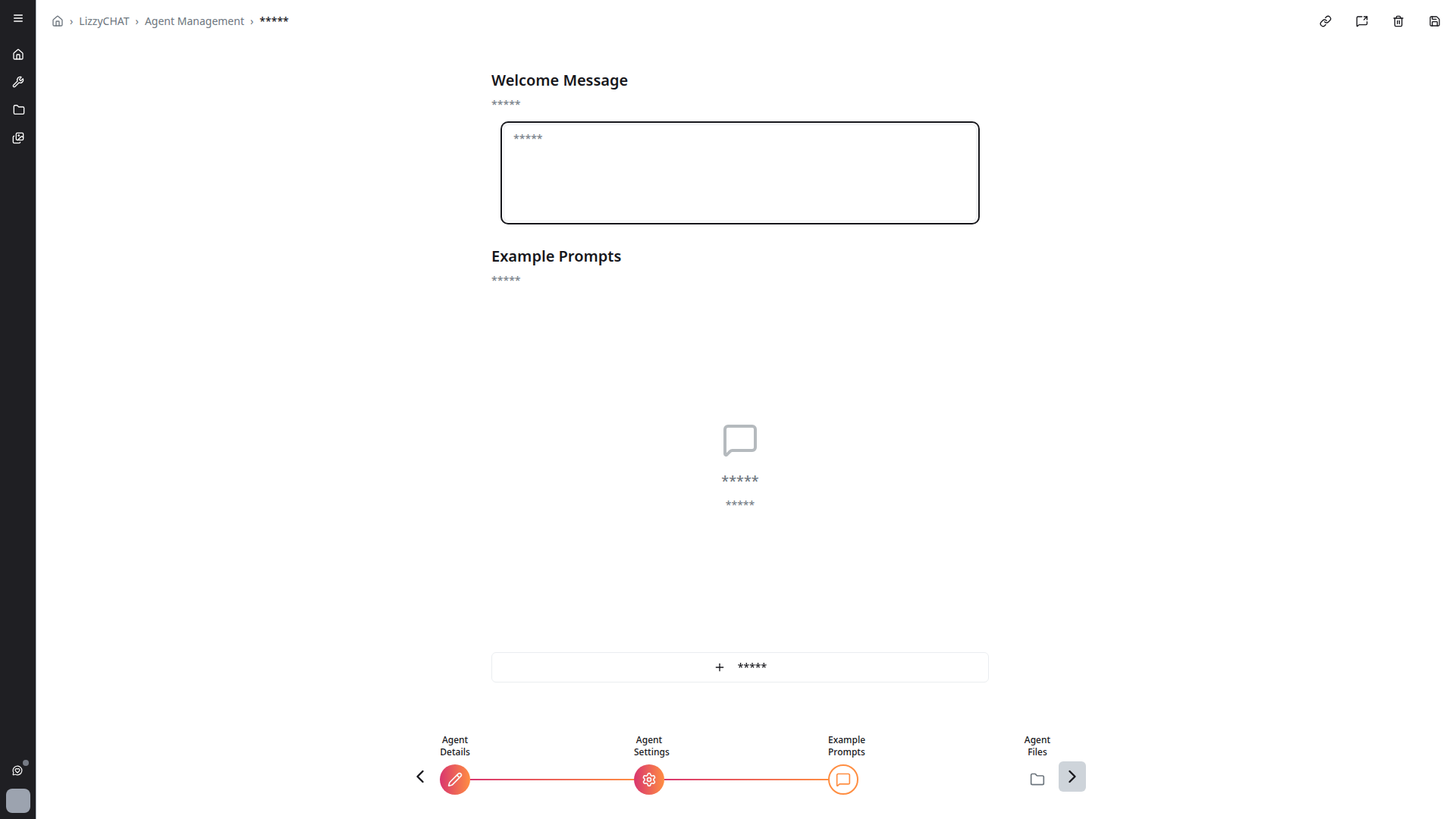
Configure how users interact with the agent:
- Welcome Message — Set a custom greeting users see when they start a conversation with the agent
- Example Prompts — Add sample prompts that appear below the welcome message. These help users understand what the agent can do and provide quick-start suggestions. Each prompt consists of:
- A title displayed as a clickable suggestion
- A message body that gets inserted into the chat when the user clicks the prompt
- Optional attached documents that are automatically included in the conversation context whenever the user selects the prompt
Click + Add Prompt to create new example prompts.
Step 4: Agent Files
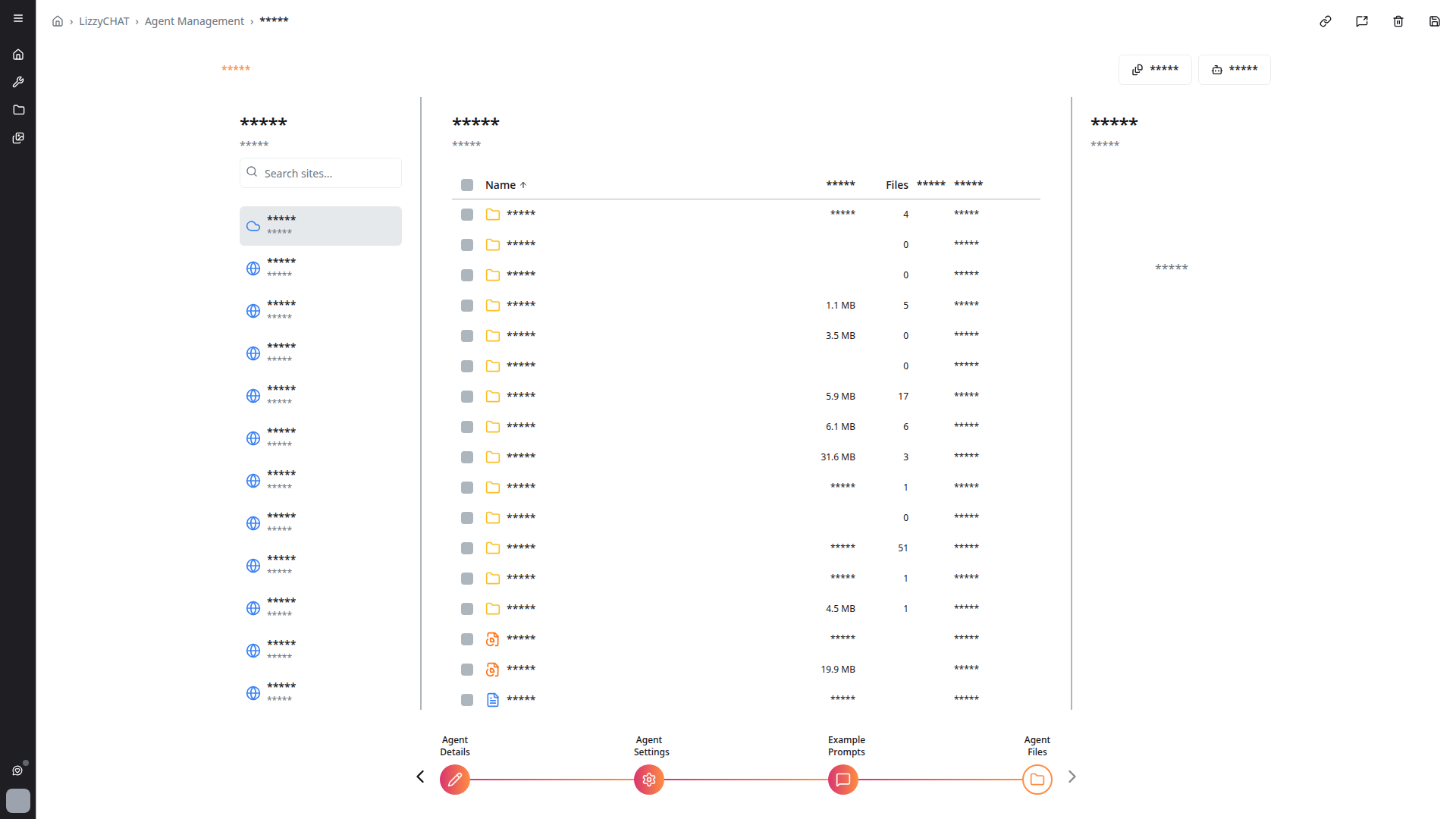
Manage the agent's knowledge base:
- Upload documents the agent can reference during conversations
- Browse and sort attached files
- Remove files no longer needed
Uploaded files become part of the agent's context, allowing it to answer questions based on their content.
Editing an Agent
Click on any agent card in the grid to open the same four-step wizard with the agent's current configuration. Edit any field and save your changes.
Agent Visibility
Private by Default
Agents are set to private by default, meaning:
- Only the creator and explicitly granted users/groups can see the agent
- This prevents accidental exposure of specialized agents
- Administrators can change visibility settings
Public Agents
Public agents are available to all authenticated users on the platform.
Use agents for specialized tasks like code review, document analysis, or domain-specific Q&A. The system prompt ensures consistent, focused responses.