LLM Management
The Model Settings tab lets administrators register, configure, and order the AI models available across the platform. Each entry maps a user-visible name to a provider-side deployment with credentials and limits.
Accessing Model Settings
Open Settings, scroll to the System section in the sidebar, and click Model Settings. Requires the system_settings.manage permission.
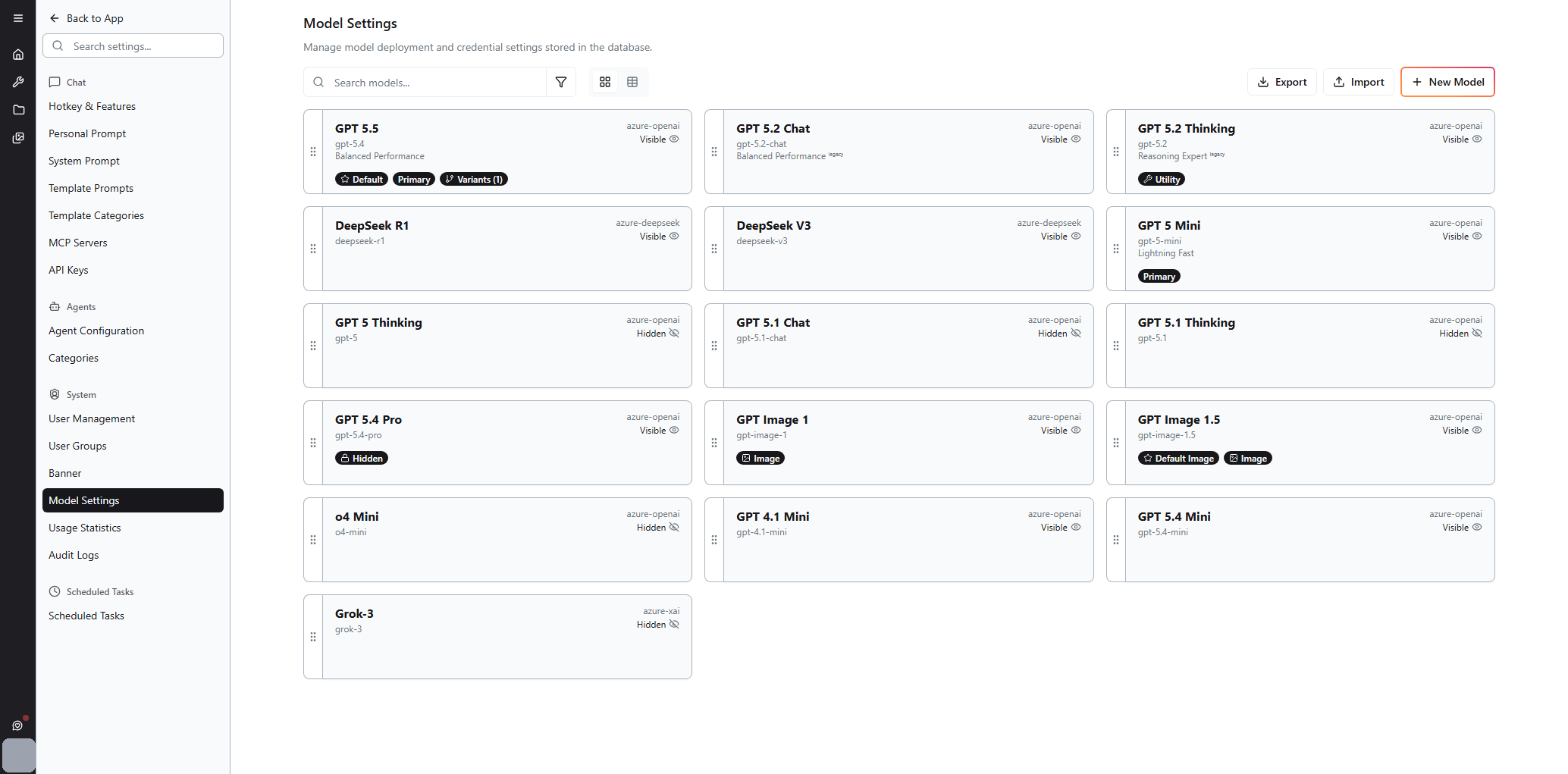
The page header reads "Manage model deployment and credential settings stored in the database."
Page Controls
Across the top of the page:
- Search models — filter by name or model ID
- Filter (funnel icon) — additional filters
- View toggle — switch between grid and table layouts
- Export — download the current model config as JSON
- Import — upload a config to restore settings or share between environments
- + New Model — open the create-model dialog
Model Cards
Each model appears as a card with:
- A drag handle on the left for reordering
- Display name (e.g. "GPT 5.5", "DeepSeek R1", "GPT Image 1.5", "Grok-3")
- Model ID below the name — the provider-side deployment identifier (e.g.
gpt-5.4,deepseek-r1,gpt-image-1,grok-3) - Provider tag in the top-right (e.g.
azure-openai,azure-deepseek,azure-xai) - Visibility indicator next to the provider tag —
Visible(eye icon) orHidden(eye-strike icon) - Optional category label under the model ID — short descriptors like "Balanced Performance", "Reasoning Expert" (with a
legacytag where applicable), or "Lightning Fast" that surface to users in the model selector - Optional status badges at the bottom of the card:
- Default / Default Image — the default selection for new chats / new image generation
- Primary — the recommended choice within its tier
- Variants (N) — number of attached variants (e.g. different reasoning-effort builds of the same base model)
- Utility — used for internal jobs like title generation, not exposed in the chat selector
- Image — image-generation model
- Hidden (with a lock icon) — explicitly hidden from non-admin users
Cards are reordered by dragging — the order shown here is the order users see in the chat model selector.
Adding or Editing a Model
Click + New Model (or click an existing card to edit) to open the model dialog. The same form is used for create and edit — the header reads "Create New Model" with the subtitle "Configure a new model with full connection settings and capabilities."
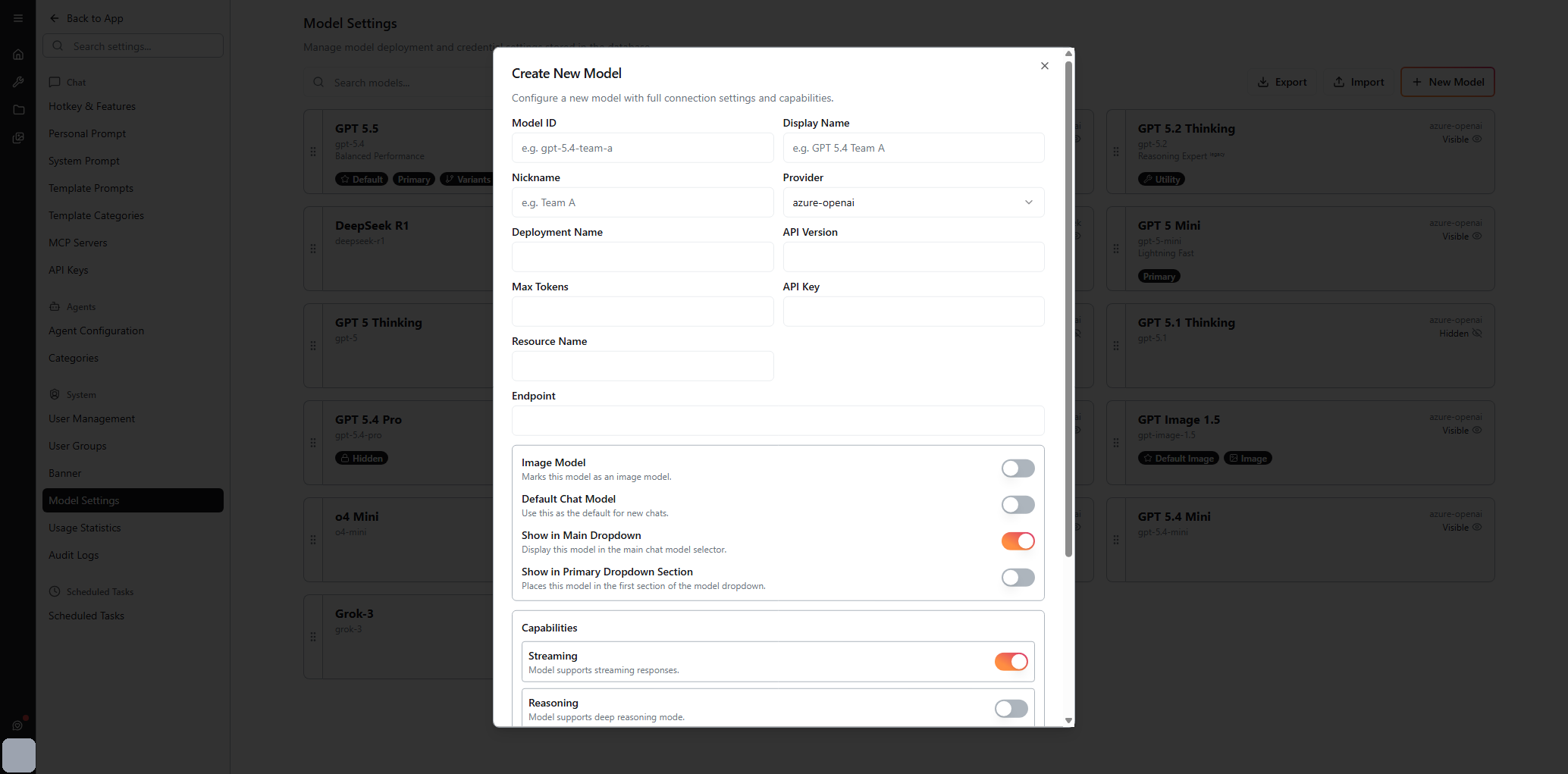
Identity
- Model ID — the unique identifier within the platform (placeholder:
e.g. gpt-5.4-team-a) - Display Name — the user-visible label shown in the chat model selector (placeholder:
e.g. GPT 5.4 Team A) - Nickname — short alias used in compact UI elements (placeholder:
e.g. Team A)
Provider Connection
- Provider — dropdown of supported providers (
azure-openai,azure-deepseek,azure-xai, etc.) - Deployment Name — the provider-side deployment identifier
- API Version — the provider API version to call
- Max Tokens — output token limit applied to responses
- API Key — credential stored encrypted with the model
- Resource Name — the provider resource (e.g. an Azure OpenAI resource)
- Endpoint — the base URL for API calls
Behavior Flags
- Image Model — marks this model as an image-generation model (shown with an Image badge on the card)
- Default Chat Model — uses this as the default for new chats (shown with a Default badge)
- Show in Main Dropdown — display this model in the main chat model selector
- Show in Primary Dropdown Section — places this model in the first section of the model dropdown (shown with a Primary badge)
Capabilities
- Streaming — model supports streaming responses (toggle on by default for chat-capable models)
- Reasoning — model supports deep reasoning mode. Models with this on expose the reasoning-effort selector to users — see 4C:me Overview
Save to create the model (or apply the edit). New models appear in the grid; new chats can pick them up immediately based on their visibility flags.
How Models Appear to Users
Users pick a model from the model selector in the 4C:me top bar. Only Visible models in groups the user can see appear in that list, in the order configured on this page. Conversations remember the last used model per chat — see 4C:me Overview.
Tips
- Default controls which model new chats start with; Primary is a recommendation flag for the model selector but doesn't change the default
- Use Hidden instead of deleting when you want to retire a model without breaking history — disabled models stop appearing in selectors but stay around for past conversations
- Utility models (e.g. for title generation) should usually be small and cheap — they're not exposed to users
- Use Export before making breaking changes so you can roll back via Import
- Mark legacy models with a
legacycategory label so users know they're being phased out
Related
- User Management — control who can see which models
- Cost Monitoring — track spend per model
- Usage Statistics — per-model request counts and latency