Feedback
The 4C:me Safe AI Platform includes a comprehensive feedback system for users to share their thoughts and for administrators to manage and respond to feedback. The feedback management interface is available at 4cme.4cgroup.net/feedback.
Feedback Widget
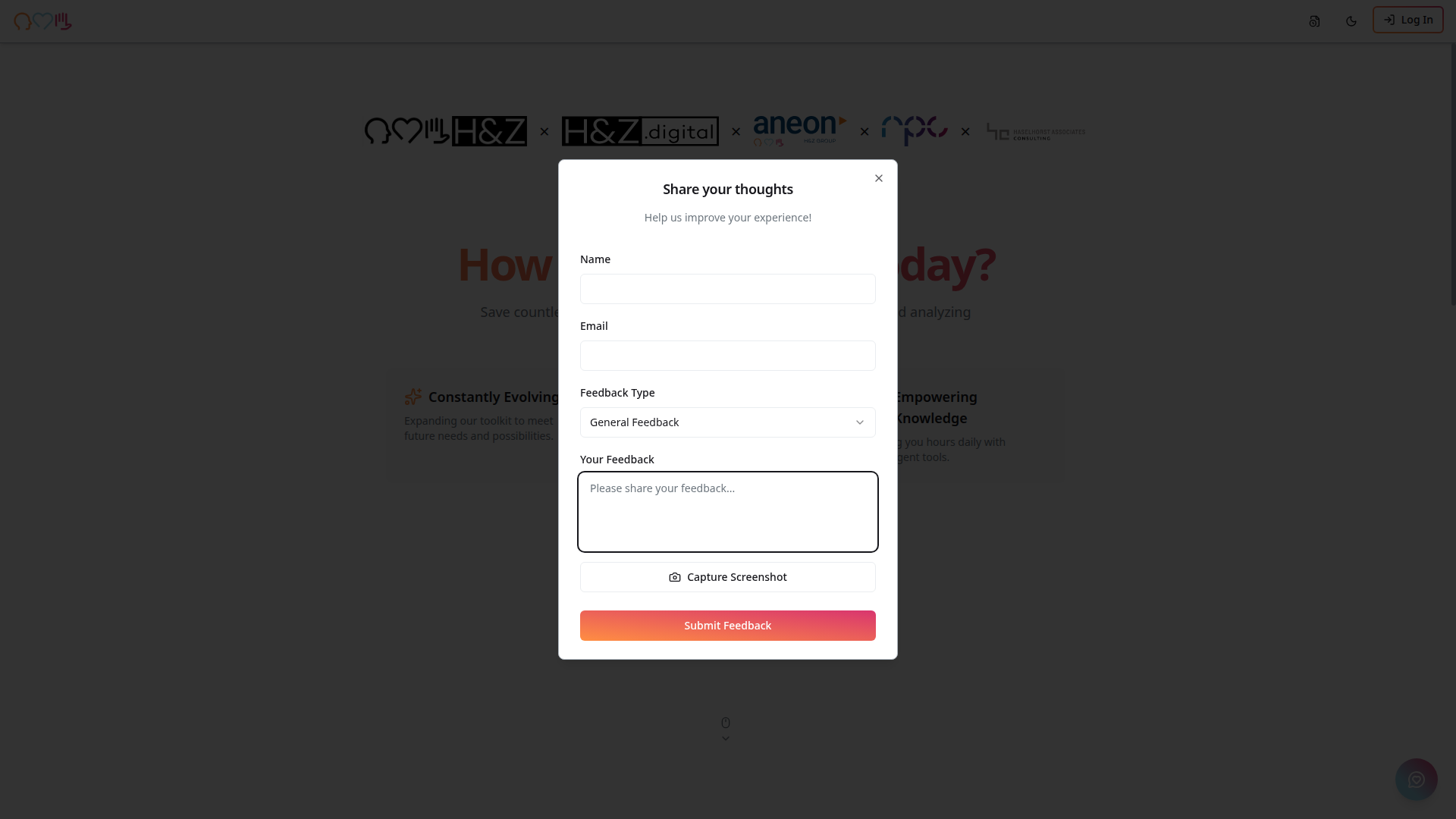
A feedback button is available in the bottom-right corner of every page:
- Click the feedback icon (chat bubble)
- Fill in the feedback form:
- Name — Your name
- Email — Your email address
- Feedback Type — Select from dropdown (e.g., General Feedback, Bug Report)
- Your Feedback — Detailed feedback text
- Optionally click Capture Screenshot to include a screenshot of the current page
- Click Submit Feedback
Feedback Management Interface
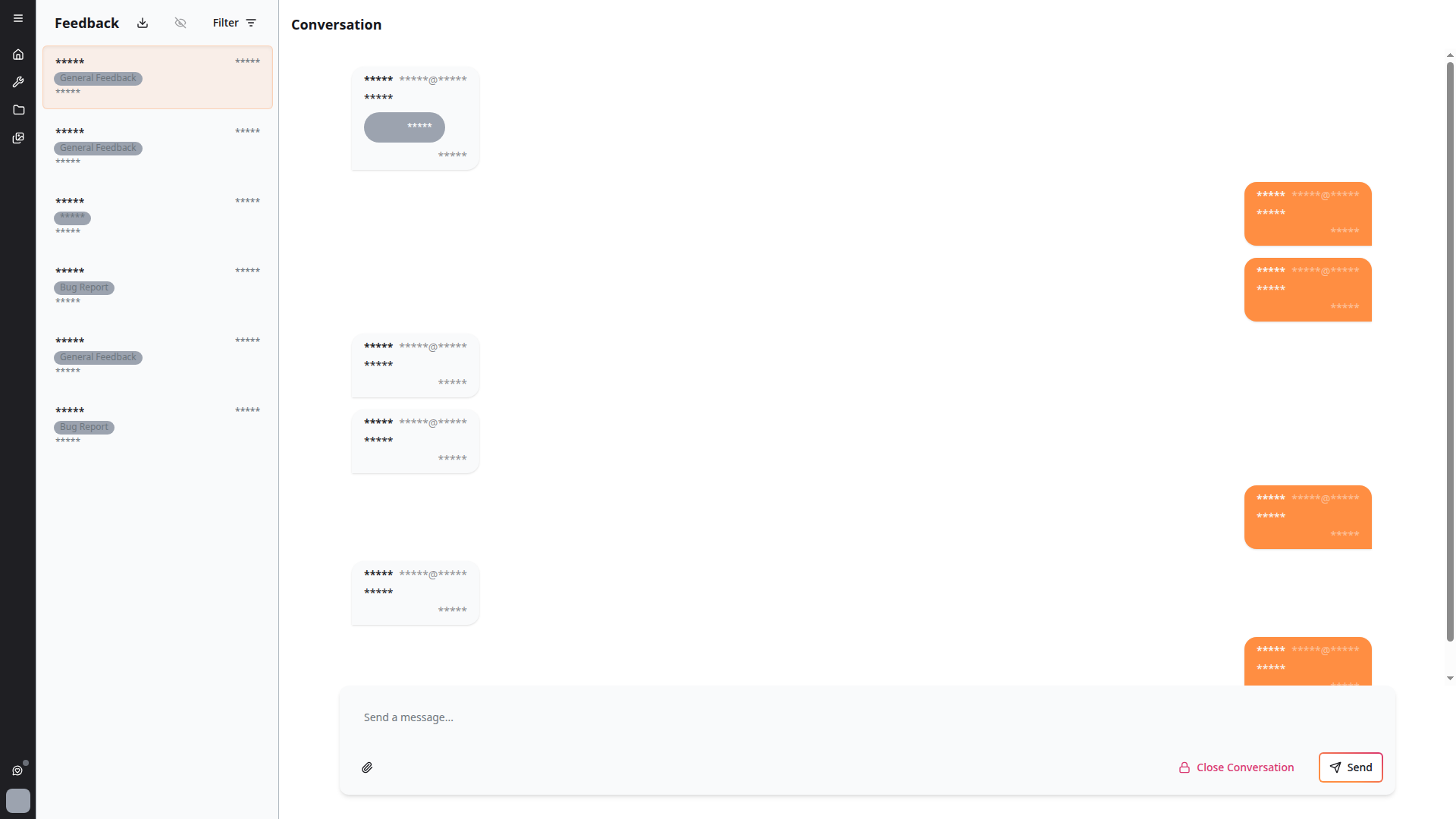
Administrators and team members can view and respond to all feedback at the dedicated feedback page.
Feedback List
The left sidebar displays a list of all feedback conversations, each showing:
- User name — Who submitted the feedback
- Type badge — Color-coded badge indicating the type (e.g., "General Feedback", "Bug Report")
- Date — When the feedback was submitted
- Preview — First few lines of the feedback message
Conversation View
Click on any feedback entry to view the full conversation:
- Complete message history between the user and the team
- Send a message input at the bottom to respond
- Close Conversation button to mark feedback as resolved
Filtering and Export
- Filter button — Filter feedback by type, date, or status
- Download — Export feedback data for analysis
- CSV export with filtering options for reporting
Feedback Types
| Type | Purpose |
|---|---|
| General Feedback | Suggestions, ideas, and general comments |
| Bug Report | Issues, errors, and unexpected behavior |
Feedback Conversations
Feedback can be part of ongoing conversations:
Per-User Indicators
Each feedback conversation shows per-user new message indicators, so you know when there are unread responses to your feedback.
Image Attachments
Feedback conversations support image attachments, allowing you to include screenshots or other visual context.
Tips
- Use the screenshot capture feature to provide visual context with your feedback
- Be specific about what you experienced and what you expected
- Check back on your feedback conversations for responses from the team
- Use the feedback system for bug reports, feature requests, or general suggestions