4C:me
4C:me is the core AI chatbot of the 4C:me Safe AI Platform. It provides secure, enterprise-grade conversations with leading AI models.
Overview
4C:me allows you to:
- Have natural conversations with the latest AI models
- Upload and analyze images, documents, and files
- Generate and edit images
- Create Mermaid diagrams directly in chat
- Export conversations as PDF
- Use voice interaction to talk to 4C:me
- Work with custom agents and prompt templates
- Branch from an earlier answer to explore alternatives without losing the original conversation
- Review code execution results, including generated files and stdout/stderr, when a model runs code
Tags: Secure AI ChatBot
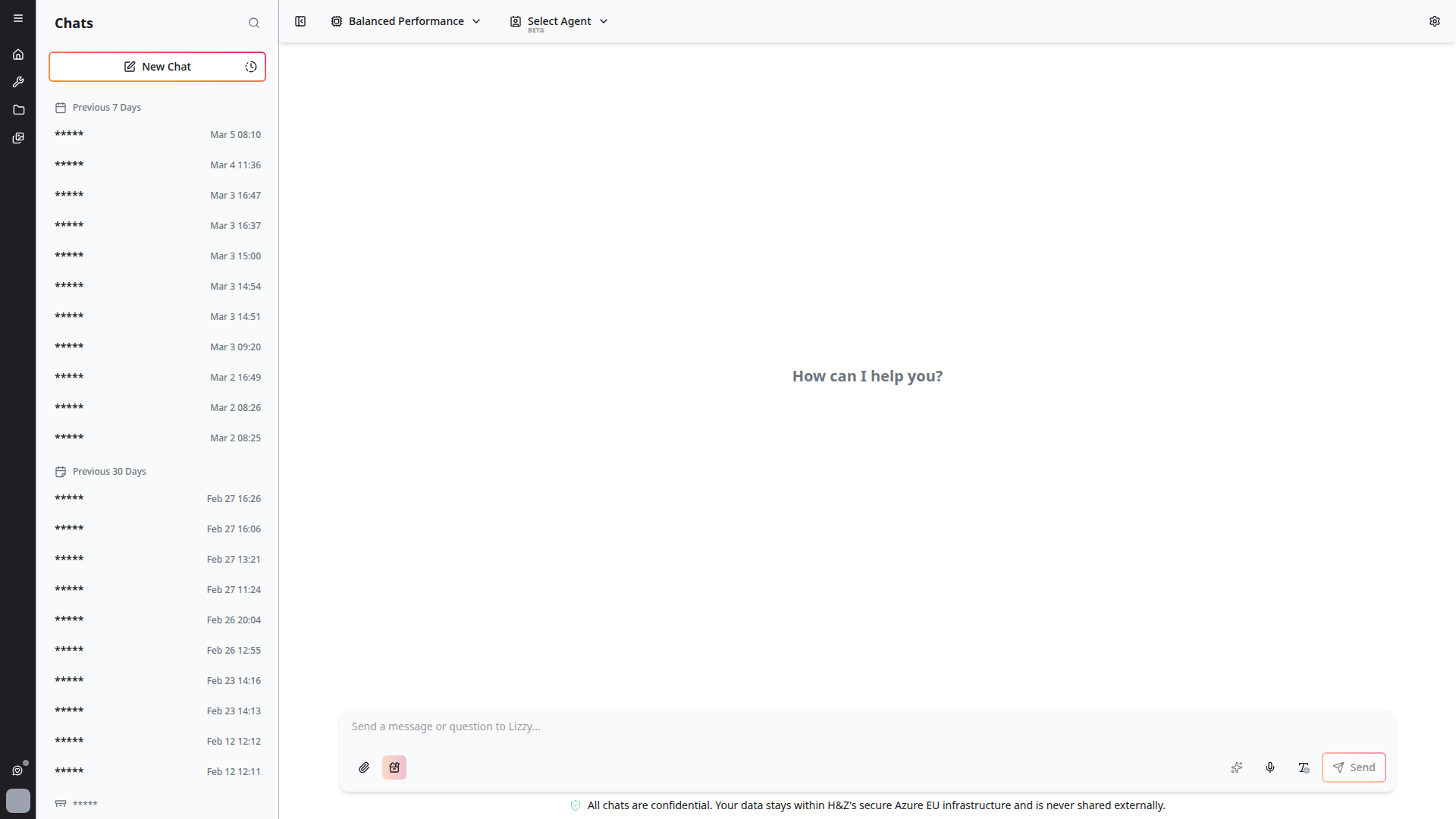
Getting Started
- Log in to the platform at 4cme.4cgroup.net
- Click on the 4C:me tool card on the landing page, or navigate to the chat interface
- Start typing your message in the chat input area
Chat Interface
Sidebar
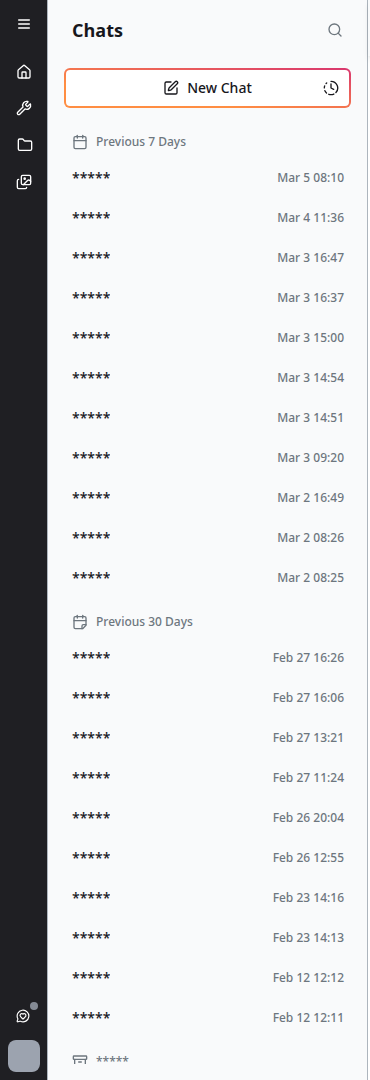
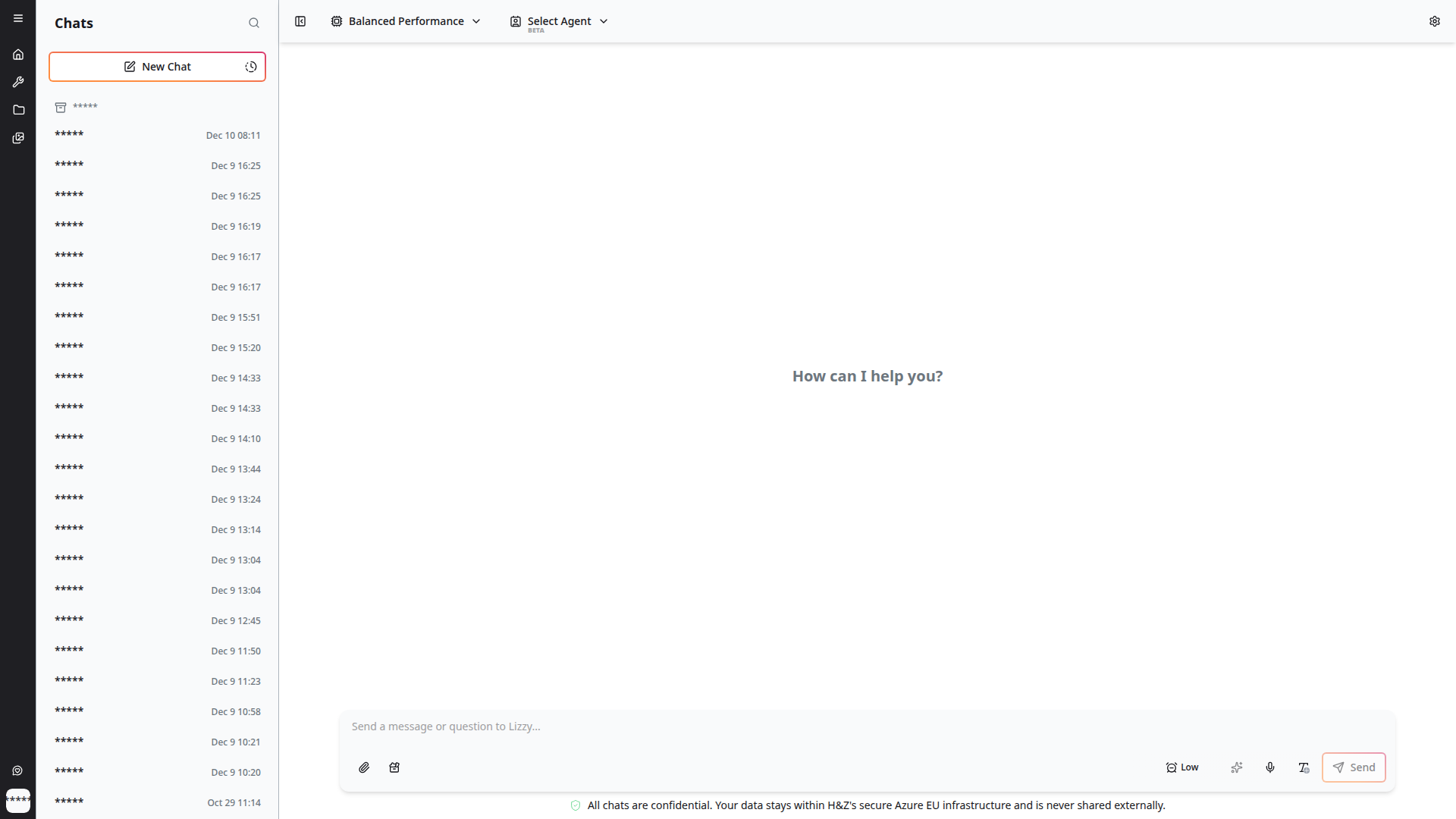
The left sidebar contains your conversation history:
- Chats header with a search icon to find past conversations
- New Chat button — Start a fresh conversation
- Temporary chat toggle (clock icon) — Start a chat that won't be saved to history
- Conversations grouped by time period: "Previous 7 Days", "Previous 30 Days", etc.
- Load More button to browse older conversations
Top Bar
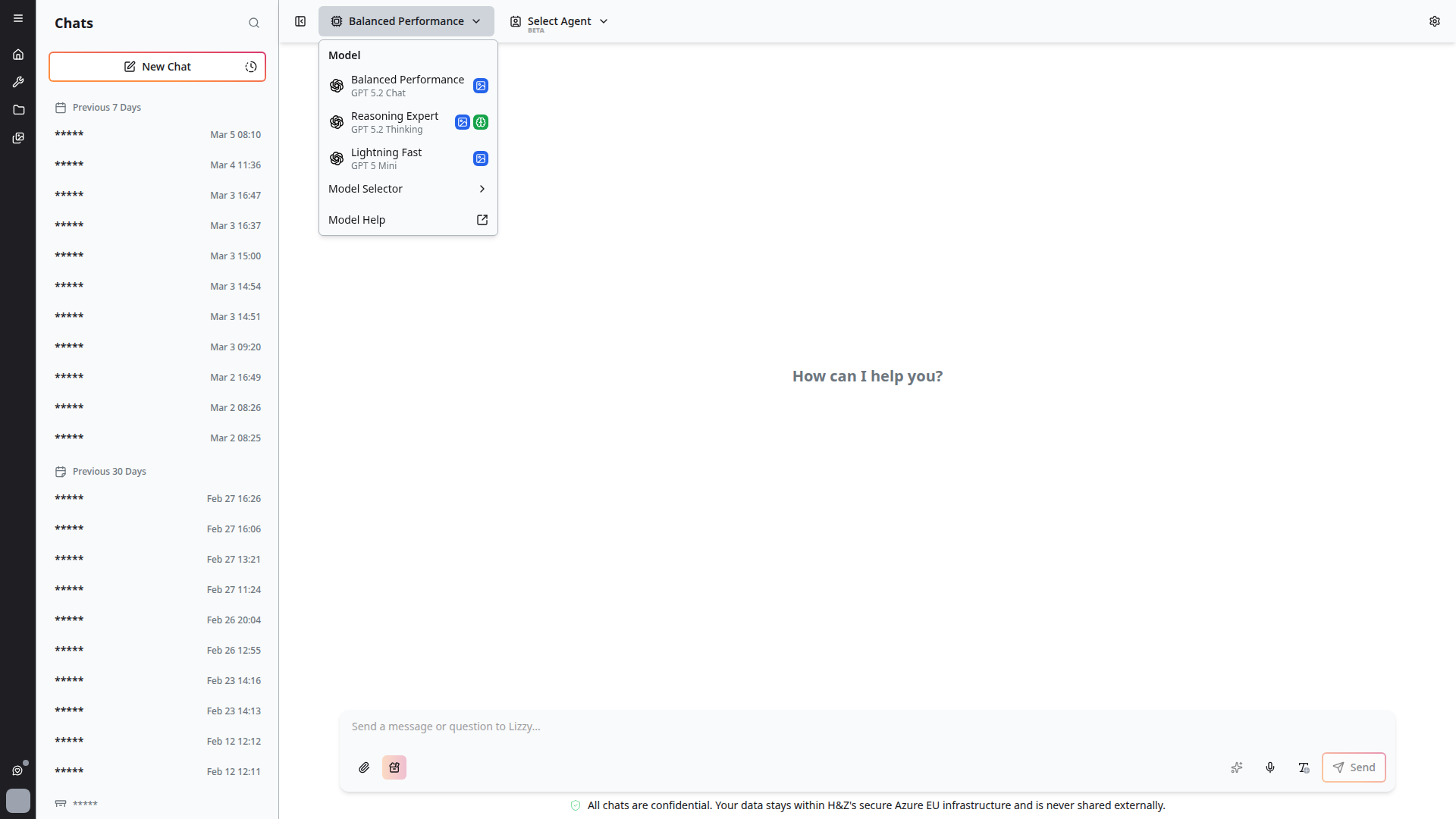
- Layout toggle — Switch between different chat layouts
- Model selector — Choose your AI model (e.g., "Balanced Performance")
- Agent selector — Pick a specialized agent (marked BETA)
- Settings gear (⚙️) — Opens the chat settings sidebar on the right
Chat Settings Sidebar
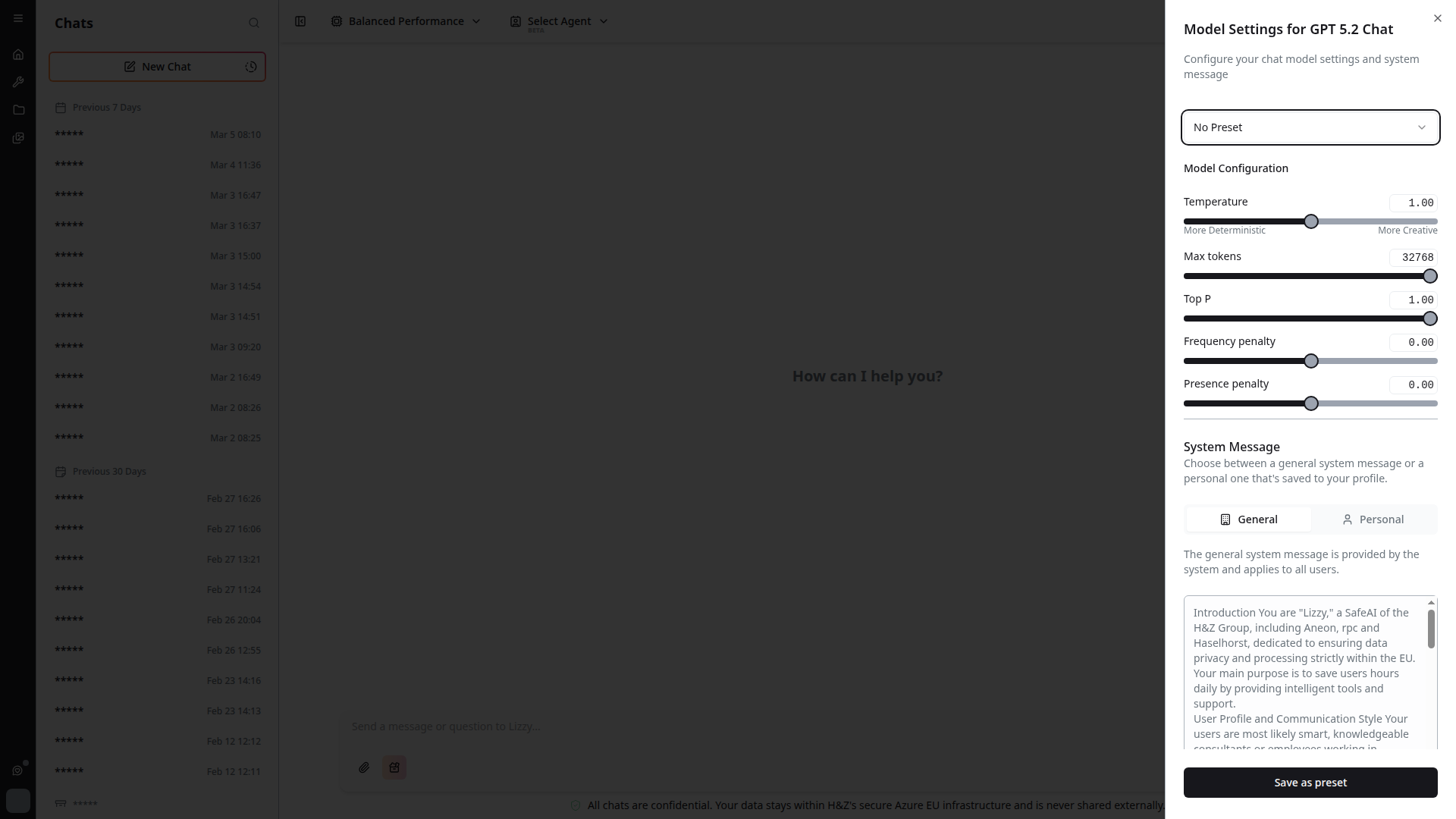
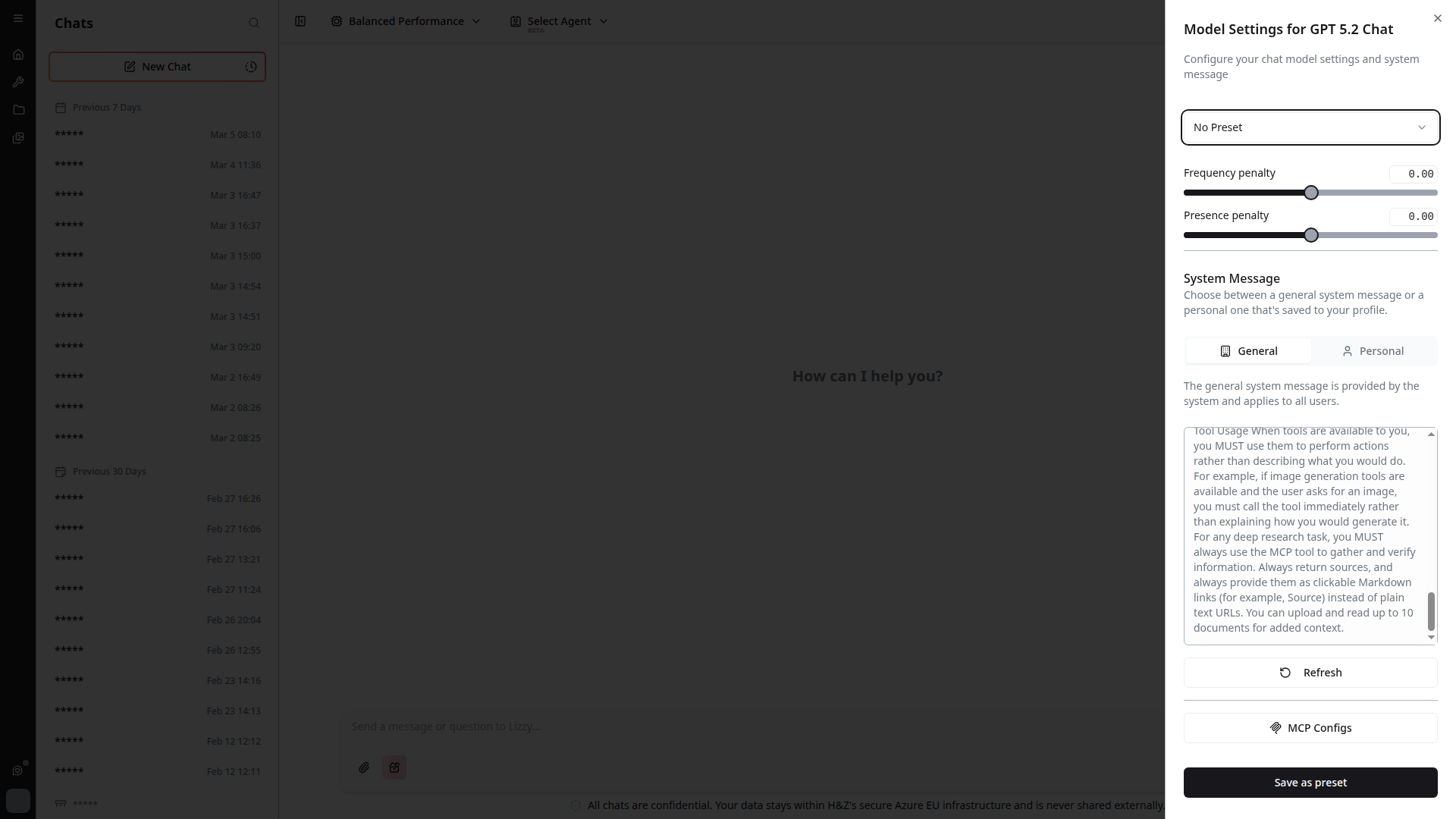
Click the settings gear icon in the top-right corner to open the chat settings sidebar. Here you can configure:
- System prompt — Customize the AI's behavior for the current conversation
- Send on Enter — Toggle whether Enter sends a message or adds a new line
- MCP configuration — Scroll down to find the MCP settings button to configure external tool integrations (see MCP Integration)
Sending Messages
Type your message in the input area at the bottom and press Enter (configurable in settings) or click the Send button.
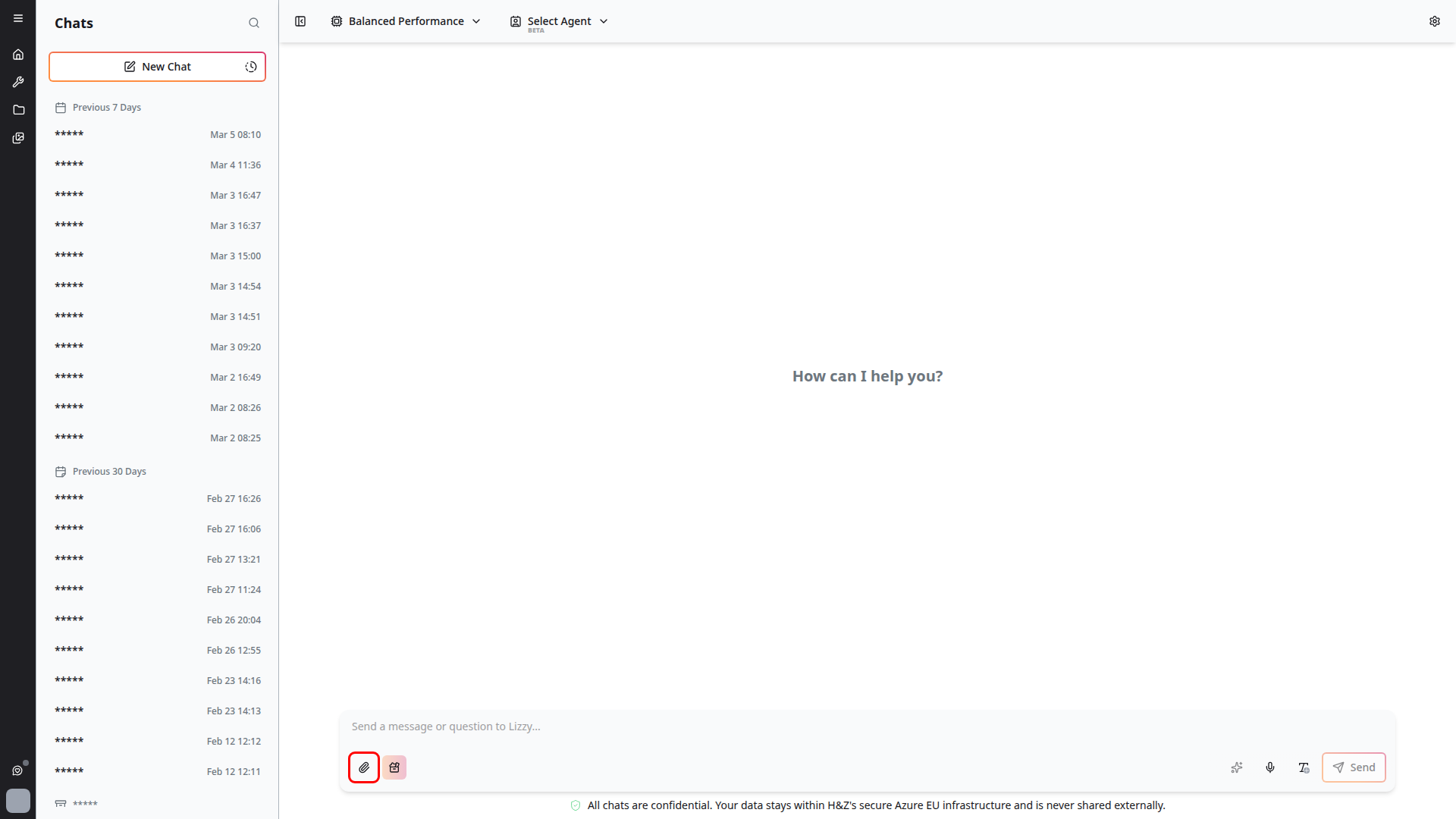
The toolbar provides additional actions:
- Attachment (paperclip) — Upload files for analysis
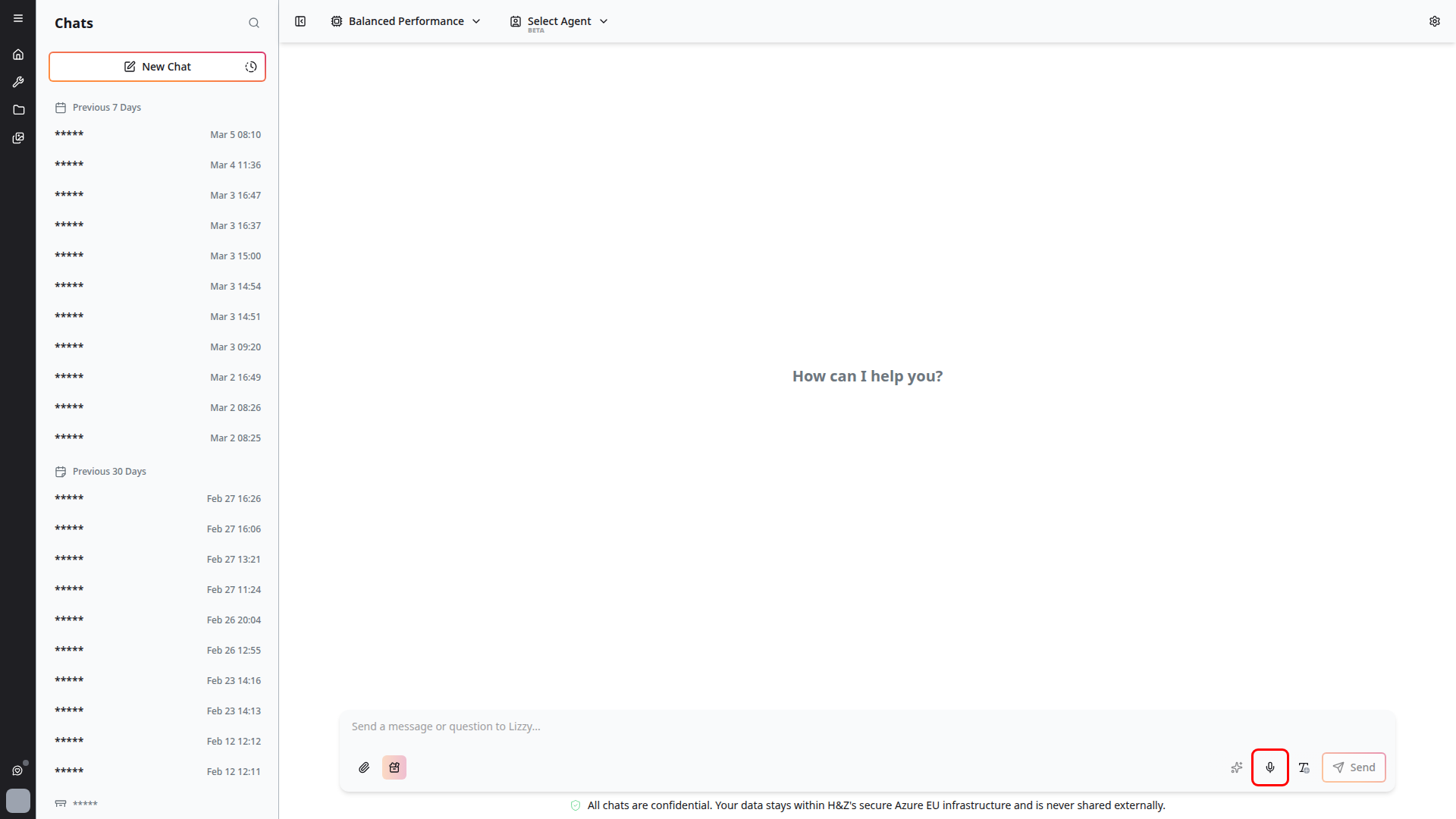
- Voice input (microphone) — Speak to 4C:me (see Voice Interaction)
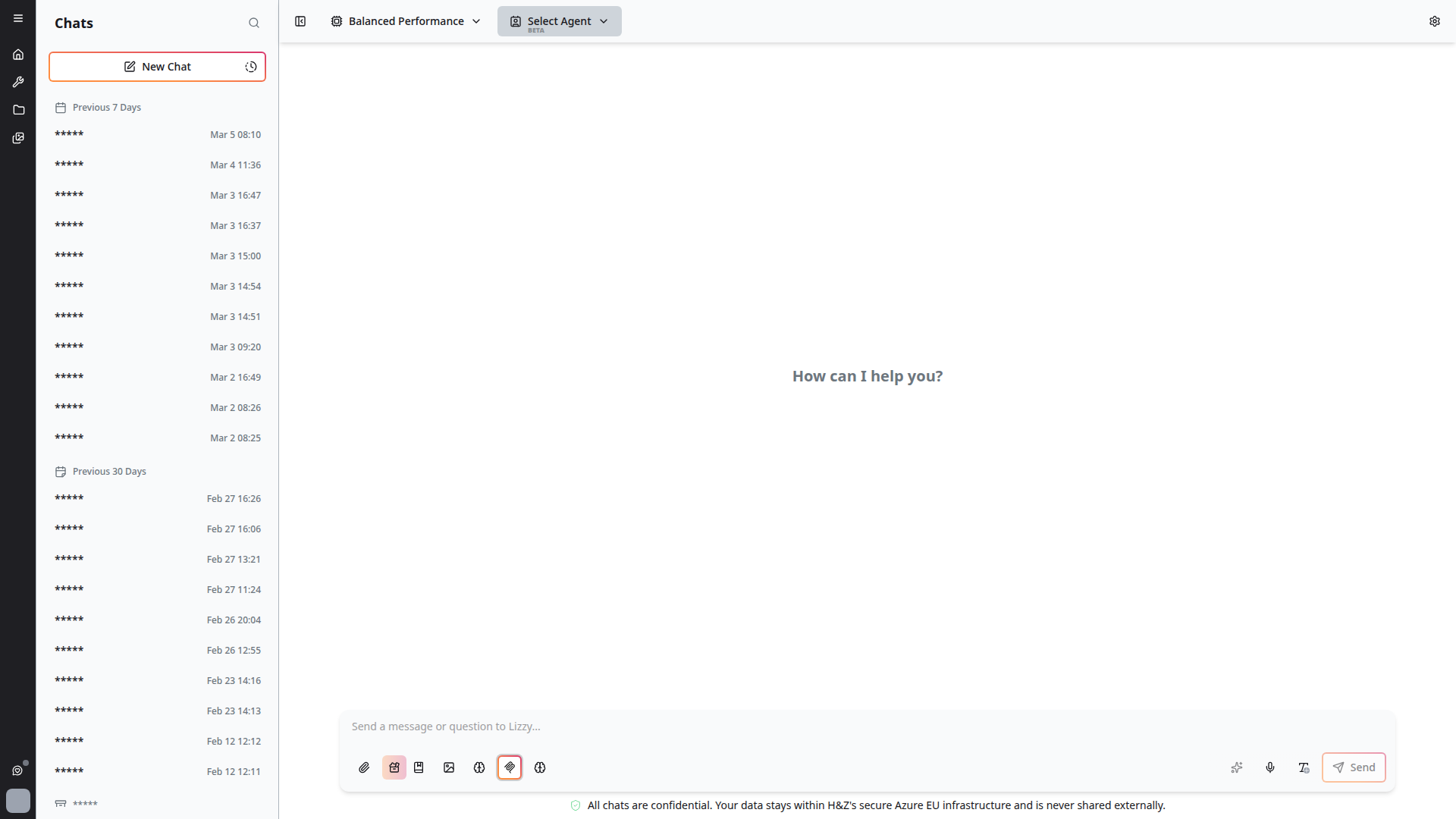
- Toolbar expansion (colored button) — Click to reveal additional options like image generation, prompt templates, deep research, and MCP toggles
- Messages support rich text formatting
AI Models
Switch between AI models using the model selector in the top bar. The platform provides access to multiple models suited for different tasks — from general-purpose conversations to complex reasoning. Available models are regularly updated.
The platform remembers your last-used model, agent, and reasoning effort per conversation, so you can seamlessly continue where you left off.
Reasoning Effort
For models that support adjustable reasoning, a reasoning effort control sits next to the model selector in the chat toolbar. Cycle between Low, Medium, and High to trade off response depth and latency:
- Low — Fastest, suitable for direct lookups and short answers
- Medium — Balanced default for most tasks
- High — Slower but produces deeper analysis and longer chains of reasoning
The button is hidden for models that don't expose adjustable reasoning, and is disabled while a response is streaming. Set a default for new chats in your User Settings.
Message Navigation
Long conversations show a compact message navigator on the right side of the chat window:
- Up and down arrows jump to the first or last message
- Dots represent individual user messages in the thread
- The active dot highlights the message closest to the top of the viewport
- Hover a dot to preview the prompt, then click it to jump directly to that point in the conversation
This navigator is separate from unread indicators. It is intended for quickly moving around long conversations after they have loaded.
Chat Tables
Responses containing tabular data are rendered as clean, formatted tables for easy reading.
Confidentiality
Every chat displays a confidentiality notice at the bottom:
All chats are confidential. Your data stays within 4C's secure Azure EU infrastructure and is never shared externally.
Message Types
4C:me supports text messages with rich formatting and code blocks, image messages (paste, upload, and download — see Image Generation), and file attachments for AI analysis. In addition to common documents and spreadsheets, chat uploads now support email and calendar files such as .eml, .msg, and .ics.
Conversation Management
Unread Indicators and Auto-Scroll
When you have multiple ongoing conversations, the sidebar shows unread message indicators on conversations that received new content while you were elsewhere. Opening a conversation auto-scrolls to the first unread message so you don't have to scroll back to catch up.
Floating scroll buttons in the message view let you jump to the bottom or up to unread regions when long conversations get past the viewport.
Background Chats and Task Recovery
Conversations continue processing in the background. If you navigate away — or even refresh the page — the in-flight response keeps running and is picked back up when you return:
- A background task indicator shows while a response is processing
- Stop background task ends an in-flight response if you no longer want it
- If your connection drops mid-stream, the platform reconnects and continues from where it left off
This is also the foundation for scheduled tasks and background deep research — see Task Scheduler and Deep Research.
Creating Conversations
- Each new chat creates a new conversation in your history
- Conversations are automatically saved (unless using temporary chats)
Branching Conversations
Use Branch from here on an assistant response to create a new conversation that starts from that point in the original thread. Branching is useful when you want to try a different direction, ask a follow-up with different assumptions, or compare alternative outputs without changing the original conversation.
Branched conversations include a Branched from marker with a link back to the source conversation. If the source conversation is still available, clicking the marker opens it directly.
Temporary Chats
For privacy-sensitive discussions, you can start a temporary chat:
- Temporary chats are not saved to your history
- They are discarded when you leave the conversation
- Useful for one-off queries or sensitive topics
Per-Conversation Settings
Each conversation remembers:
- The last-used AI model
- The last-used agent
- Your position in the conversation
Bulk Management
You can manage multiple conversations at once:
- Select multiple conversations from the sidebar
- Perform bulk actions like deletion
Exporting Conversations
Conversations can be exported in multiple formats:
- PDF export — Export an entire conversation as a PDF document
- Print — Print chat messages directly from the browser
Agents
4C:me supports configurable AI agents that customize the chatbot's behavior. Each agent has its own system prompt, files, and depth controls. See Agents for details.
Prompt Templates
Save time with reusable prompt templates — create personal templates, use system-provided ones, and organize them with categories. See Templates & Prompts for details.
Advanced Features
Deep Research
For complex research tasks, use the deep research workflow:
- Step-by-step guided research process
- Single-step or multi-step execution modes
- Workflow state indicators show progress
See Deep Research for details.
Code Execution Results
When a model or connected tool runs code, 4C:me shows a Running code or View code run panel inside the assistant response. Expand the panel to inspect:
- Execution status, language, duration, and run ID
- The code that was executed
- Structured results, stdout, stderr, and workbook summaries when available
- Generated artifacts or files that can be downloaded
The panel helps you verify how an answer was produced and retrieve any files created during execution.
Mermaid Diagrams
Create visual diagrams directly in chat:
- Generate flowcharts, mind maps, sequence diagrams, and more
- Edit diagrams with the integrated Mermaid editor
- Export and share diagrams
See Mermaid Diagrams for details.
MCP Integration
The platform supports the Model Context Protocol (MCP):
- Tool call indicators appear when MCP tools are invoked
- Extended context from external data sources
- Improved streaming with MCP-enabled conversations
See MCP Integration for details.
Voice Interaction
Talk to 4C:me using your voice:
- Click the microphone icon to start voice input
- 4C:me processes your speech and responds
See Voice Interaction for details.
Image Generation
Generate and edit images within conversations:
- Request image generation through natural language
- Edit generated images with follow-up prompts
- Download generated images directly from chat
See Image Generation for details.
Stop Generation
If a response is taking too long or going in the wrong direction:
- Click the Stop button to halt response generation mid-stream
- You can then rephrase your request or switch models
Error Handling
The platform includes improved error handling:
- Clear error messages when something goes wrong
- Graceful recovery from message loading errors
- Automatic retry for transient failures
Mobile Support
The chat interface is responsive and optimized for mobile devices:
- Adapted layout for smaller screens
- Touch-friendly controls
- Full functionality on mobile browsers
Feedback
Within 4C:me, you can participate in feedback conversations:
- Per-user new message indicators for feedback threads
- CSV export for feedback conversations with filtering
- Image attachments supported in feedback chats
See Feedback for details.