User Settings
All your preferences live on a single Settings page at 4cme.4cgroup.net/settings. The page is organized into tabs grouped under Chat, Agents, and System. Which tabs you see depends on your permissions — administrators see additional system-wide settings.
Chat
Language
Choose the interface language used across the platform:
- English
- German
The language change applies immediately and is saved to your user profile so the same preference is restored in future sessions.
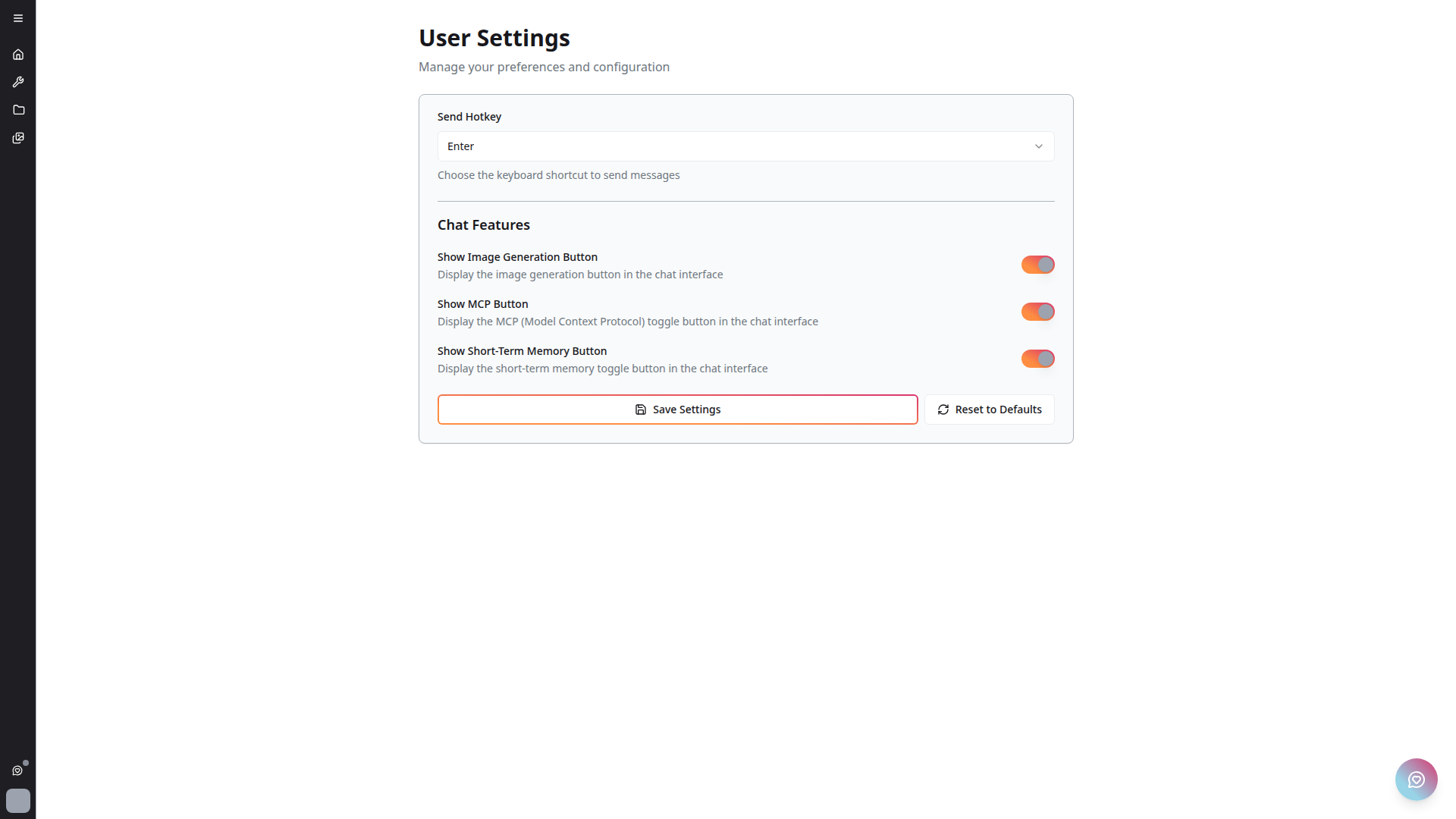
Send Hotkey
Choose the keyboard shortcut for sending messages:
- Enter (default) — Press Enter to send
- Alternative shortcuts available via the selector
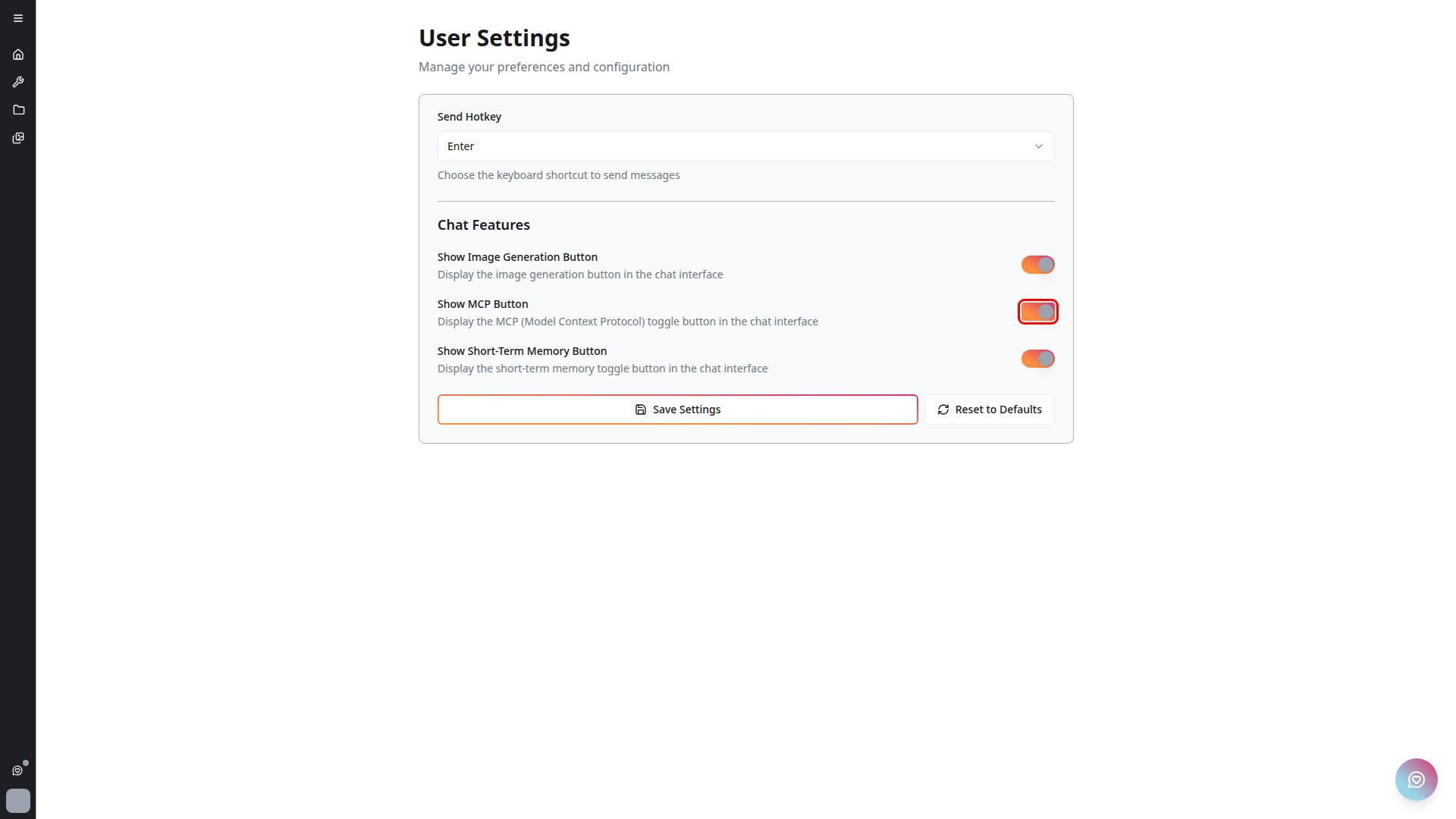
Chat Features
Toggle visibility of chat interface buttons:
- Show Image Generation Button — Display or hide the image generation button
- Show MCP Button — Display or hide the Model Context Protocol button
Reasoning Effort
For models that support adjustable reasoning, set a default reasoning effort (e.g. Low / Medium / High). The chat toolbar shows the same control per conversation — see 4C:me Overview.
Personal Prompt
The Personal Prompt tab lets you set a personal system prompt that prepends to every new conversation. This is your customization layer on top of (or in place of) the global system prompt.
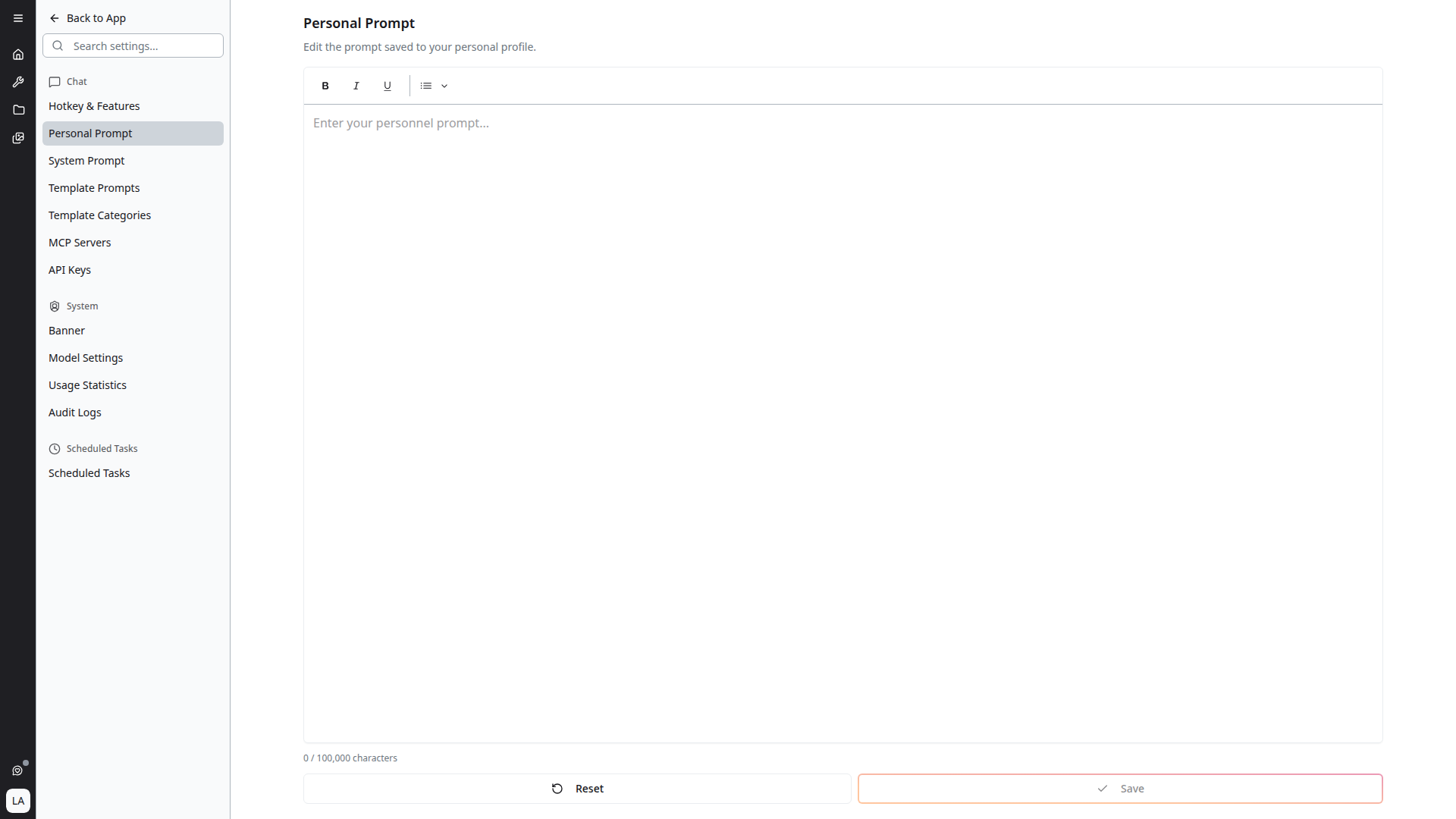
The page header reads "Edit the prompt saved to your personal profile." Below it is a rich-text editor with Bold, Italic, Underline, and List controls.
- The editor supports rich text and is converted to Markdown on save
- A character count is shown at the bottom:
N / 100,000 characters - The editor blocks saving once you exceed the 100,000-character limit
- Reset clears your personal prompt and falls back to the global system prompt
- Save persists the prompt to your profile
This tab only appears for users in a group with the system_prompt.personal permission.
API Keys
Generate API keys to access the platform programmatically. Each key has:
- A name for your reference
- A set of scoped permissions (a subset of your own permissions)
- An expiry (7 to 365 days)
- A
sk_liveprefixed secret shown once at creation — copy and store it securely
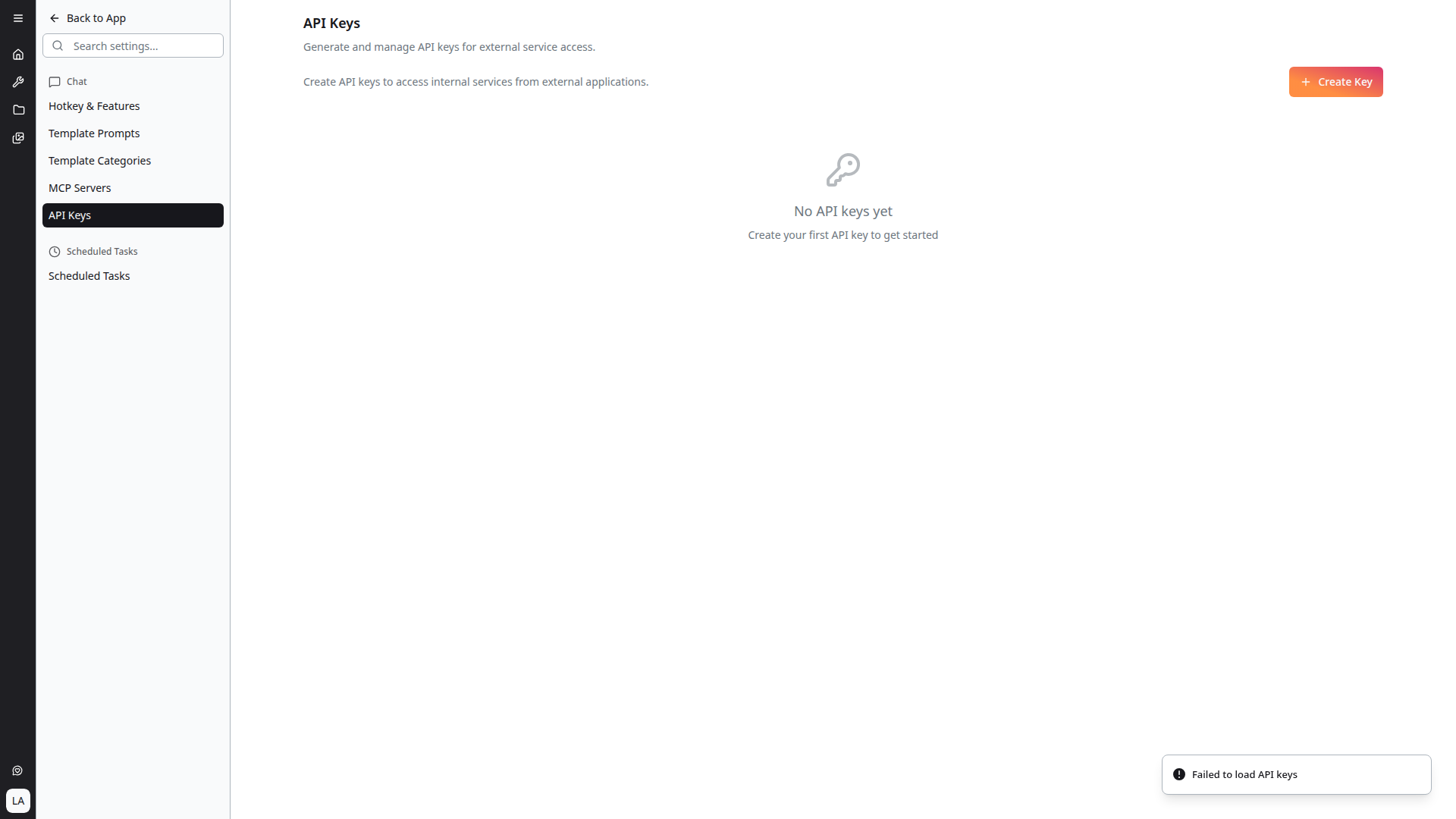
Revoke keys you no longer need from the same page.
Agents
The Agents tab is where you configure and manage agents. See Agents for the full workflow.
System Prompt (Admin)
Admins with the system_settings.manage permission see a System Prompt tab under Chat that edits the global system prompt applied to all users (unless they override with a Personal Prompt).
System (Admin)
The System sidebar section appears for users with the right permissions. It includes:
- Banner — Manage announcement banners shown to users. See Banners.
- Model Settings — Manage AI model deployments. See LLM Management. (
system_settings.manage) - Usage Statistics — Sentry-backed activity dashboard. See Usage Statistics. (
system_settings.manage) - Audit Logs — Change history across the platform. See Audit Logging.
- User Management — User directory and account admin. See User Management. (
users.read,users.create) - User Groups — Manage groups and default permissions. See Permissions & Defaults. (
groups.read,groups.create)
Language (Admin)
Administrators with the system_settings.manage permission see a Language section with a Translations tab. Use it to adjust global UI translation text without a code deployment.
The Translations page provides:
- Search across translation keys, English source text, German default text, and existing overrides
- Category accordions grouped by translation key prefix
- Editable German override fields for each translatable UI string
- The English source text under each field for context
- Per-key reset and Reset All actions
- Autosave after changes, with empty values falling back to the default translation
Scheduled Tasks
The Scheduled Tasks sidebar section is where you configure recurring automated tasks. See Task Scheduler.
Actions
- Save Settings — Persists changes for the current tab
- Reset to Defaults — Restores the current tab to default values