Security & Privacy
The 4C:me Safe AI Platform is designed with security and data privacy as core principles.
Authentication
The platform uses Microsoft Azure Active Directory for secure authentication:
- Single Sign-On (SSO) through your organization's Microsoft account
- Multi-factor authentication (MFA) support through your organization's Azure AD policies
- Token-based session management using MSAL (Microsoft Authentication Library)
- Azure Key Vault integration for secrets management
Sign In Flow
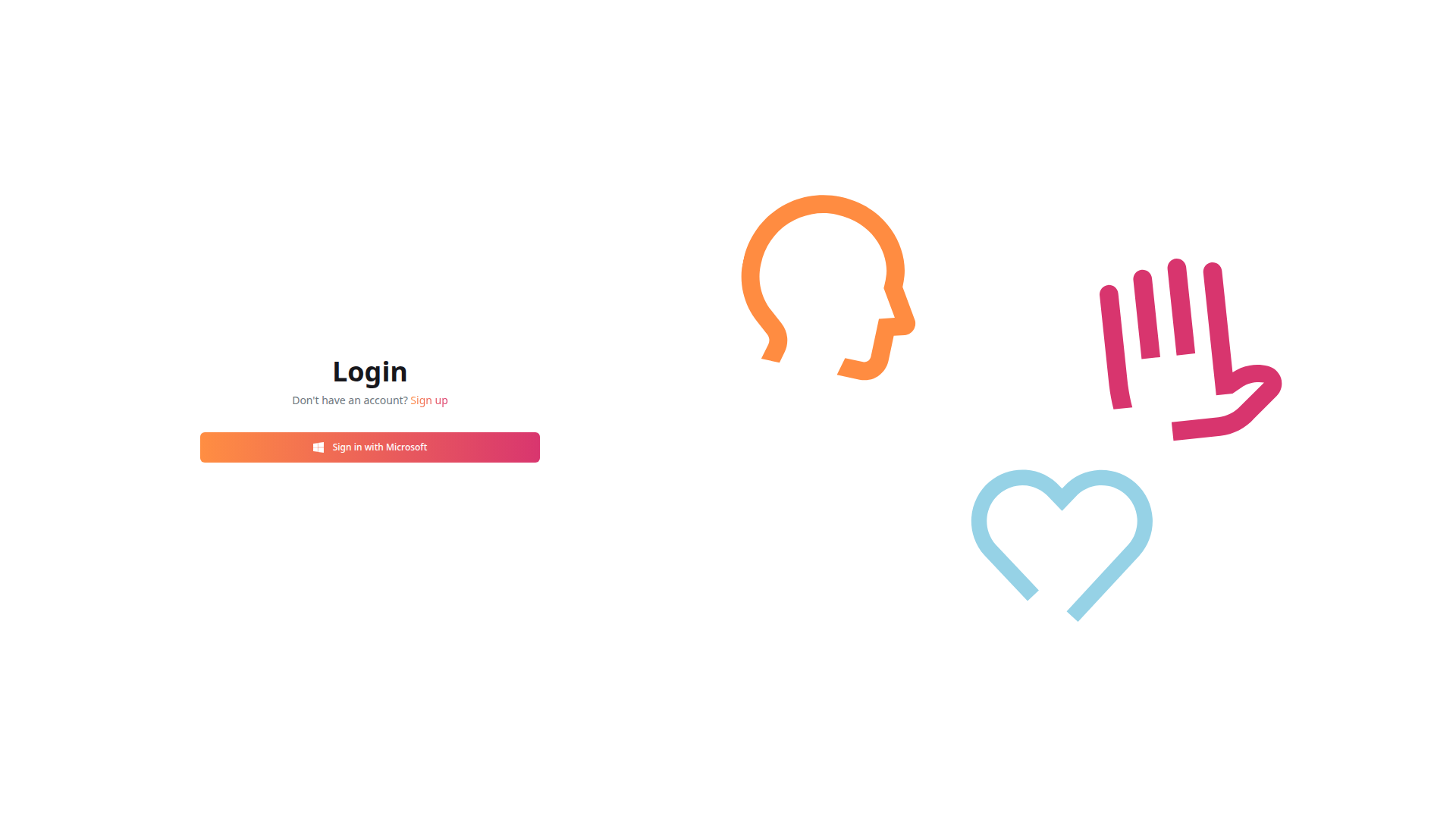
The platform supports Microsoft Single Sign-On (SSO):
- Navigate to 4cme.4cgroup.net
- Click Log In to reach the login page
- Click Sign in with Microsoft
- You are redirected to Microsoft's login page
- Enter your organization email and password
- Complete any MFA prompts required by your organization
- Optionally select "Stay signed in" for a persistent session
- You are redirected back to the platform
Sign Up Flow
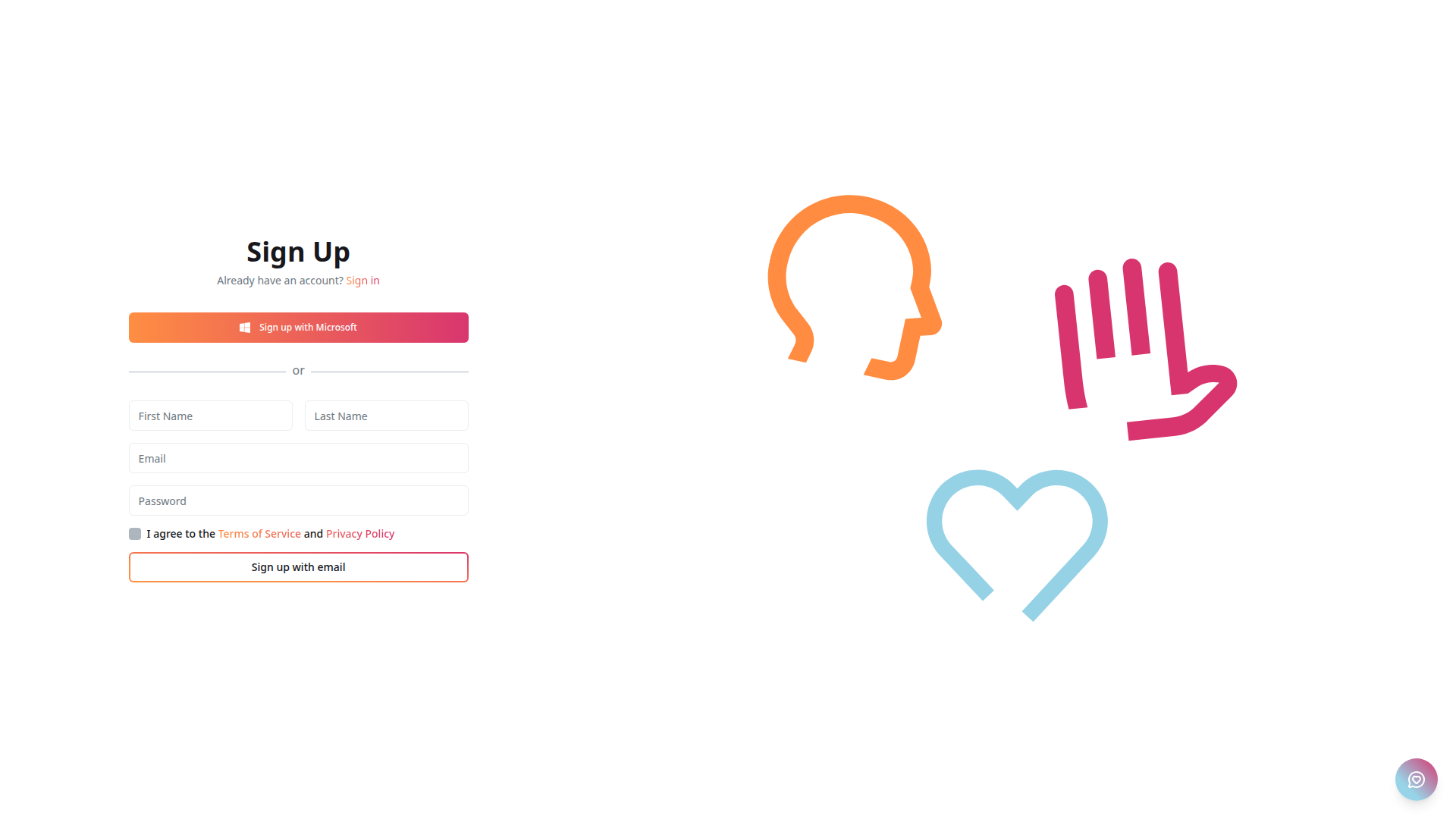
New users can create an account in two ways:
Microsoft Sign-Up
- Click Sign up on the login page
- Click Sign up with Microsoft
- Complete the Microsoft authentication flow
- Your account is created with your Microsoft profile details
Email Sign-Up
- Click Sign up on the login page
- Fill in the registration form:
- First Name
- Last Name
- Email address
- Password
- Check "I agree to the Terms of Service and Privacy Policy"
- Click Sign up with email
Email sign-up may require administrator approval before full platform access is granted.
Session Management
- Persistent sessions — Select "Stay signed in" during the Microsoft login flow to keep your session across browser restarts
- Automatic token refresh — Access tokens are refreshed in the background using MSAL
- Session expiry — If token refresh fails, you will be prompted to sign in again
Signing Out
To sign out of the platform, use the user menu in the top-right corner of the navigation bar and select the sign-out option.
Troubleshooting
"You don't have access to this"
If you see this error during login, it means your account does not have the required permissions. Contact your Azure AD administrator to:
- Ensure your account is in the correct user group
- Grant the necessary application permissions in Azure AD
Cannot Sign In
If you are unable to sign in:
- Verify your email address is correct
- Try resetting your Microsoft password
- Check with your IT administrator that your account has platform access
- Clear your browser cookies and try again
Data Processing Within the EU
All data processing occurs within the European Union. This means:
- Your conversations, files, and transcriptions are processed on EU-based servers
- No data is transferred outside of EU boundaries
- Full compliance with GDPR (General Data Protection Regulation)
Data Privacy
Chat Conversations
- Chat conversations are stored securely and associated with your user account
- Temporary chats option available — these conversations are not saved to history
- You can export conversations as PDF for offline records
- CSV export available for feedback conversations with filtering options
File Handling
- Uploaded files are processed securely and stored with appropriate access controls
- Transcription audio/video files are processed within the secure environment
- Files can be deleted by the user
Agent Data
- Agents can be set to private by default, limiting visibility
- User group-based permissions control access to agents and tools
- Agent file explorer includes sorting and management capabilities
Terms of Service & Privacy Policy
Links to the full legal documents are available during account registration:
- Terms of Service — Accessible from the signup page
- Privacy Policy — Accessible from the signup page
For any security concerns or data privacy requests, contact your organization's IT administrator or the H&Z digital team.