Exporting & Printing
4C:me provides several ways to export and save your work — from individual messages and full conversations to tables and images.
Exporting Chat Messages
You can export a single assistant reply as a PDF or Markdown file.
- Hover over the message you want to export
- Click the printer icon in the message toolbar
- In the dropdown, select Export Message
- Choose your format:
- PDF — opens a print dialog for saving as PDF
- Markdown (.md) — downloads the message content as a Markdown file
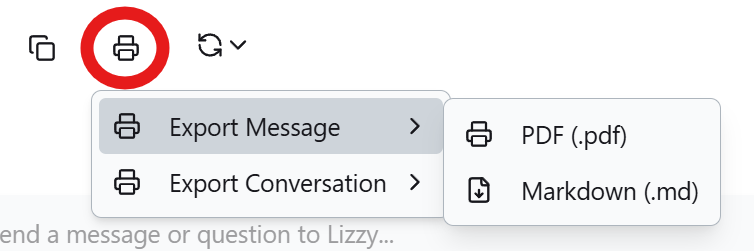
The Markdown export automatically cleans up internal formatting so you get a clean, readable file.
Exporting Conversations
To export an entire conversation with all messages:
- Hover over any assistant reply in the conversation
- Click the printer icon
- Select Export Conversation
- Choose your format:
- PDF — renders the full conversation for printing or saving as PDF
- Markdown (.md) — downloads all messages as a single Markdown file with clear separators between each exchange
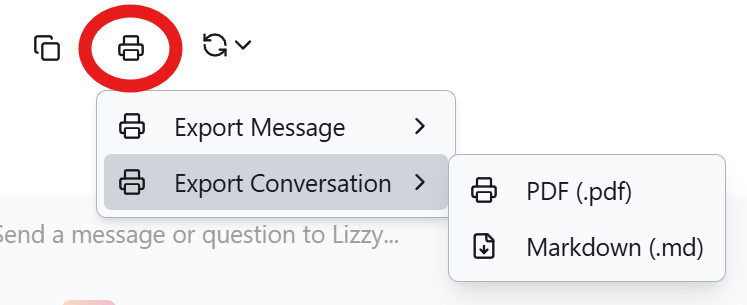
The Markdown export includes every user prompt and assistant response in the conversation, formatted with headers and dividers for easy reading.
Exporting Tables
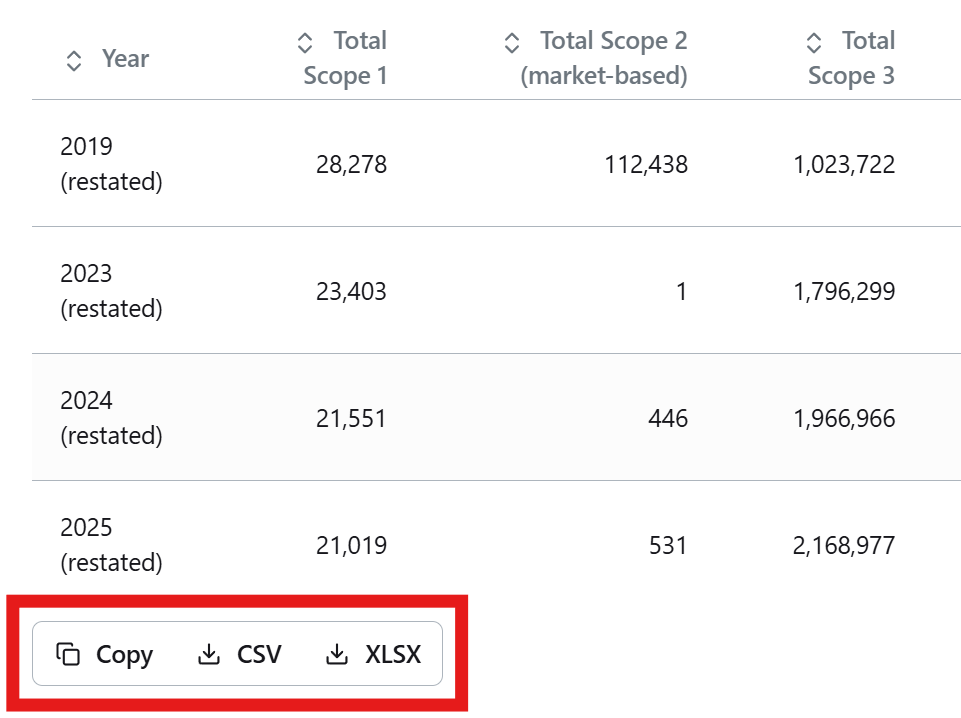
When 4C:me generates a table in a response, you can export it in multiple formats. Hover over the table to reveal the export toolbar:
| Action | Format | Description |
|---|---|---|
| Copy | TSV (clipboard) | Copies the table as tab-separated values — paste directly into Excel or Google Sheets |
| CSV | .csv file | Downloads a CSV file with semicolon delimiters, optimized for Excel |
| XLSX | .xlsx file | Downloads a formatted Excel file with auto-fitted columns, filters, and table styling |
The XLSX export automatically detects numeric columns and applies appropriate number formatting.
Downloading Images
Inline Images
When an image appears in a chat reply, hover over it to reveal a download button. Click it to save the image to your device.
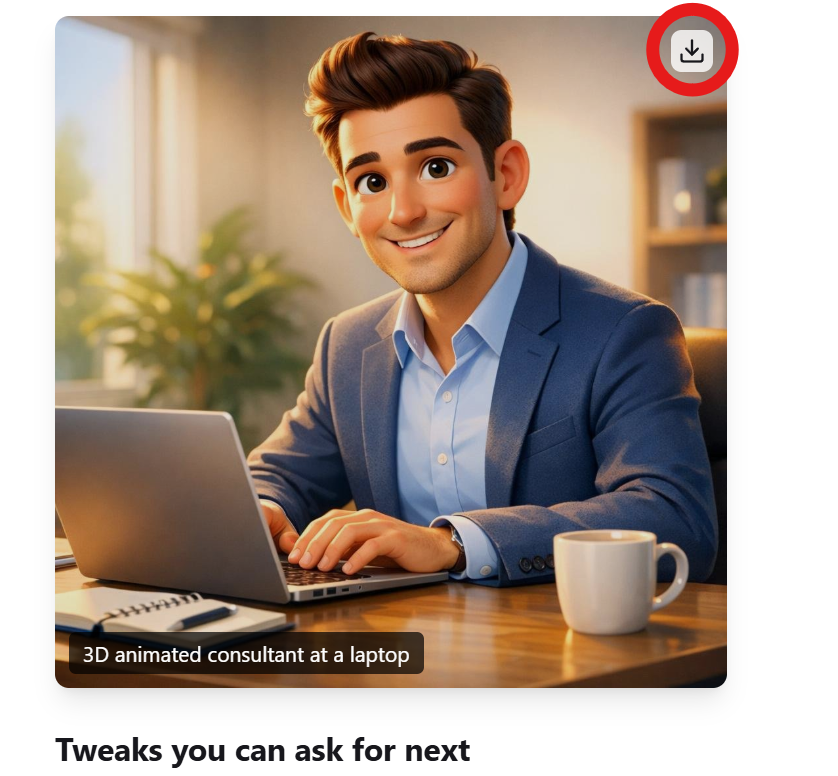
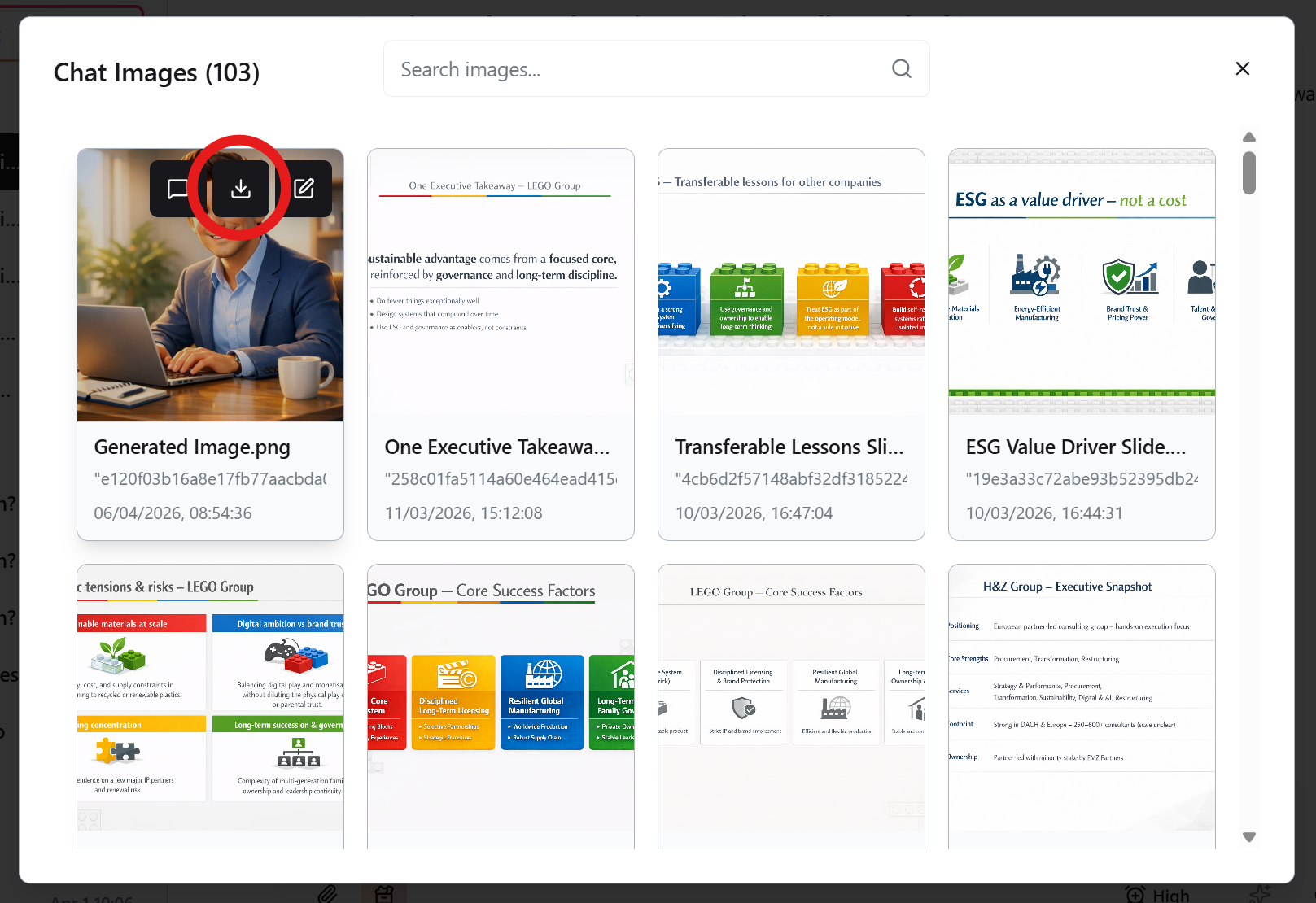
Image Gallery
You can also browse and download all images from your conversations:
- Open the Image Gallery from the sidebar
- Browse through your generated and uploaded images
- Click the download button on any image to save it
Downloading Diagrams
Mermaid diagrams rendered in the chat can be downloaded in two formats:
- Hover over a diagram to reveal the action buttons
- Click the download button
- Choose your format:
- PNG — raster image, good for documents and presentations
- SVG — vector format, ideal for scaling without quality loss
You can also expand a diagram to fullscreen view and download it from there using the zoom controls for the best output.
For presentations, use the SVG format to keep diagrams sharp at any size.