4C:me Transcription
4C:me Transcription is the platform's secure audio-to-text transcription tool. It enables you to transcribe and edit client interviews, meetings, and media files with speaker identification — all within a secure EU-hosted environment.
Overview
4C:me Transcription allows you to:
- Transcribe audio and video files into text
- Identify and assign names to speakers
- Edit transcriptions after processing
- Integrate transcriptions with projects
- Delete transcriptions when no longer needed
Tags: Secure AI Audio2Text
Getting Started
- Log in to the platform at 4cme.4cgroup.net
- Click on the Transcription tool card on the landing page
- You will see the transcription interface with your previous transcriptions
Interface Layout
The transcription interface consists of two main sections:
Previous Transcriptions
A table listing all your past transcriptions with columns:
| Column | Description |
|---|---|
| Title | Name of the transcription |
| Description | Optional description of the content |
| Created | Date the transcription was created |
| Action | View Details button for each entry |
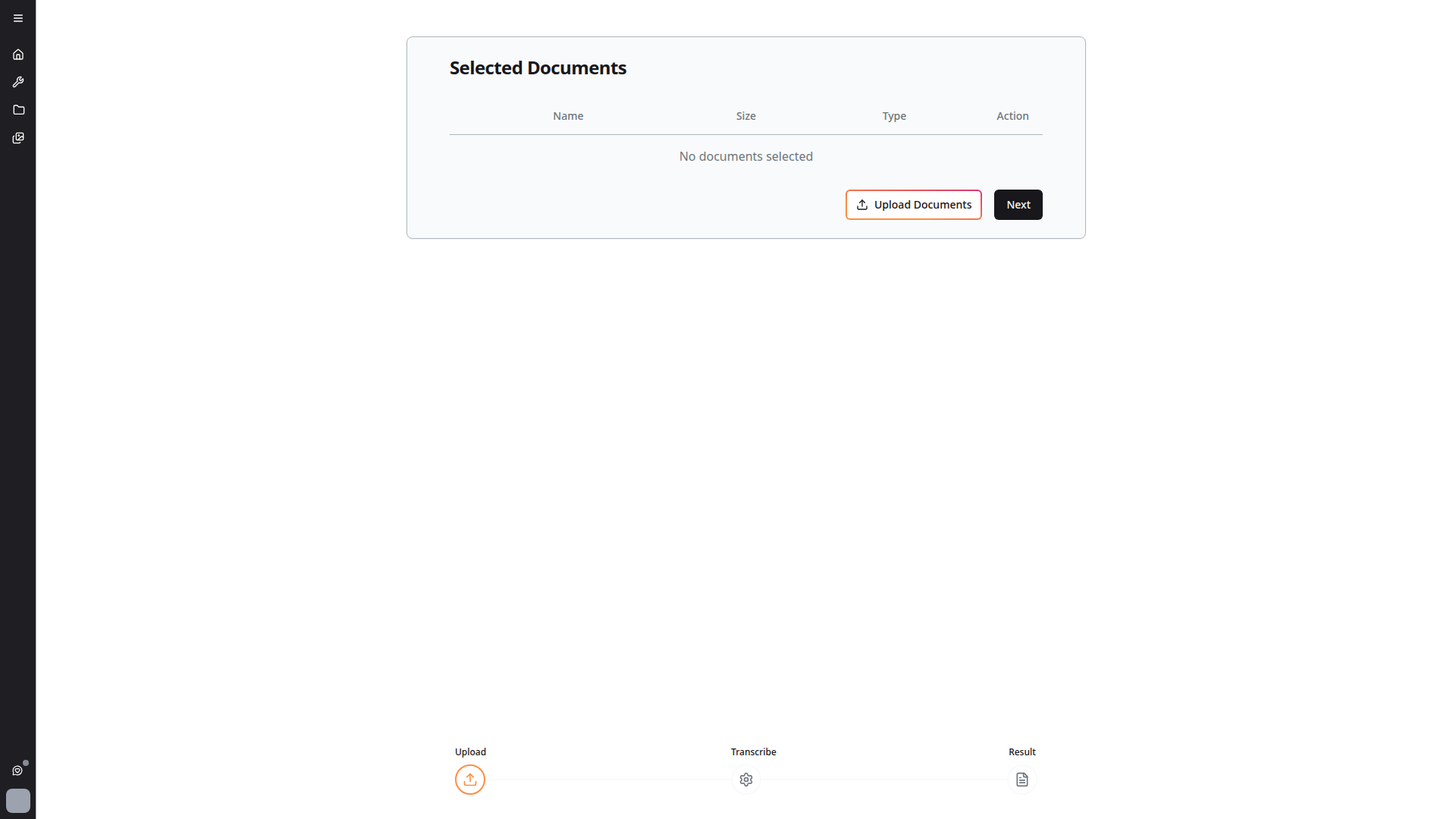
Selected Documents
Below the table, a document upload section where you select files for new transcriptions. Click Upload Documents to add files.
Supported File Types
The transcription tool supports:
- Audio — Common audio formats (MP3, WAV, M4A, etc.)
- Video — Video file types are supported in the transcription store, allowing you to extract audio from video recordings
For MP3 files uploaded in 4C:me, use the Transcription tool instead — the chat tool does not process audio files directly.
Transcription Workflow
The tool follows a clear 3-step workflow displayed at the top of the interface:
Step 1: Upload
- Click Upload Documents in the "Selected Documents" section
- Select one or more audio/video files for transcription
- Multiple files can be processed in a single batch
All files in a batch are now properly processed. Earlier versions had an issue where only one file was considered during transcription — this has been fixed.
Step 2: Transcribe
- Click Next to begin processing
- The platform processes your files securely within the EU
- Processing time depends on file length and complexity
Step 3: Result
After processing, you can:
- Review the full transcript with timestamps
- Assign speaker names — Identify who is speaking in multi-person recordings
- Edit text — Fix any transcription errors
- Trim title and description — Clean up metadata before saving
Managing Transcriptions
- Click View Details on any entry in the Previous Transcriptions table to review it
- Transcriptions can be integrated with projects for better organization
- Files in the transcription store can be sorted for easy access
- Delete transcriptions you no longer need
Export
Transcription content can be exported to chat for further analysis or processing with 4C:me.
Integration with Projects
Transcriptions integrate directly with the platform's project system:
- Associate transcriptions with specific projects
- Access project-linked transcriptions from the project view
- Manage transcription lifecycle within project context
Tips
- For best results, use clear audio recordings with minimal background noise
- Multi-speaker recordings work best when speakers take turns rather than talking over each other
- Longer recordings may take more time to process — you can continue using other tools while waiting