Your Workspace
After you sign in, the home page is a workspace rather than a static welcome screen. It opens with a greeting and a message box, surrounds that with widgets showing what you have been working on, and keeps the full tool catalogue one scroll below.
The layout is yours: you decide which widgets appear, where they sit and how tall they are, and the arrangement is saved to your account.
The Home Page
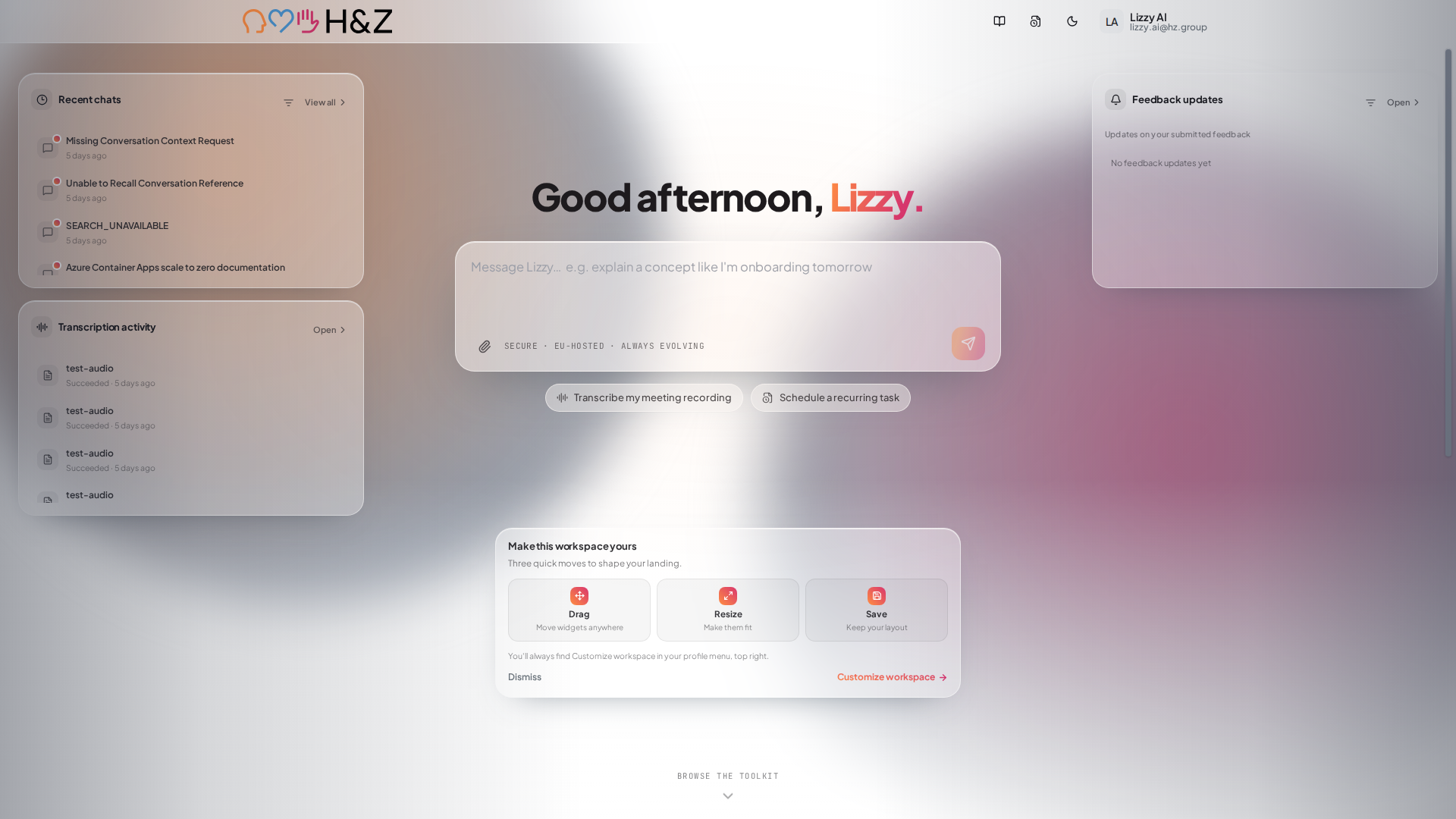
Three things share the page:
- The message box in the middle — type here and press Enter to start a chat with 4C:me, without going to 4C:me first. The paperclip attaches files, and you can also drag a file straight onto the page to begin a conversation about it.
- Widgets around it — recent chats, transcriptions, feedback and more, each linking into the tool it summarises.
- The toolkit below the fold — click Browse the toolkit (or scroll) for the full grid of tool cards. Which cards you see is set by your administrator; see Landing Page Cards.
Under the message box, two shortcuts jump straight into common tasks: Transcribe my meeting recording and Schedule a recurring task.
Widgets
| Widget | Shows |
|---|---|
| Chat composer | The message box itself — it is a widget too, so it can be moved and resized |
| Recent chats | Your latest conversations, with the option to pin one to the top |
| Transcription activity | Recent transcription jobs and their status |
| Feedback updates | Replies to feedback you have submitted |
| Projects | Your projects and how many chats each holds |
| Scheduled tasks | Upcoming and recent scheduled task runs |
| Project activity | Recent activity across the projects you can see |
Recent chats, Transcription activity and Feedback updates are shown by default. Projects, Scheduled tasks and Project activity start hidden — add them from Customize workspace below.
Some widgets carry a filter (funnel icon) that opens in a small popover: Recent chats can be narrowed to All chats, Personal chats or a single project, and Feedback updates can be filtered the same way.
Customizing the Workspace
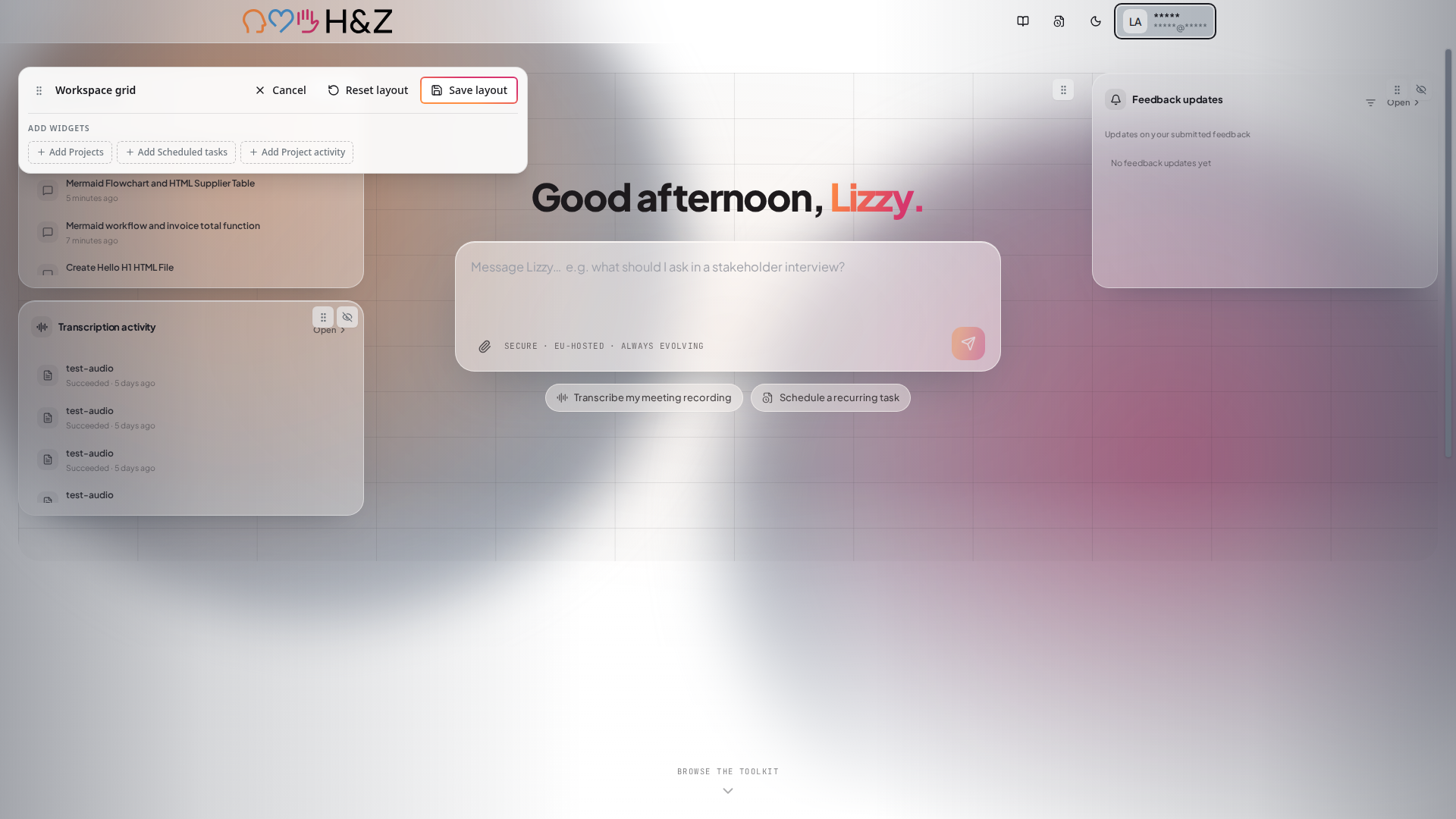
Open the profile menu (top right) and choose Customize workspace. The page switches into an editing mode: a grid appears behind the widgets, each widget picks up a drag handle and a remove button, and a Workspace grid bar appears at the top left.
In this mode you can:
- Move a widget — drag it by its handle to any free space on the grid
- Resize a widget — drag its edge; heights are Compact, Standard or Expanded
- Remove a widget — the crossed-out eye button on the widget
- Add a widget — the Add widgets row offers whatever is currently hidden, for example + Add Projects
When the arrangement looks right, click Save layout. Reset layout puts everything back to the default arrangement, and Cancel leaves without saving.
Your layout is stored against your account, not the browser, so it follows you to another machine. If you have the workspace open in two places and save in both, the second save reports "Your workspace layout was changed elsewhere" and shows the newer version — reapply your change and save again.
The first time you land on the workspace, a Make this workspace yours card explains the three moves — drag, resize, save. Dismiss hides it; the entry point stays in the profile menu.
Favourite Tools
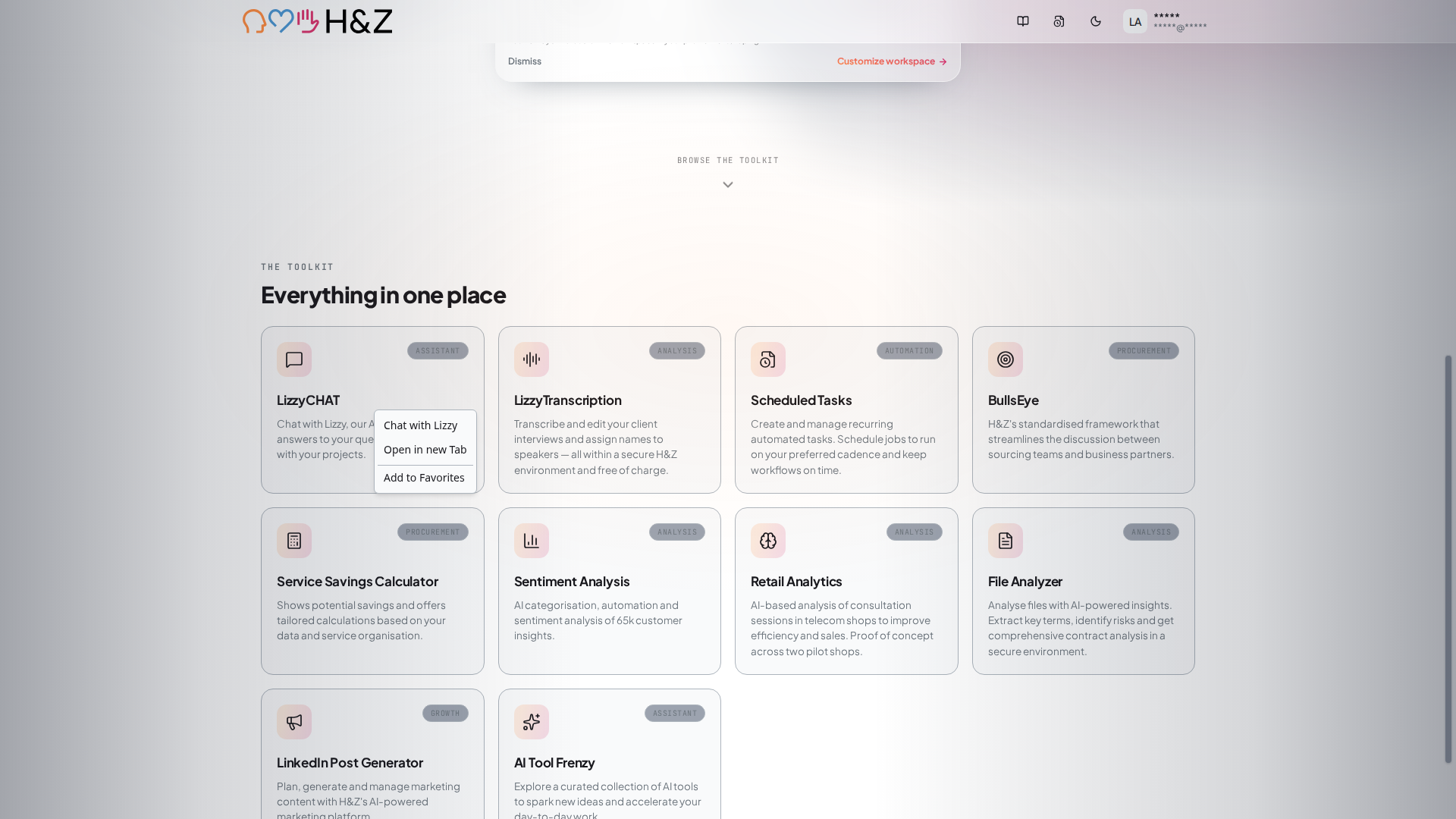
In the toolkit below, right-click any tool card for a short menu:
- Open the tool (the wording follows the card, e.g. Chat with 4C:me)
- Open in new Tab
- Add to Favorites — pins the tool to a Favorites row at the top of the toolkit
You can pin up to four favourites; past that the platform tells you the limit is reached and you need to remove one first. Alongside Favorites, a Most used row surfaces the tools you open most, so the things you reach for are always at the top of the page.
Related
- 4C:me Overview — the chat the message box opens into
- Projects — group conversations, and the widgets that track them
- Landing Page Cards — how administrators decide which tool cards exist
- User Settings — theme, language and chat preferences